Payouts
Every payout with its arrival Date, Status, order count, Net and the amount Deposited. Charged back, Refunds, Tax and Jurisdictions appear only when a payout on the page has a figure for them. Expand a row for its detail. Filter by arrival date, amount deposited, and status. This is where to find the tax collected across the orders in a single payout.Tax
Tax by Jurisdiction, with the tax name, the Rate, the number of orders, and Net tax collected. Period is the date range you filtered on, so it reads the same on every row and gives a printed report its own filing period. Expand a row for the orders behind it. Filter by date and by state. This answers where your collected sales tax is shown.Products
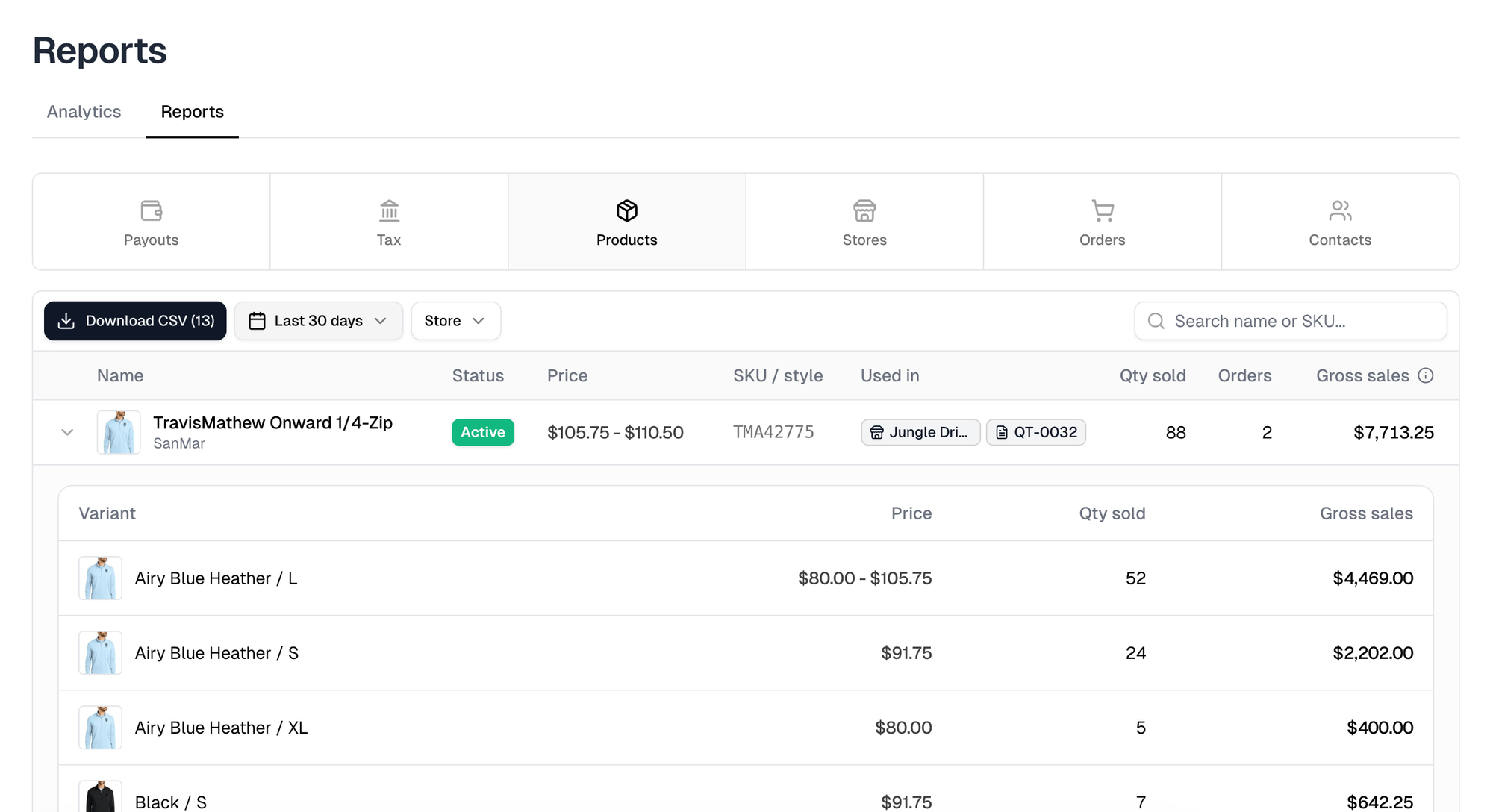
Every product sold in the date range, with its Status, Price, SKU / style and Used in, then Qty sold, Orders and Gross sales. Gross sales is item price × quantity, before order-level discounts and refunds. Expand a row to see each variant with the price it sold at, its quantity and its gross sales. A variant that sold at more than one price shows a range. Filter by date and store, or search by name or SKU. The CSV is one row per product and variant, with its store, price, quantity sold and gross sales.