Set up here before you try to buy a label in Shipping.
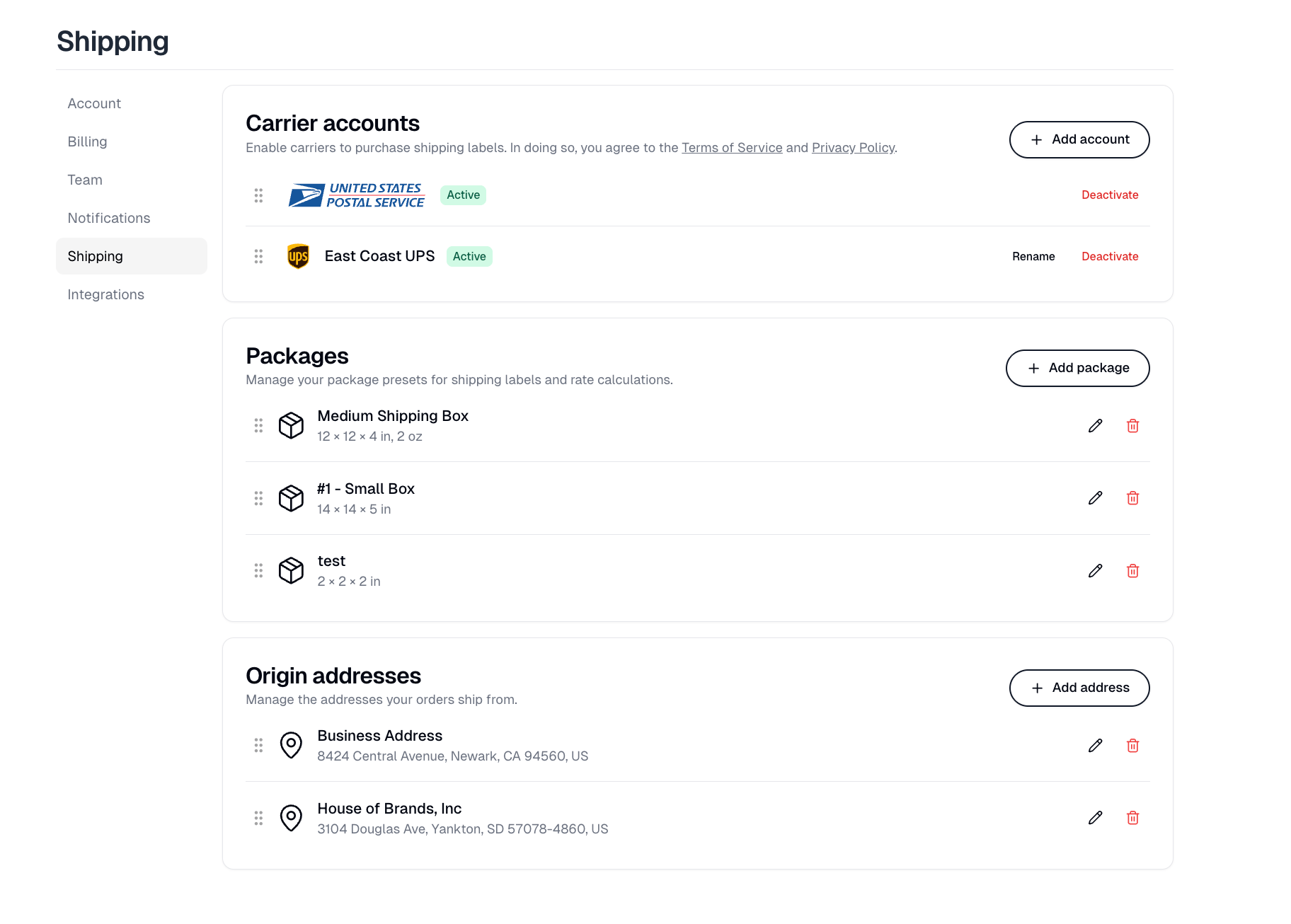
Settings › Shipping showing carrier accounts, packages and origin addresses

Carrier accounts

Add account opens Add a carrier account. Without at least one carrier, you cannot buy labels, and a store cannot offer calculated shipping rates at checkout. How you pay differs by carrier: Canada Post asks you to accept its terms before it is enabled. UPS sends you to UPS to authorize the connection. FedEx and DHL Express are listed in the picker as Coming soon and cannot be added yet. A connected UPS account can be renamed, which is worth doing when you have more than one. Deactivate stops a carrier being offered without removing it, and the row stays in the list marked Deactivated with a Reactivate button. Drag the handles to reorder carriers.

Packages

Your box presets, each with dimensions and an empty weight. They feed both the package picker when buying a label and the rate calculation at checkout, so a preset that does not match a real box will quote the wrong price. Add package creates one; the pencil edits and the trash removes.

Origin addresses

The addresses your orders ship from, added with Add address and edited or removed with the pencil and trash icons. Keep several if you ship from more than one place, and drag the handles to reorder them. Each store picks one of these in its own shipping settings, and that is the From address on the store’s labels and packing slips. A store with nothing picked defaults to the first address in this list.