
Adding a domain requires a Full or Enterprise license. Removing one does not,
so a Starter business can still remove a domain it already has.
shop.yourwebsite.com or yourwebsite.com instead of its
item.store address.
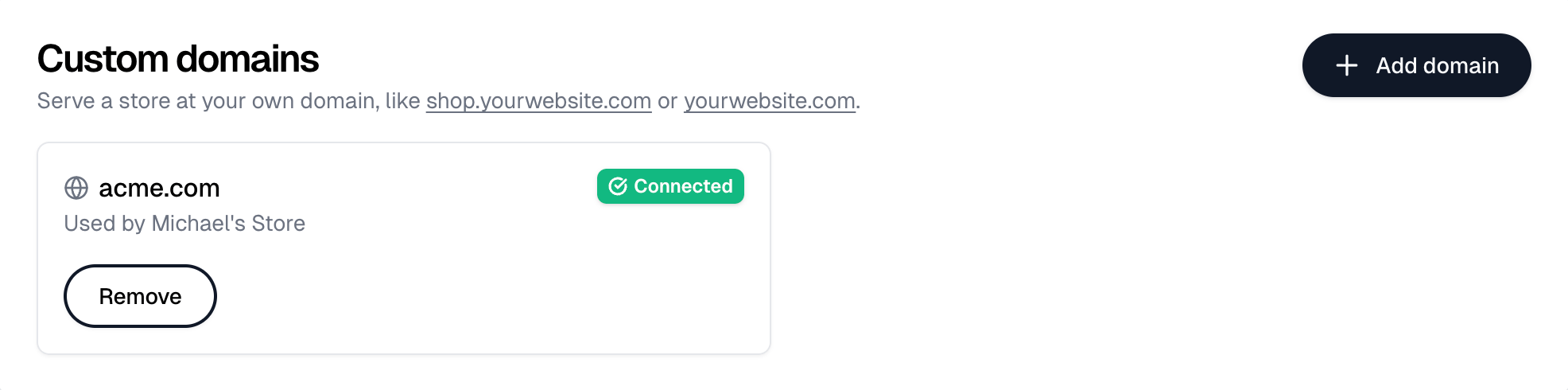
Adding a domain
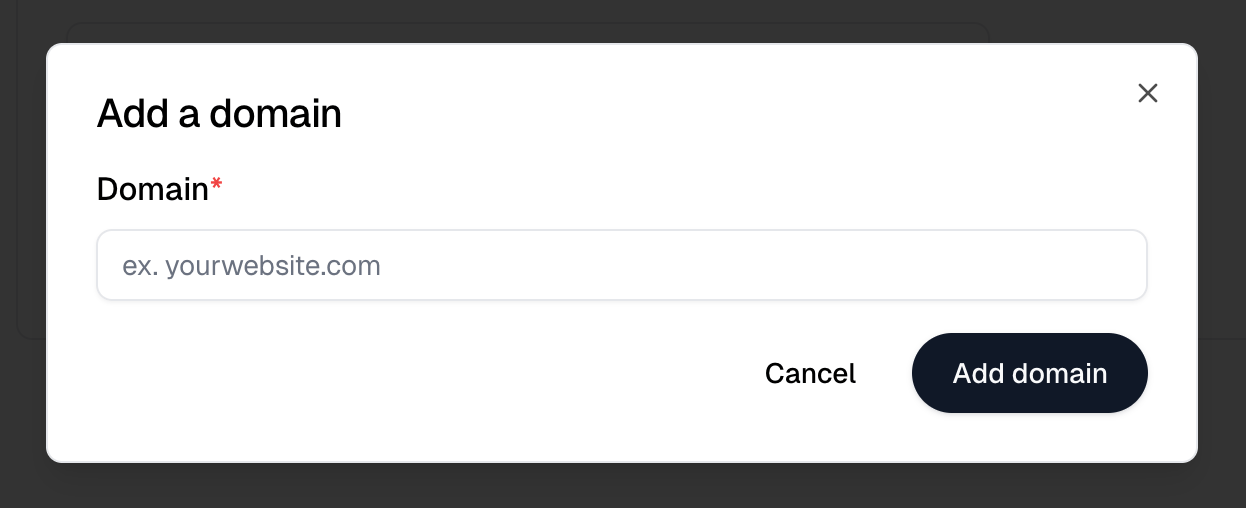
Add domain opens Add a domain. Enter the domain, for exampleyourwebsite.com, and select Add domain to save it.
yourwebsite.com needs an A record plus a
CNAME for www, and a subdomain like shop.yourwebsite.com needs one CNAME.
Add them at your domain registrar, then select Check status.
Itemstores checks a domain’s status only when you open this page or select
Check status, so changes at your registrar can take a few minutes to show
and you may need to revisit this page.
Picking which store uses it
A domain is assigned from the store itself, not from this page. Open the store’s settings and select Configure custom domain next to its Website field. See Stores. A domain can serve only one store at a time. You can pick a domain that hasn’t finished connecting; it goes live once it does. Existingitem.store links for the store keep working and redirect to the new
domain.
Removing a domain
Remove asks you to confirm, then disconnects the domain immediately. If a store was using it, the store goes back to itsitem.store address and links
using the domain stop opening it. You can add the domain again later.