
Creating one
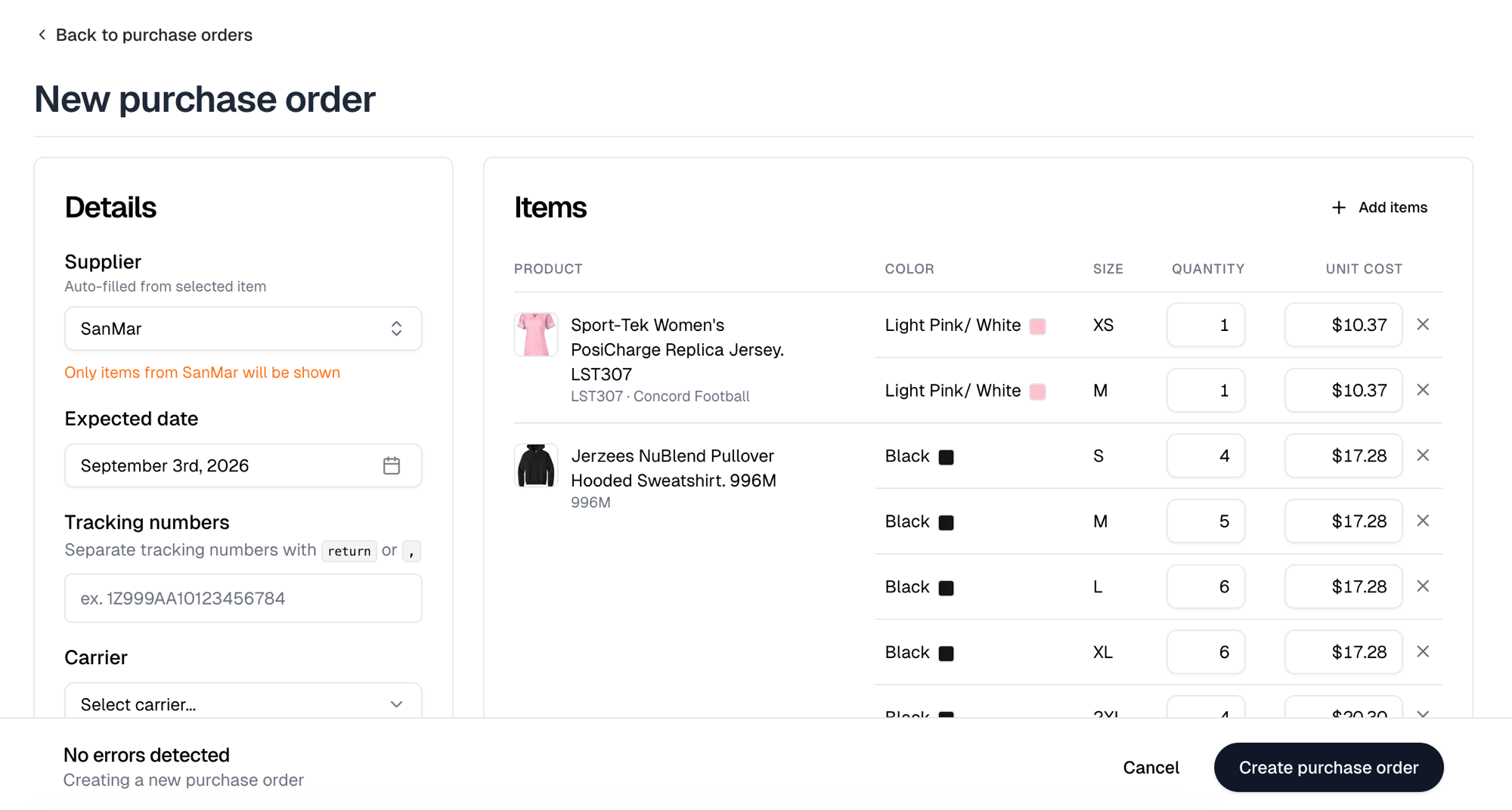
New purchase order appears on both the Inventory and Purchase orders tabs. Fill in the details, then use Add items, then Create purchase order.
Every one of those is optional. What a purchase order cannot be created without
is at least one item with a quantity. Unit cost is optional too: you place
the order on the supplier’s own site, so the cost here is for your records.
Adding items from an order fills it in from the blank’s piece price where it
can. A blank or $0.00 cost prints as a dash on the PDF, and so does the total
when every cost is blank.
Adding items
The Add items dialog has three tabs. Needs purchasing lists exactly what your open orders are short of, and you can search it by item name, order number or customer, or narrow it to one store or supplier. This is the fast path: Itemstores has already worked out what you need to buy. Items there are grouped by product with a row per size and its count. Expand a size to see which orders are waiting on it, and tick a whole product to take every size at once. The button names the total you are adding. Quantities are already netted against what is on open purchase orders, so a shortfall another purchase order covers is not offered again. From work order fills the form with everything on one work order, split by supplier, one tab each. Work orders are listed newest first, and you can search them by title, order number or customer. Selecting one replaces anything already in the form. All items is your whole product list, for stock you want on the shelf regardless of current orders. It works differently: select a product, pick its variants, set the Quantity, then Add to purchase order. A product with sizes takes a quantity per size.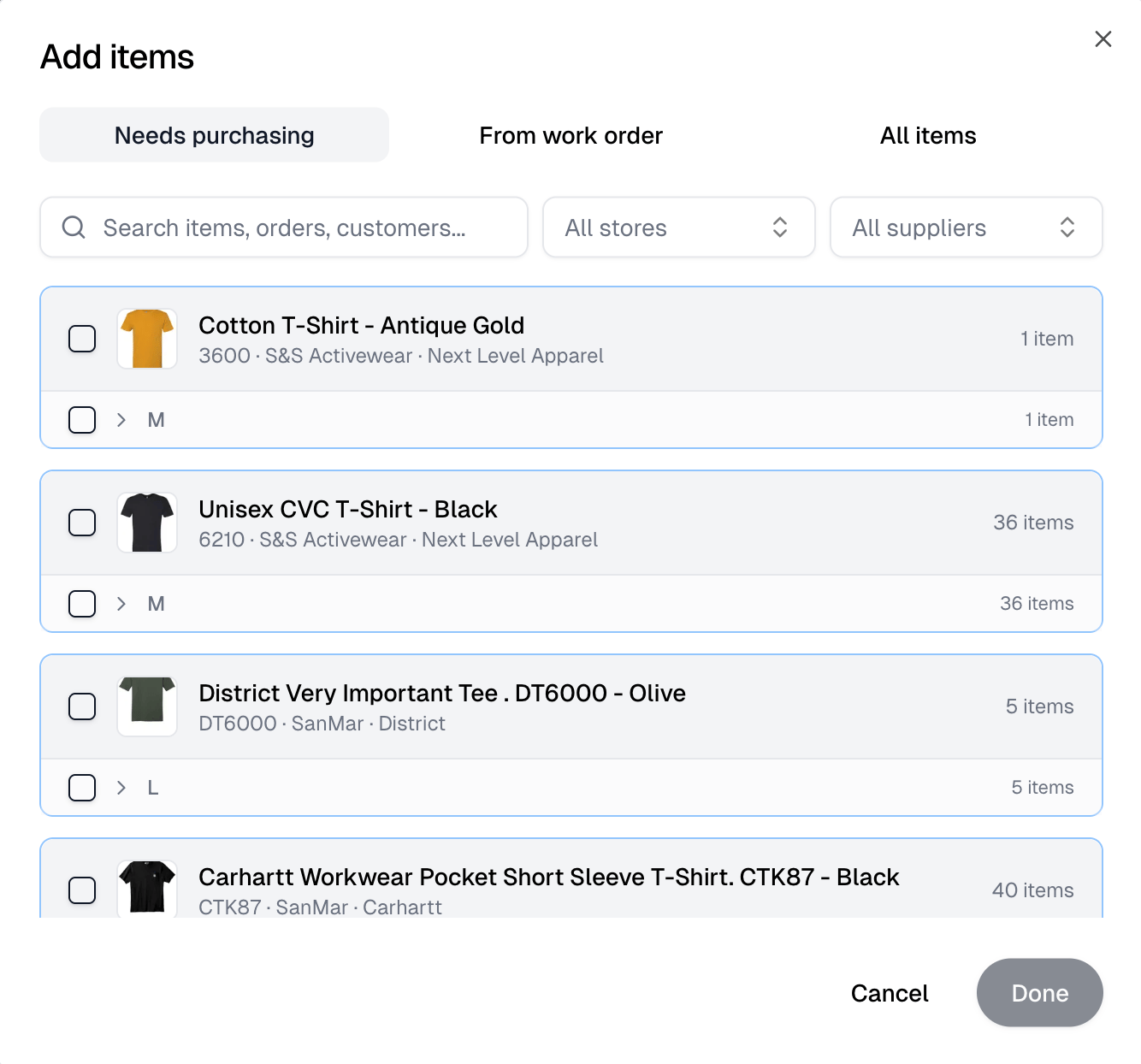
Marking it purchased
Once you place the order with the supplier, select Mark purchased on the Items panel. If the supplier backorders it, choose Mark backordered from the⋮ menu, and Mark purchased again once they confirm. Backordered covers
whatever has not arrived, so a partly received purchase order can be marked
backordered too. Neither can be moved back to Pending.
Receiving stock
Open the purchase order and enter what actually arrived in the Received column, per line. It saves as soon as you leave the field, on its own, without the form’s Save changes. A line’s received quantity can be anything from zero up to what you ordered, which is how a partly delivered order is recorded. Mark received on the Items panel receives every remaining item in one go. Select a line to see which orders are waiting on it and how many each gets.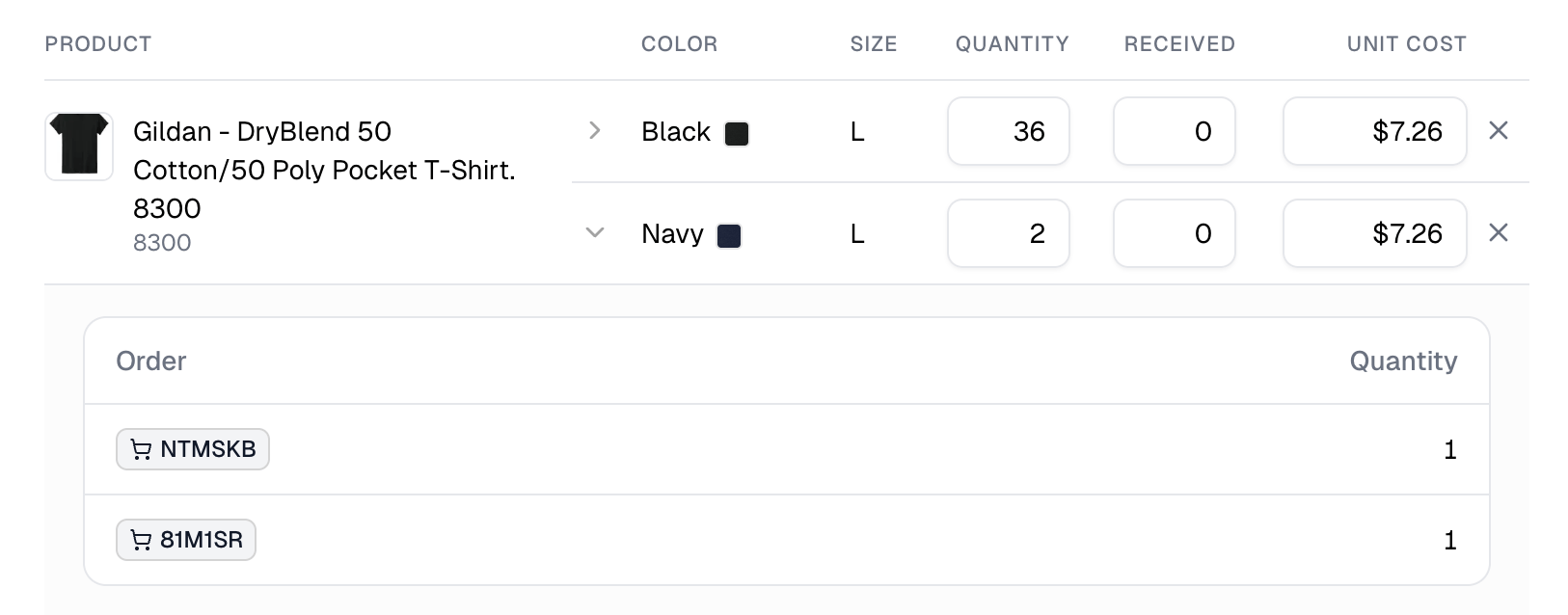
When some of what you are receiving belongs to orders that already shipped
without pulling stock, you are asked whether to Receive as already-used or
Add to stock. Already-used books the receipt and nets those units straight
back out, so they do not become inventory you do not have.
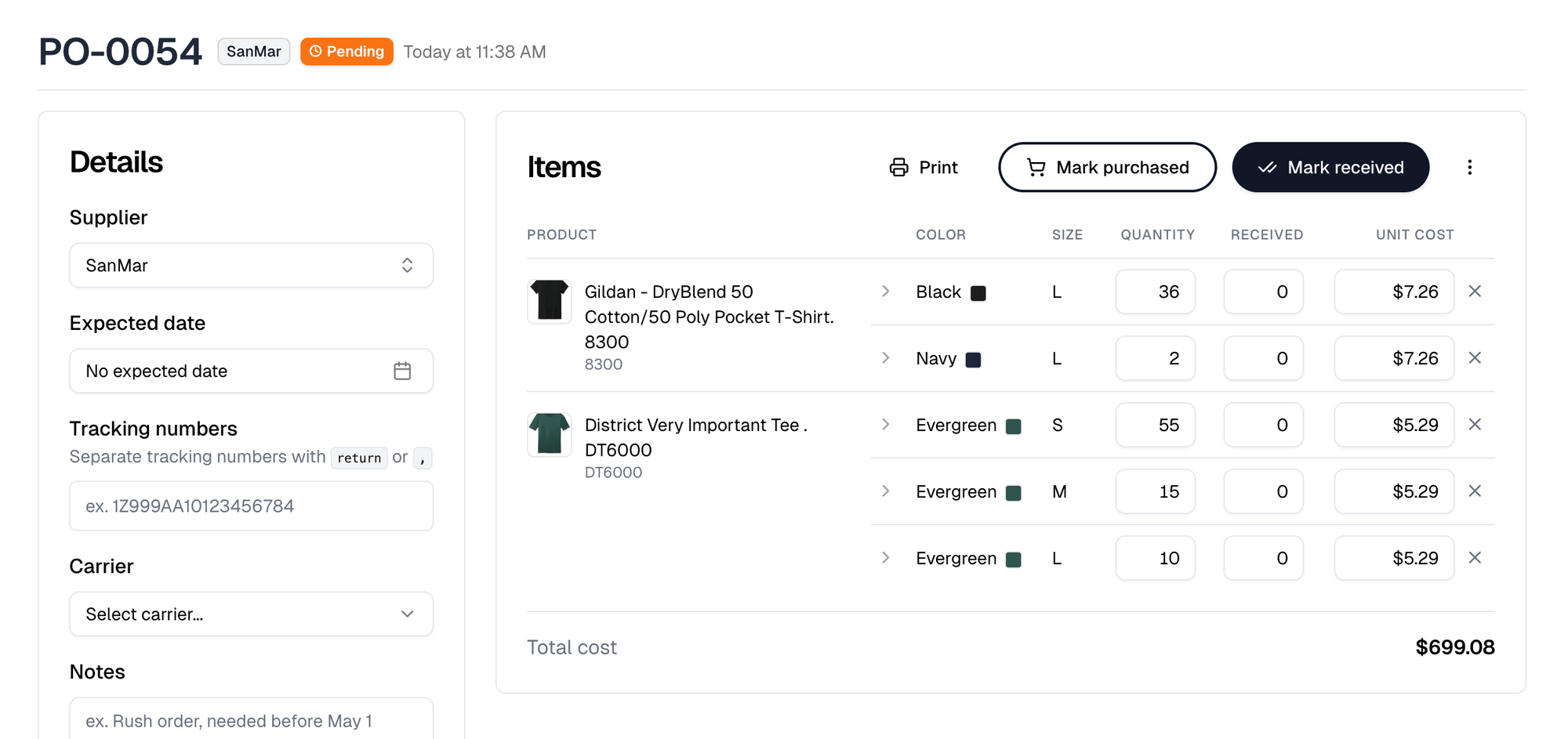
⋮ menu holds Add items, so you
can keep adding to one after it exists.
Cancelling one
Cancel sits in that same⋮ menu.
A cancelled purchase order can no longer be edited or received, and it drops out
of the All, Open and Late filters.
Printing
Print on the Items panel downloads the purchase order as a PDF, for sending to a supplier or filing.Acting on several at once
Select rows in the list and a toolbar appears with Mark received and Cancel, which run across the whole selection. Cancel there carries the same consequences as cancelling one. You can also start a purchase order from a selection of orders rather than purchase orders: select orders on the Orders list and choose New purchase order from its toolbar (up to 100 at a time). It opens New purchase order with those orders’ short items already added.A purchase order holds one supplier. If the selected orders span more than one,
New purchase order opens with one tab per supplier, each its own purchase
order, and Create makes all of them at once. Adding items from another
supplier on any tab puts them on that supplier’s tab, or opens a new one.