Only the business owner and admins can open this page. It appears once Stripe is connected.

Turn on credit card surcharging

Turn on Credit card surcharging. The terms open first. Check all six items, then select Accept and turn on. You are responsible for complying with surcharging laws and card network rules.
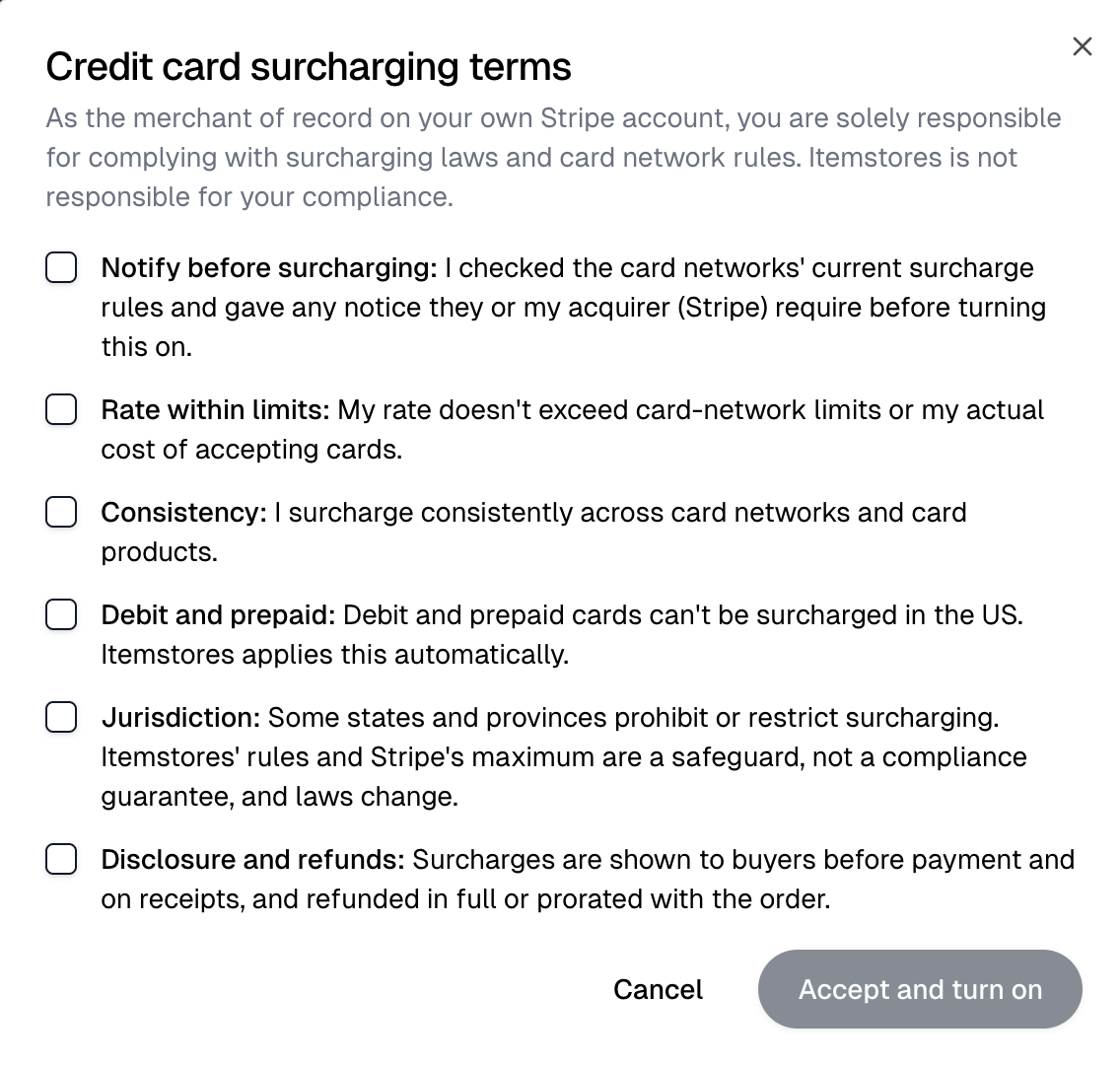
The Credit card surcharging terms dialog with its six checkboxes and the Accept and turn on button
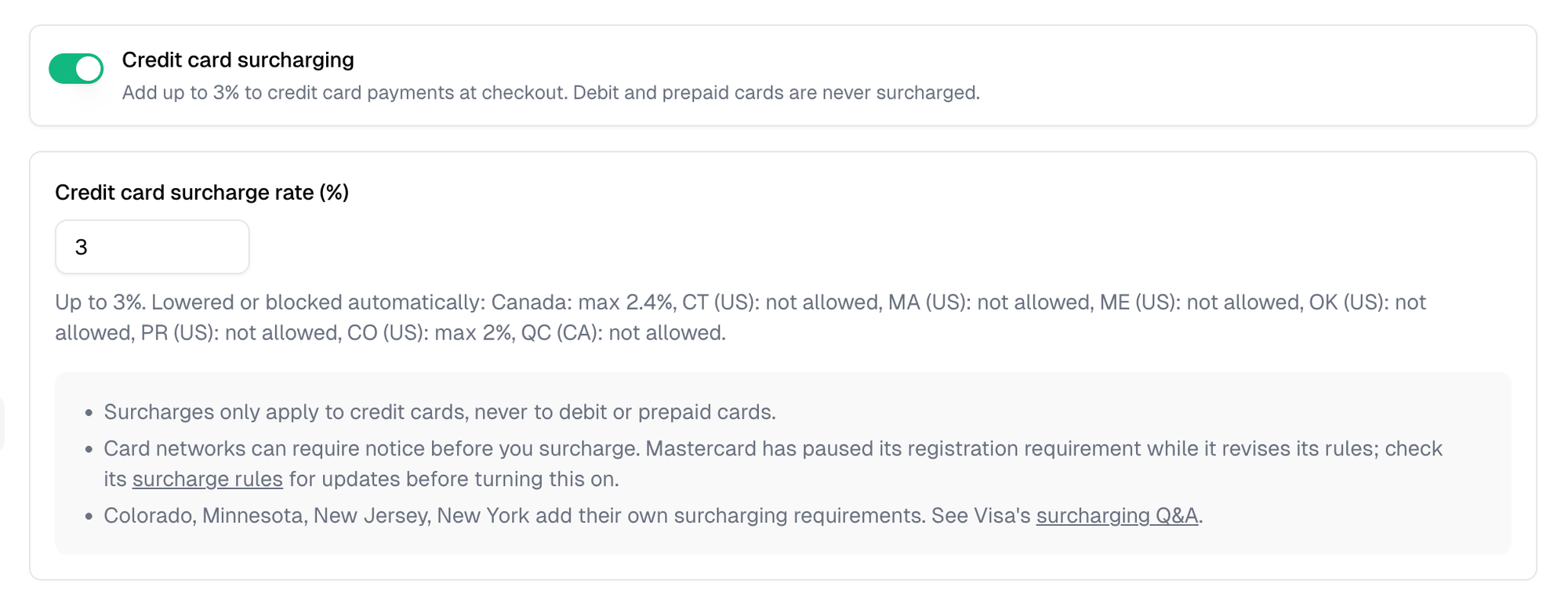
Then set Credit card surcharge rate (%), up to 3%, and select Save. The rate field unlocks once surcharging is on.
Settings › Surcharges with Credit card surcharging on and the rate set to 3
Only credit cards are surcharged. Debit and prepaid cards never are. Where a state or province limits or bans surcharges, the rate is lowered or removed automatically. The list sits under the rate field.

What customers see

Once a customer enters a credit card, checkout shows the surcharge as its own line with its rate, and “Credit cards carry a 3% surcharge.” above the pay button. The receipt lists it separately too.
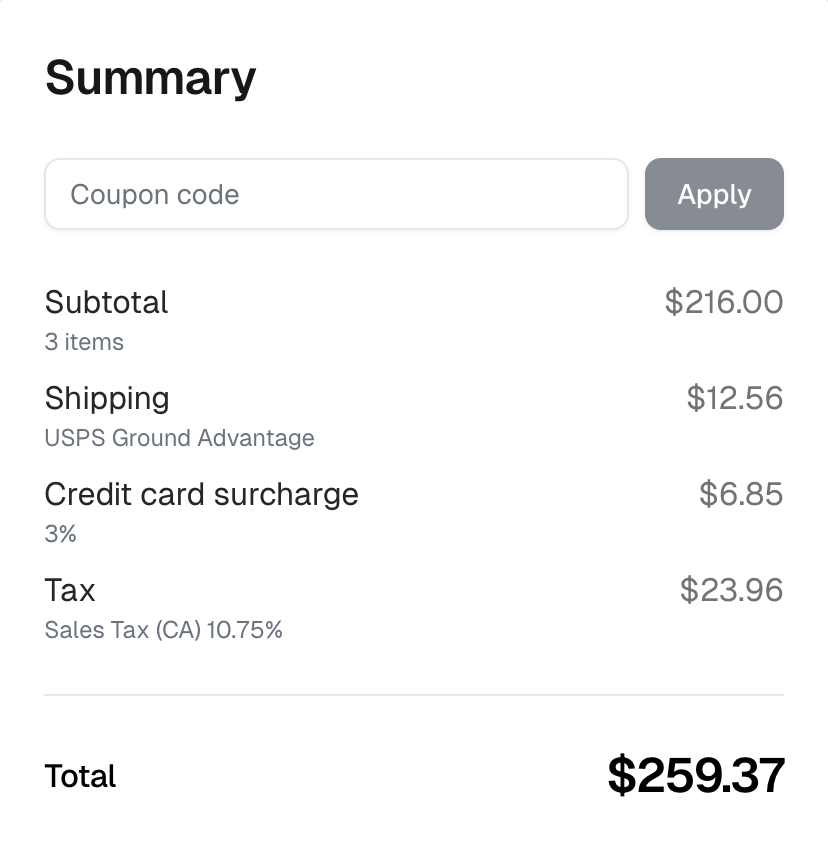
Storefront view: the checkout summary with a Credit card surcharge line at 3% above Tax

When the terms change

When the terms are updated, surcharges stop until you accept them again. Select Review terms on this page.