Adding a blank
New blank offers two routes:
Filter the list by category, brand, supplier or decoration method, and use
View archived blanks for ones you have archived.
Select blanks to reveal a toolbar with Edit, Download CSV and
Actions, which archives, restores or deletes them. A blank that products
were made from cannot be deleted. Archive it instead.
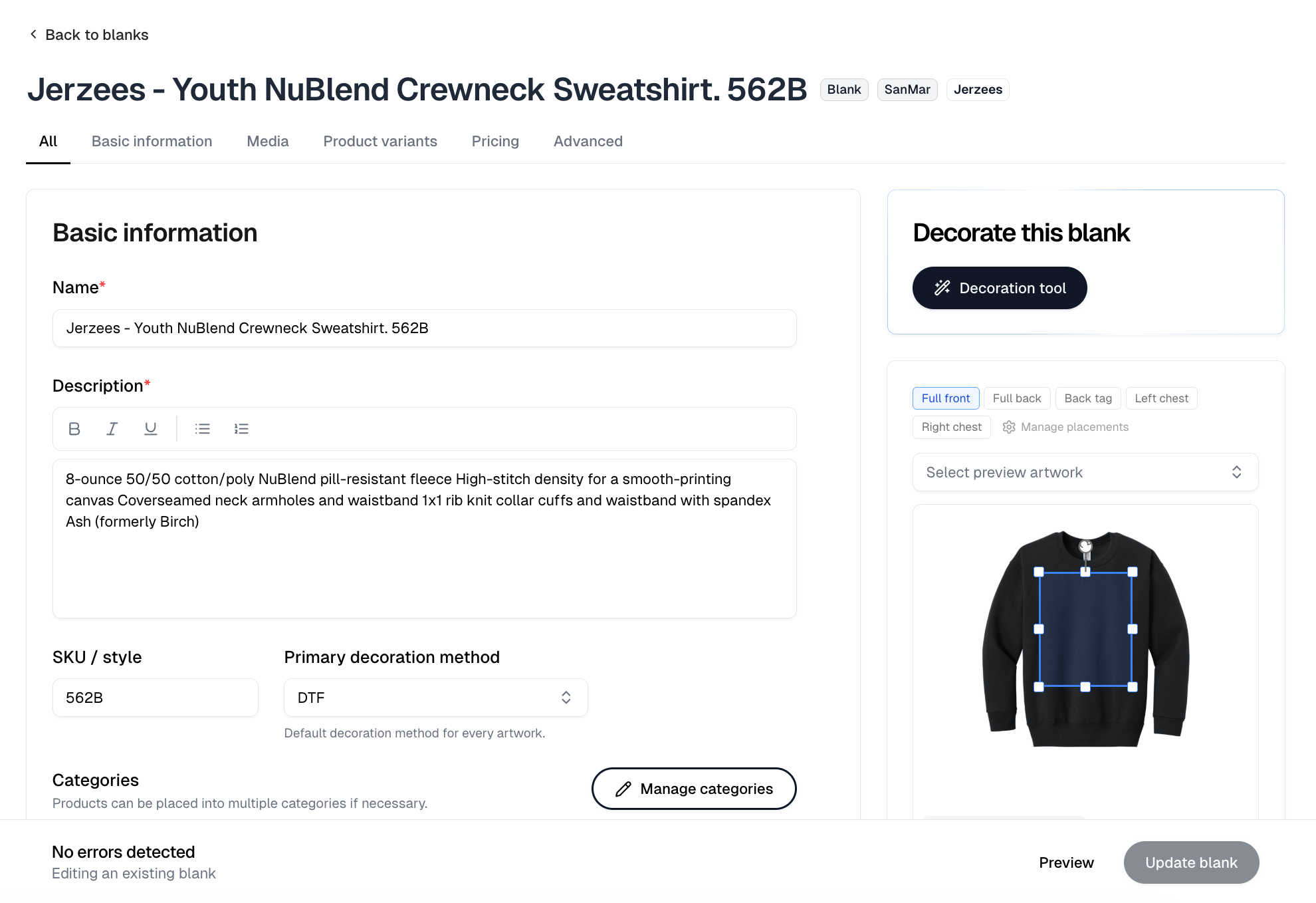
Editing a blank
A blank opens on the same tabs as a product: All, Basic information, Media, Product variants, Pricing and Advanced. The panels on the right are what make it a blank rather than a product. Decorate this blank holds the Decoration tool button. It is unavailable on a blank whose supplier has discontinued the style. Below it sits the placement editor. Pick a placement and drag the box on the garment to move or resize where decoration lands. It is not just a preview: your changes save with the blank, and because they are stored against the supplier style, every blank and product you build from that style inherits them. Select preview artwork puts a design on the garment so you can judge the box against real artwork. It changes nothing on its own. Apply, beside it, takes you to that artwork’s Apply to products for this blank.