Choosing what comes across
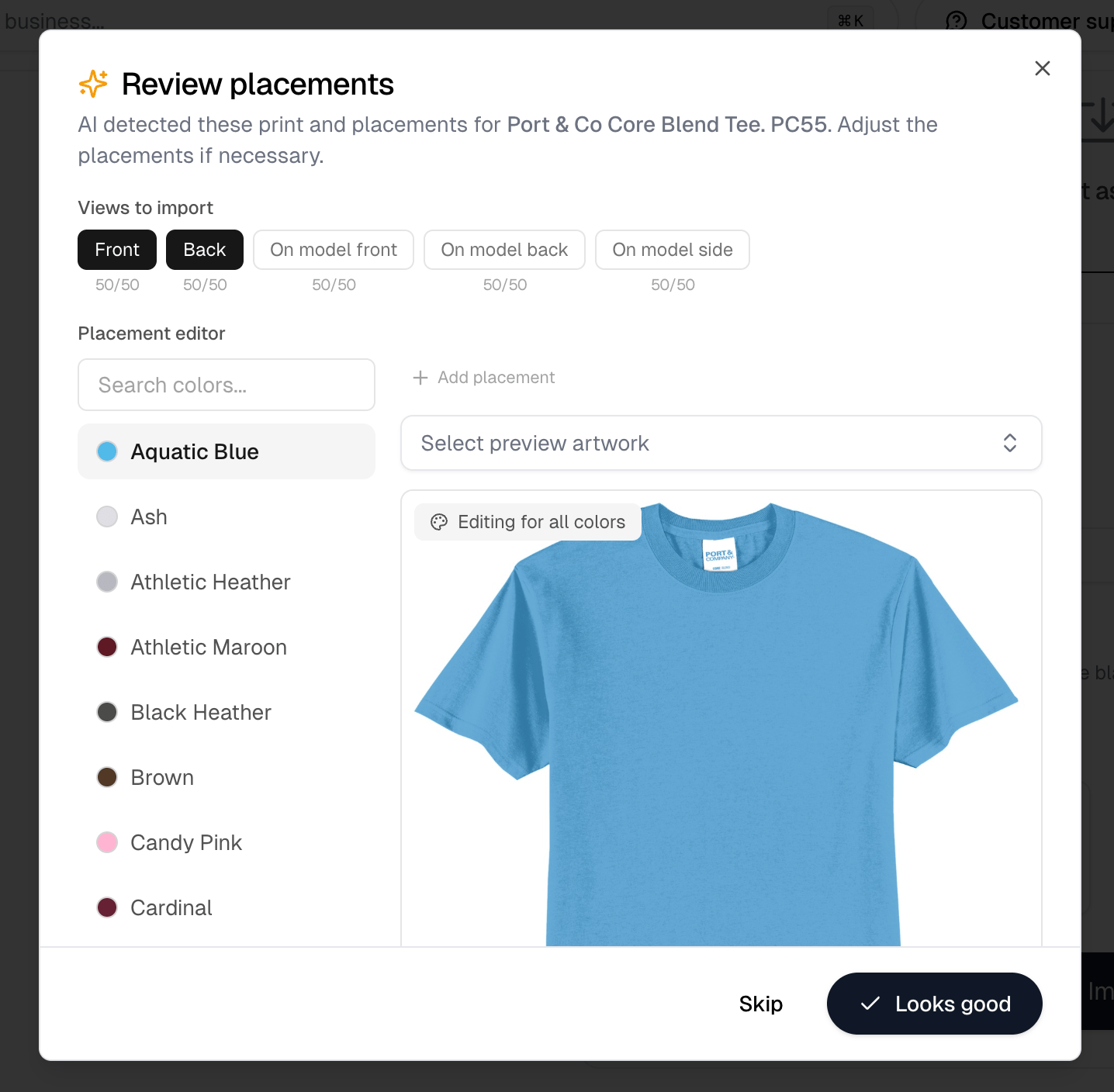
A style can carry a hundred colors, and you rarely want all of them. Pick the colors you want, or use Select all, which becomes Deselect all once anything is selected. Selecting them all on a style showing 20 or more colors asks you to confirm first. For an integrated supplier there is a filter beside it, set to In-stock colors to begin with, with All colors and High-stock colors as the other two. Importing a color the supplier has none of gives you a product nobody can buy. Sizes sit below the colors. They start out all selected, so deselect the ones you do not want. A style with a single size shows no size section at all.An import is capped at 1,500 variants, meaning colors multiplied by sizes, and at
150 colors and 150 sizes.
Checking stock and cost
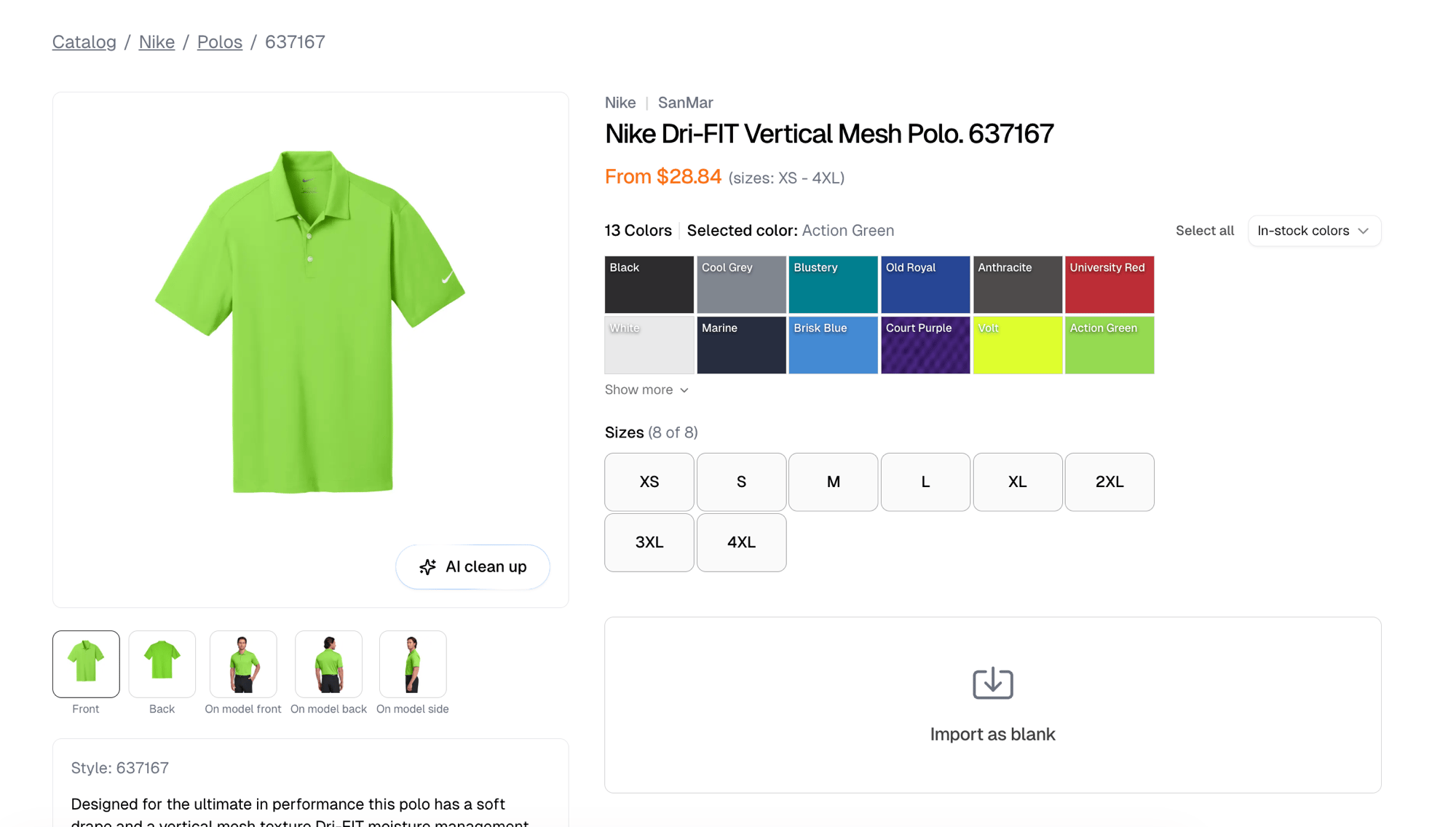
Once you have picked colors and sizes, a table lists the ones you selected. For an integrated supplier it is headed with the supplier’s name and shows stock and cost per variant. For every other supplier it is headed Pricing and shows cost only, because there is no live stock feed to read. AI clean up removes logos and sample text from the supplier’s image for the color and view you are looking at. Once an image has been cleaned, Reset restores the supplier’s original.Import options
Import as blank opens the import form below the table.
Import then starts the two questions below.
Two questions before it imports
Do the shapes match?
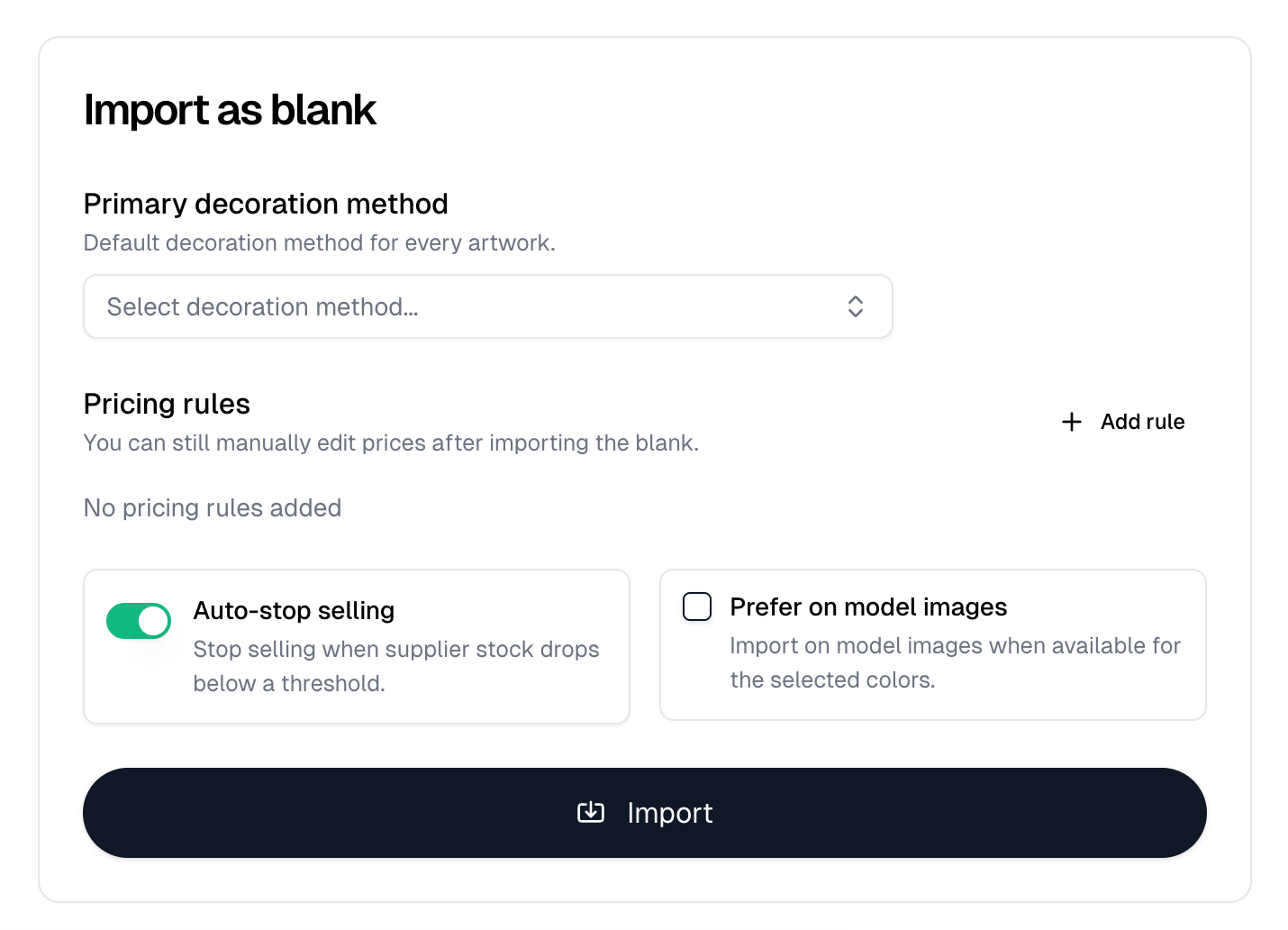
Itemstores shows you the product images per color and asks whether their shapes vary. Selecting a single color skips this question. Answer Shapes are similar and one placement is used across every color. Answer Shape differs significantly and placements are detected per color, which is slower but positions artwork accurately when the photography differs between colors.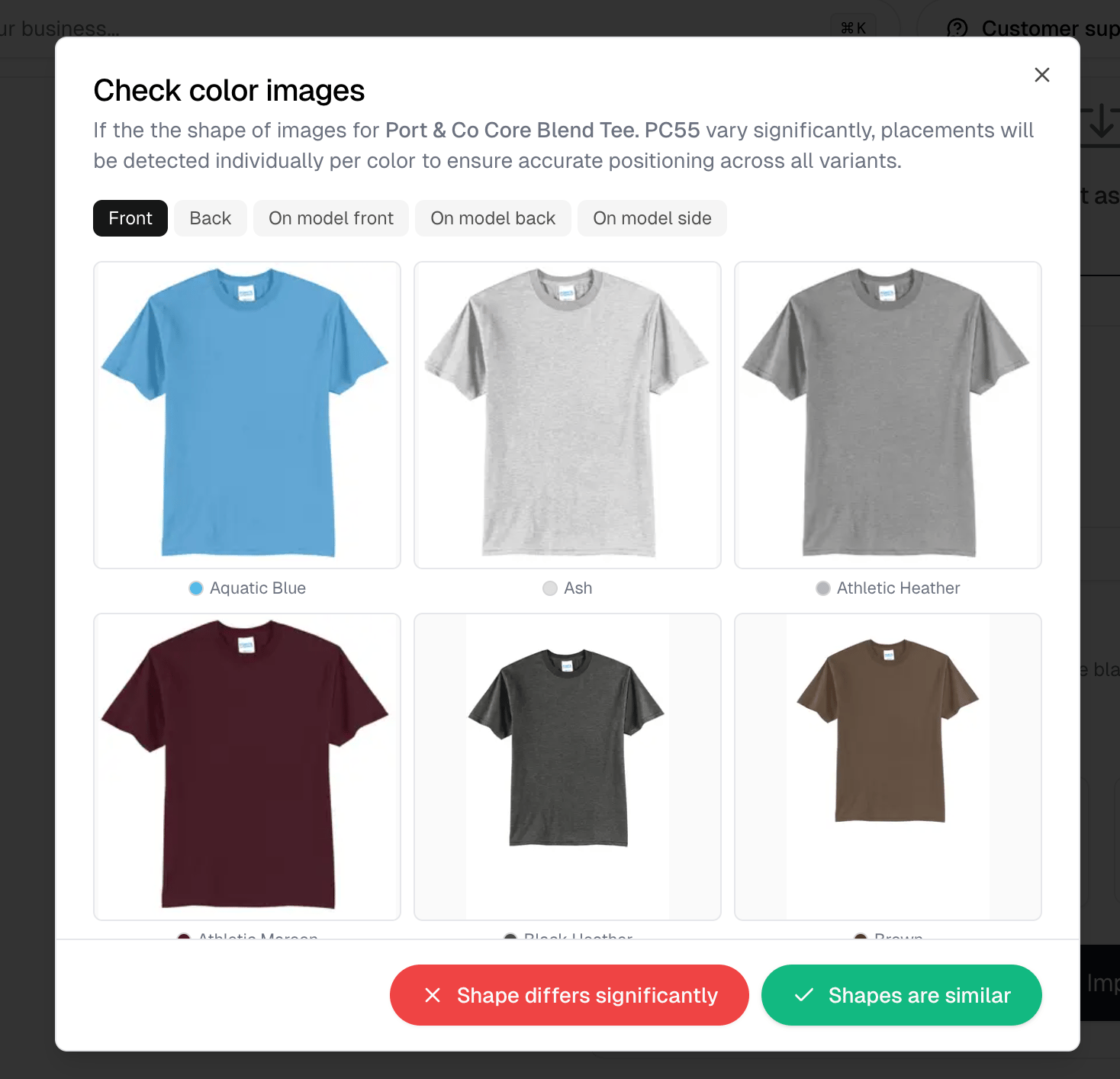
Do the placements look right?
Itemstores then detects the print placements and shows them for review. Choose which Views to import, front, back and the on-model angles, and adjust any placement before accepting. Each view carries a count of how many of your selected colors have an image for it. Edits apply to every color while the toggle above the garment reads Editing for all colors. Select it to switch to Editing this color only, which targets the color chosen in the list on the left. Answering Shape differs significantly opens the editor in that per-color mode already. Both buttons import the blank. Looks good also saves the placements as this blank’s geometry for your business, so every future import of it starts from what you approved. Skip imports without saving anything, so the blank keeps the geometry it already had and your adjustments in this dialog are discarded.Pick at least one view. Both buttons stay disabled until you do.