
1. Decide who can get in
1
Open the store's settings
Go to Stores, open the store, and
select Settings, then the Add-ons tab.
2
Gate the store if it should be private
Turn on Gated access when the store should not be publicly reachable,
such as a staff store. A gated store lets in invitees and anyone with a gift
card. For a company or school, add the email domains under Allowed
domains so people can join themselves.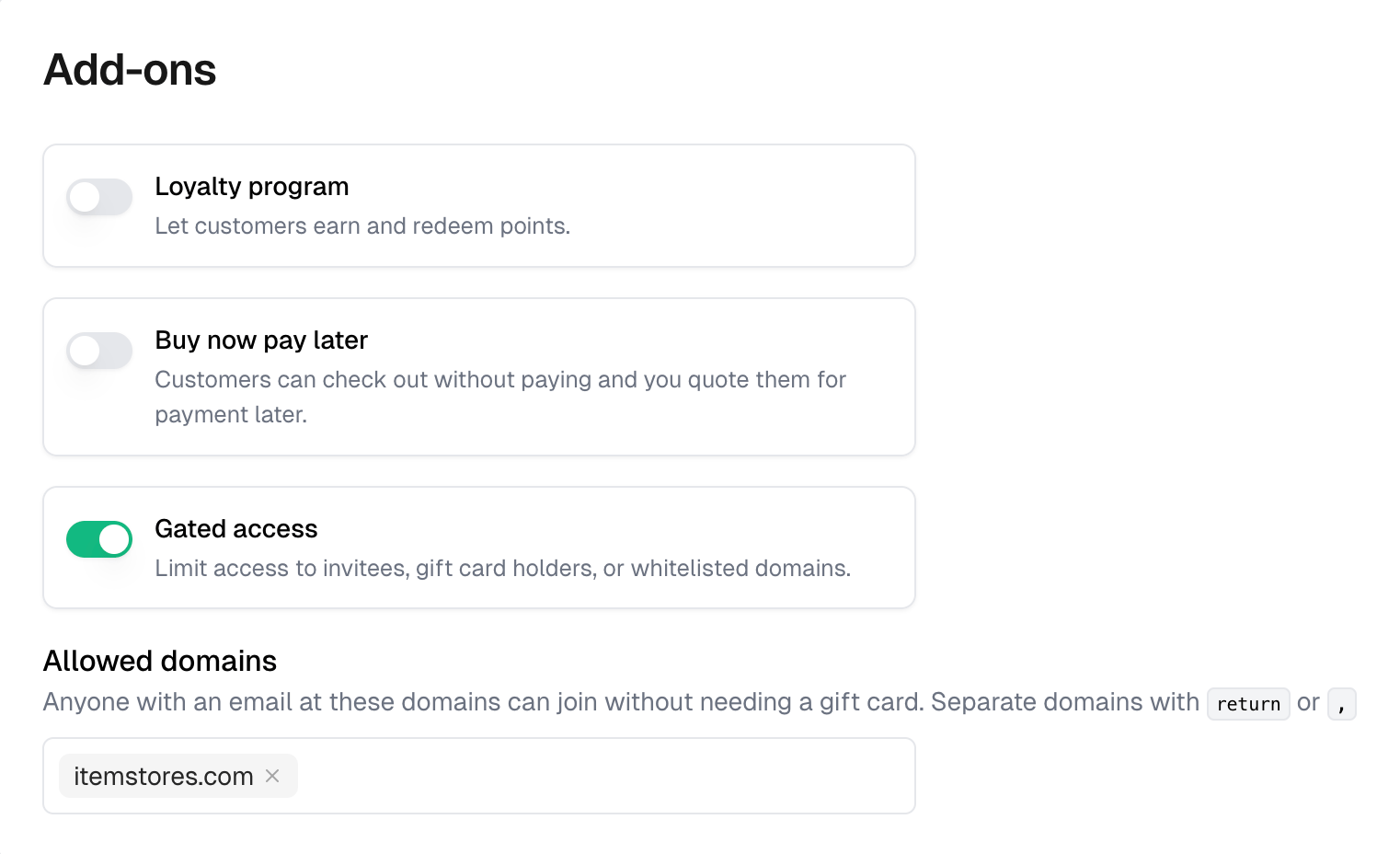
2. Hand out the allowance
1
Create gift cards
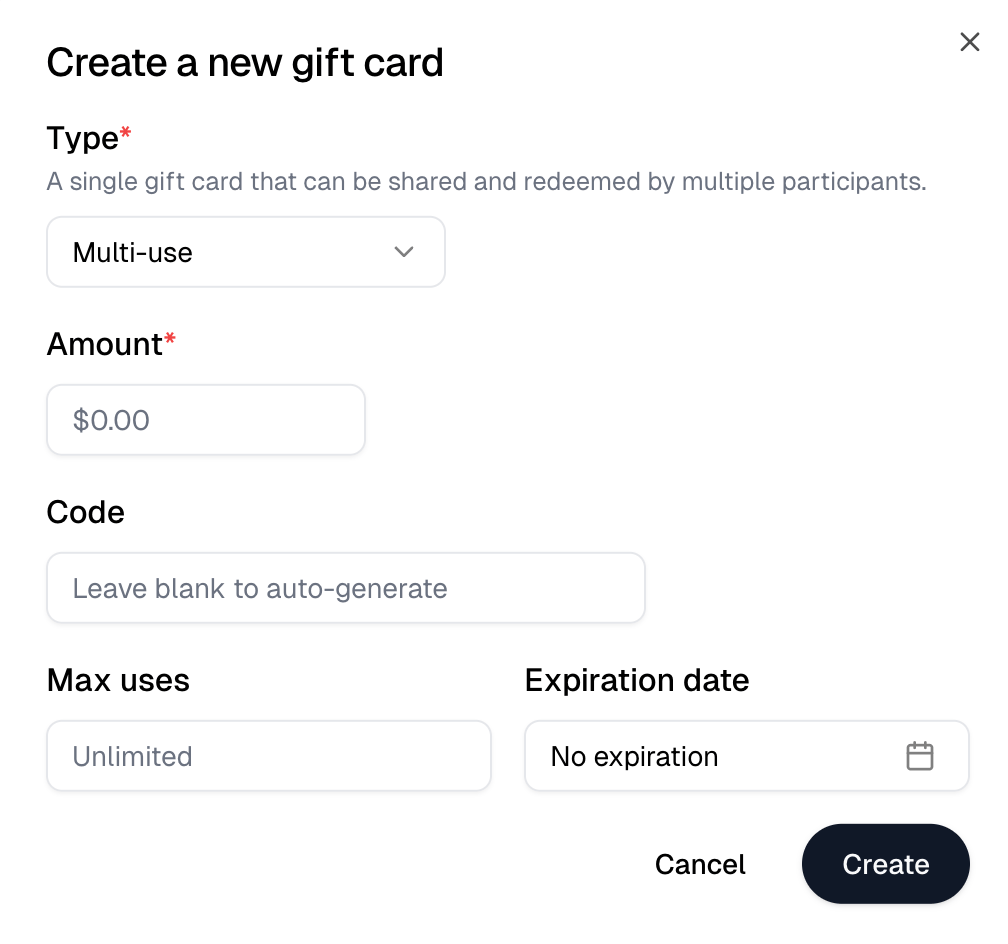
Open the store’s Gift cards and participants and select Create gift
card. Set the Amount each person gets.Single use gives one card per person, and Number of gift cards
creates a batch. Create separate batches to give different people different
amounts.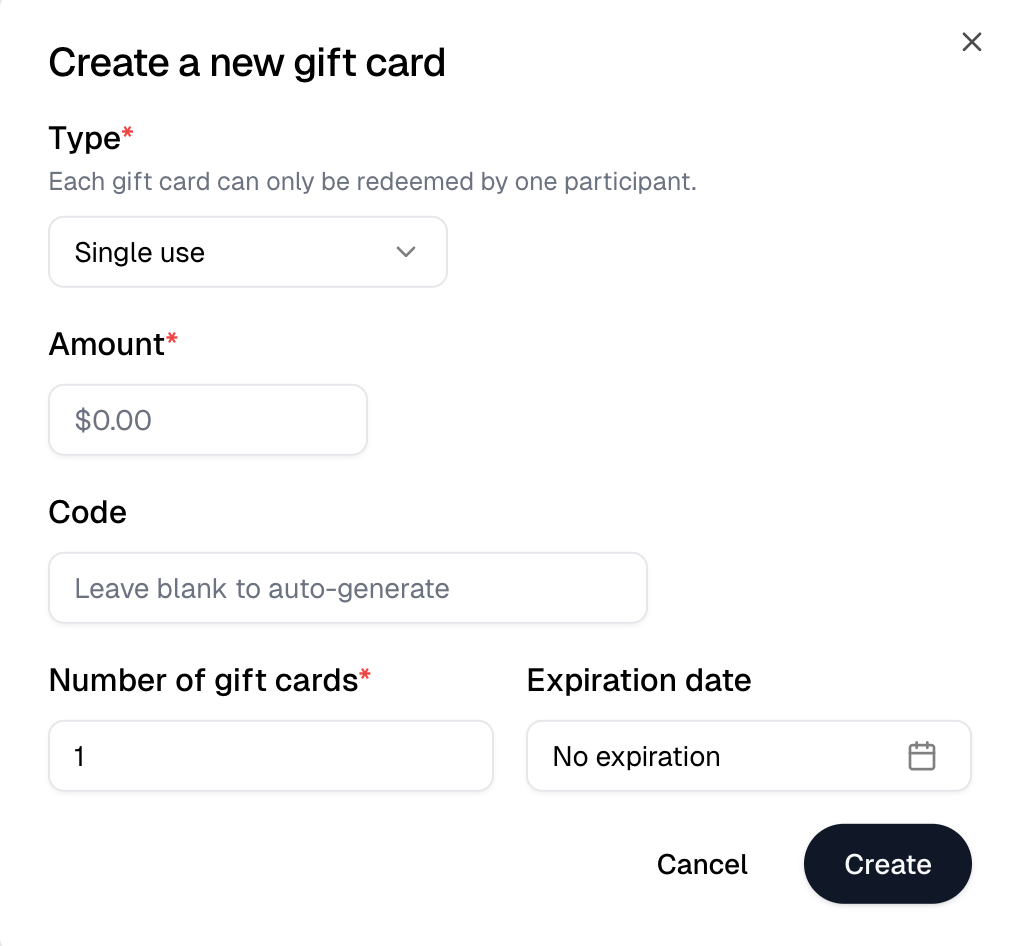
2
Give out the codes
Creating a card sends nothing. Give each code out however you like. Select a
code in the list to copy it.A customer enters it under Redeem a gift card in the store’s account
menu, or with Join by email or gift card on a gated store.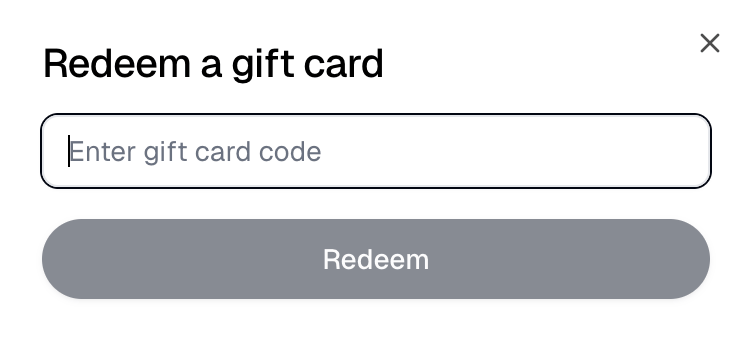
3
Or invite people with a starting balance
On the Participants tab, Invite offers Email invite for one
person and Upload CSV for a list. A nonzero Starting balance, or
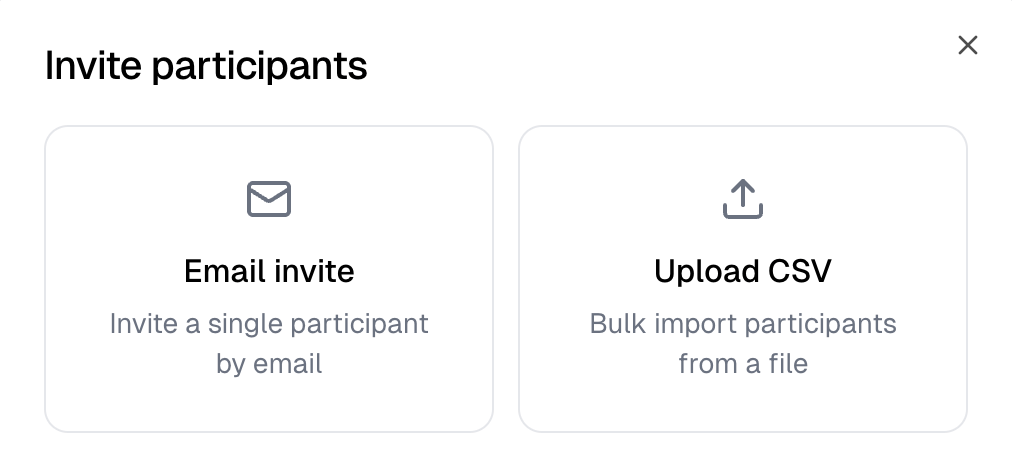
amount column in the CSV, issues that person a gift card for it. Each
invite emails a sign-in link.4
Give everyone on a domain a welcome balance
With allowed domains set, Welcome gift card issues a gift card to anyone
who joins through one. Leave it at $0.00 to issue none.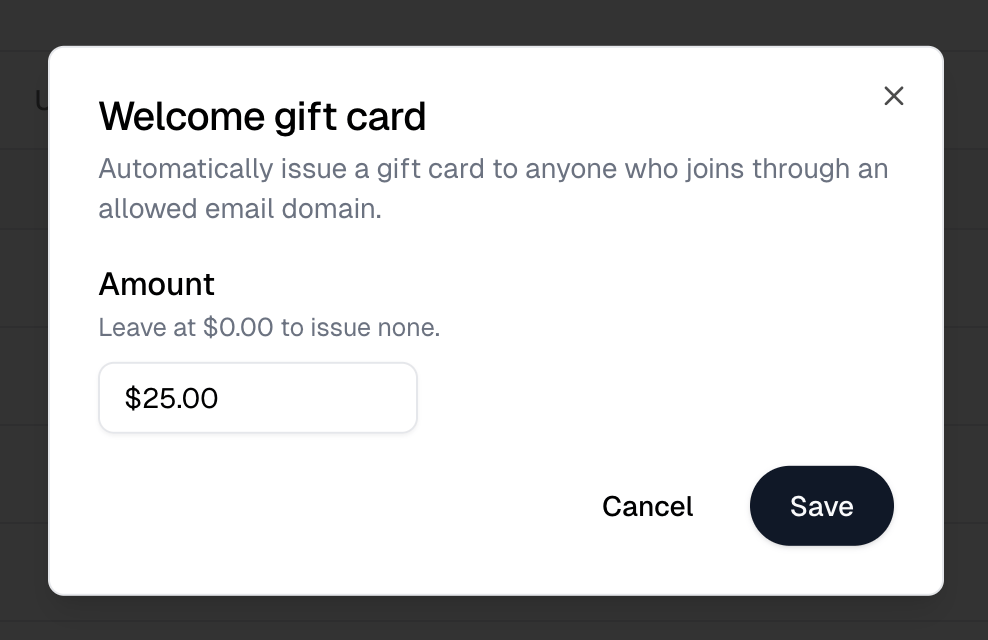
3. Let them earn points
Optional. Turn on Loyalty program under Add-ons and set an Earn rate in points per dollar. 1 point is worth 1 cent. A store runs either the loyalty program or Buy now pay later, not both.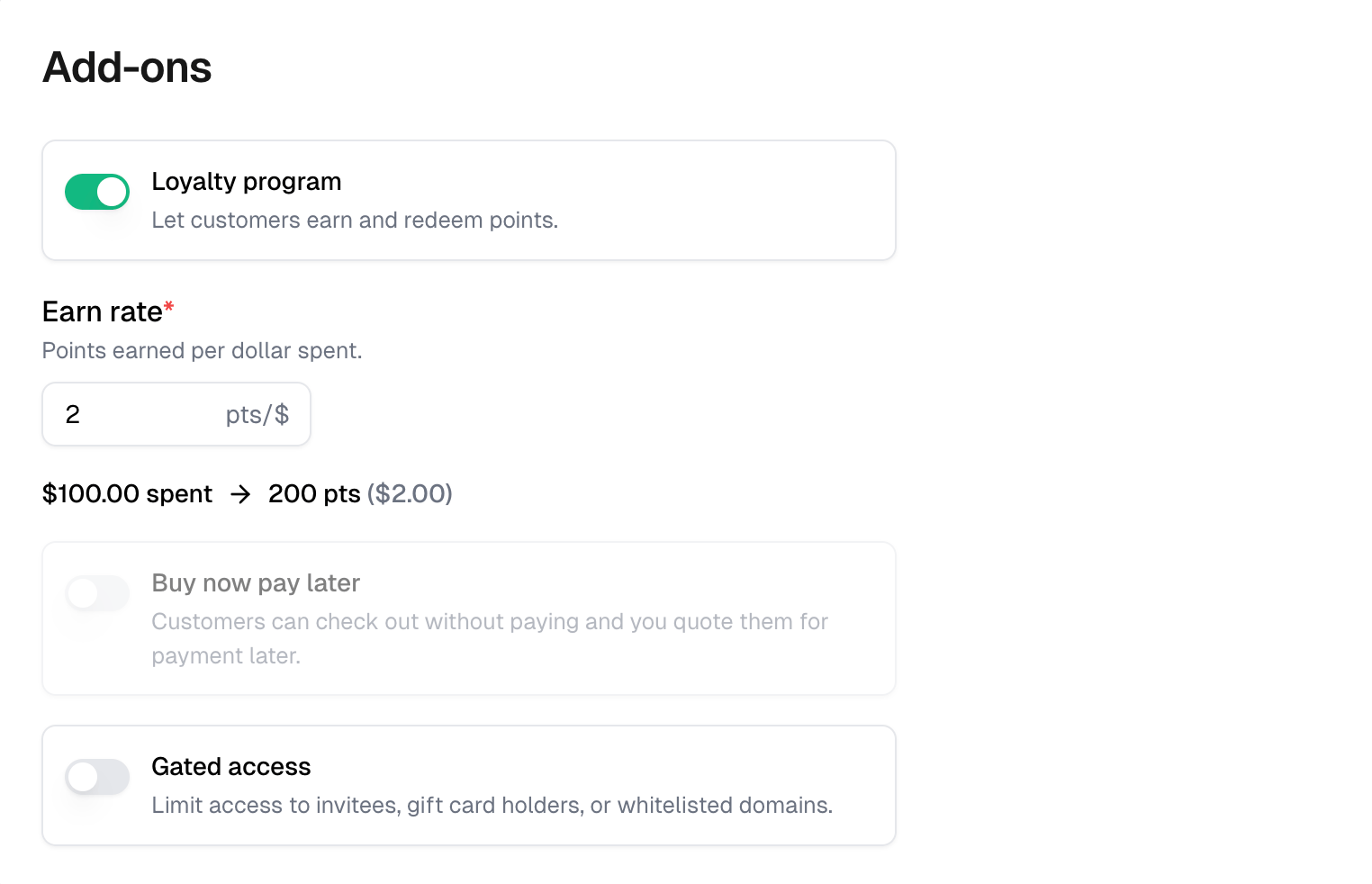
What participants see
A participant’s Balance is their gift card funds plus their points. It shows in the store’s account menu and is applied at checkout automatically, points first.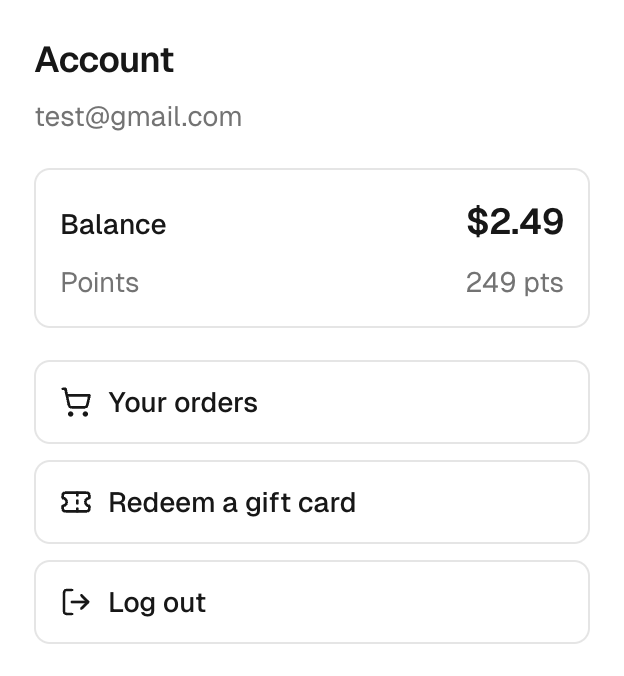
Keeping track
The Gift cards tab shows each card’s status, what remains on it, and how many people hold it. The Participants tab shows each person’s points, gift card funds and Balance.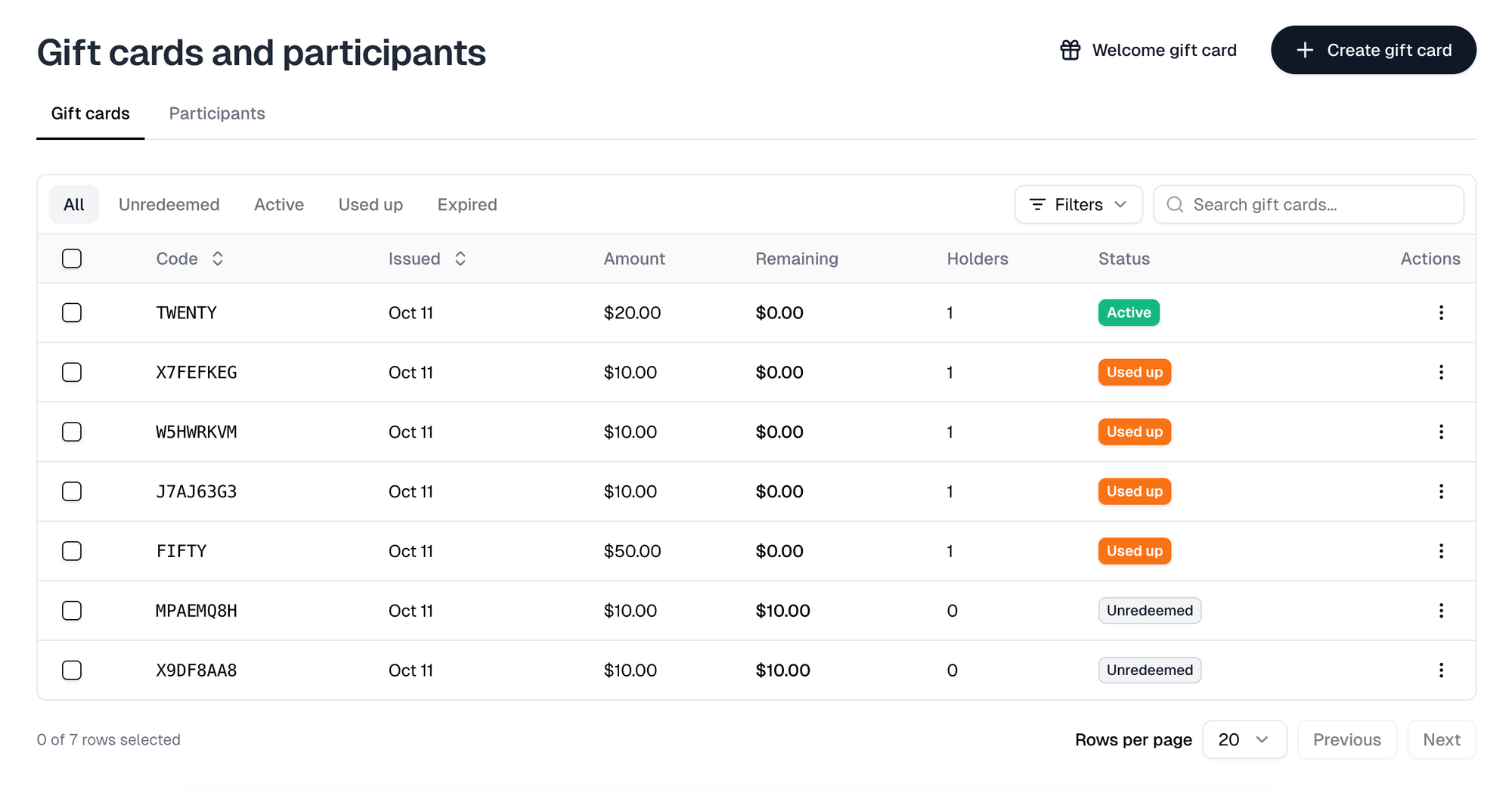
Everything above in reference form is in
Gift cards and participants.