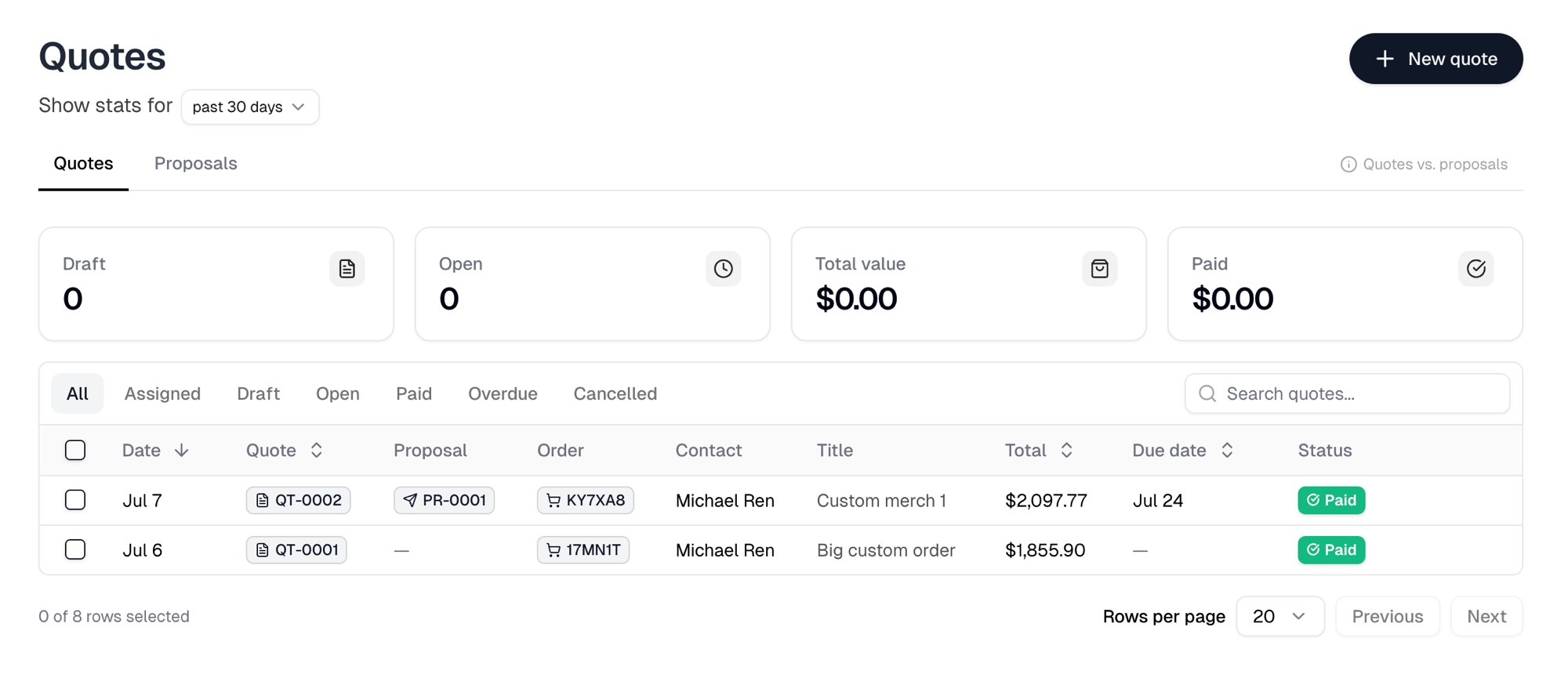
1. Propose the designs
Start a proposal when the customer has not settled on what they want. A proposal carries no prices and no quantities, only what you are putting in front of them.1
Start it
In Proposals, select New
proposal. A title and a contact are both required.
2
Add what you are showing them
Add product opens a browser with Blanks and Products.
Selecting a blank opens the Decoration tool so you can
design it now, or Skip to show it plain.
3
Put your artwork on them
Add in the Artwork card attaches a design. If the proposal holds
blanks, the Apply artwork dialog opens straight after, where you set a
placement per product and a colorway per product color. Select an artwork
row later to reopen it.
4
Ask for what you need back
Notes is what the customer reads when deciding. Say what you want from
them, such as which items they want and how many.
5
Send it
Create proposal emails the contact a link and marks the proposal Sent.
There is no separate send step, so finish the proposal before you create it.
2. Let them respond
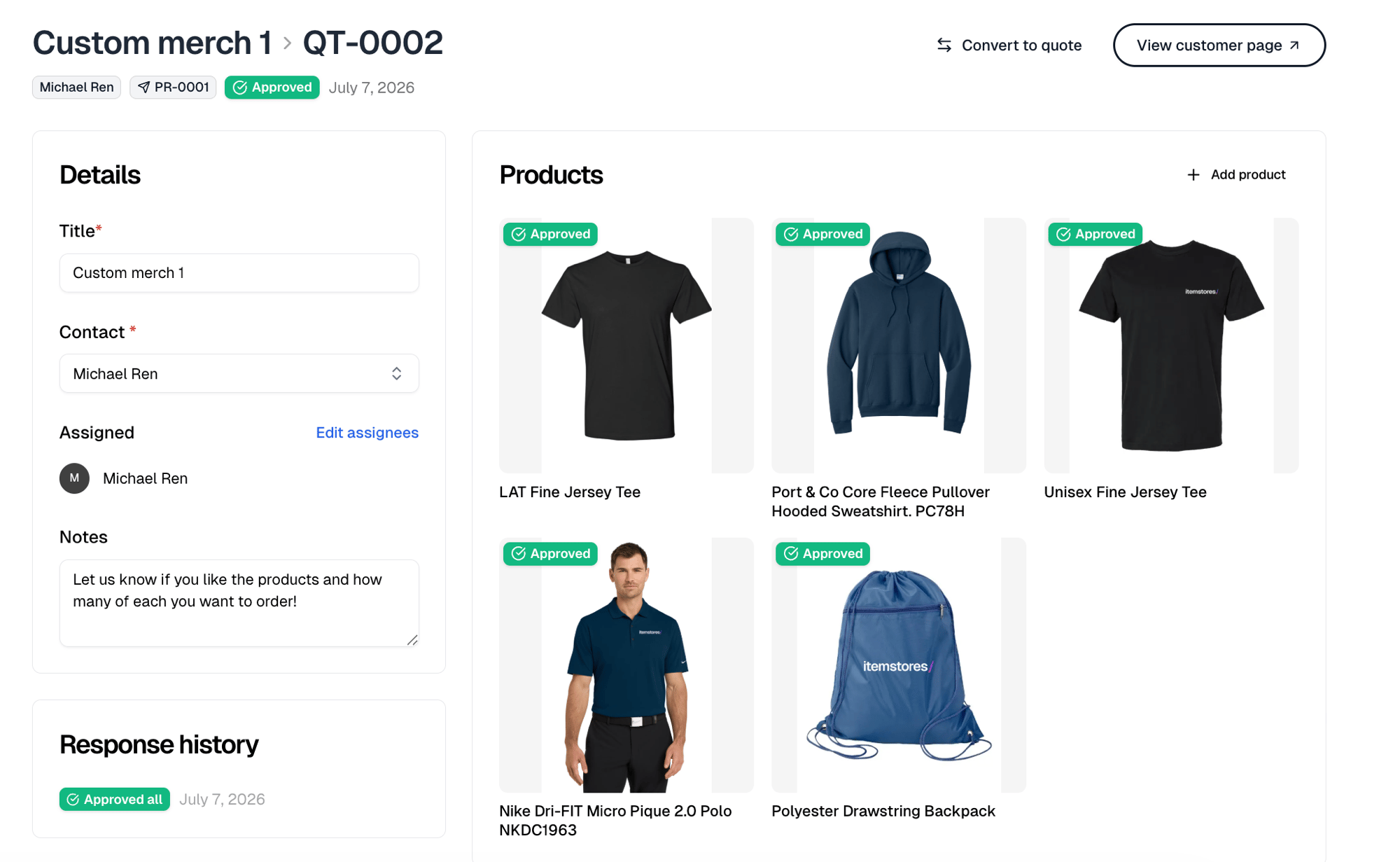
View customer page shows you exactly what the customer sees. They approve or reject each product separately, with a comment on any of them, or answer everything at once with Approve all or Reject all.Rejections are as useful as approvals here. The point of a proposal is finding
out what to drop before you price anything.
3. Turn it into a quote
Convert to quote sits on the proposal as soon as it holds a product. It does not wait for the customer’s answers, and rejected products are still listed, in red. Each product starts as Not configured yet. Open one and set the quantities and sizes you are quoting. Convert turns on at the first configured product, and anything left unconfigured is dropped from the quote.This is the moment the job gains numbers. Nothing before it commits anyone to
an amount.
4. Price it
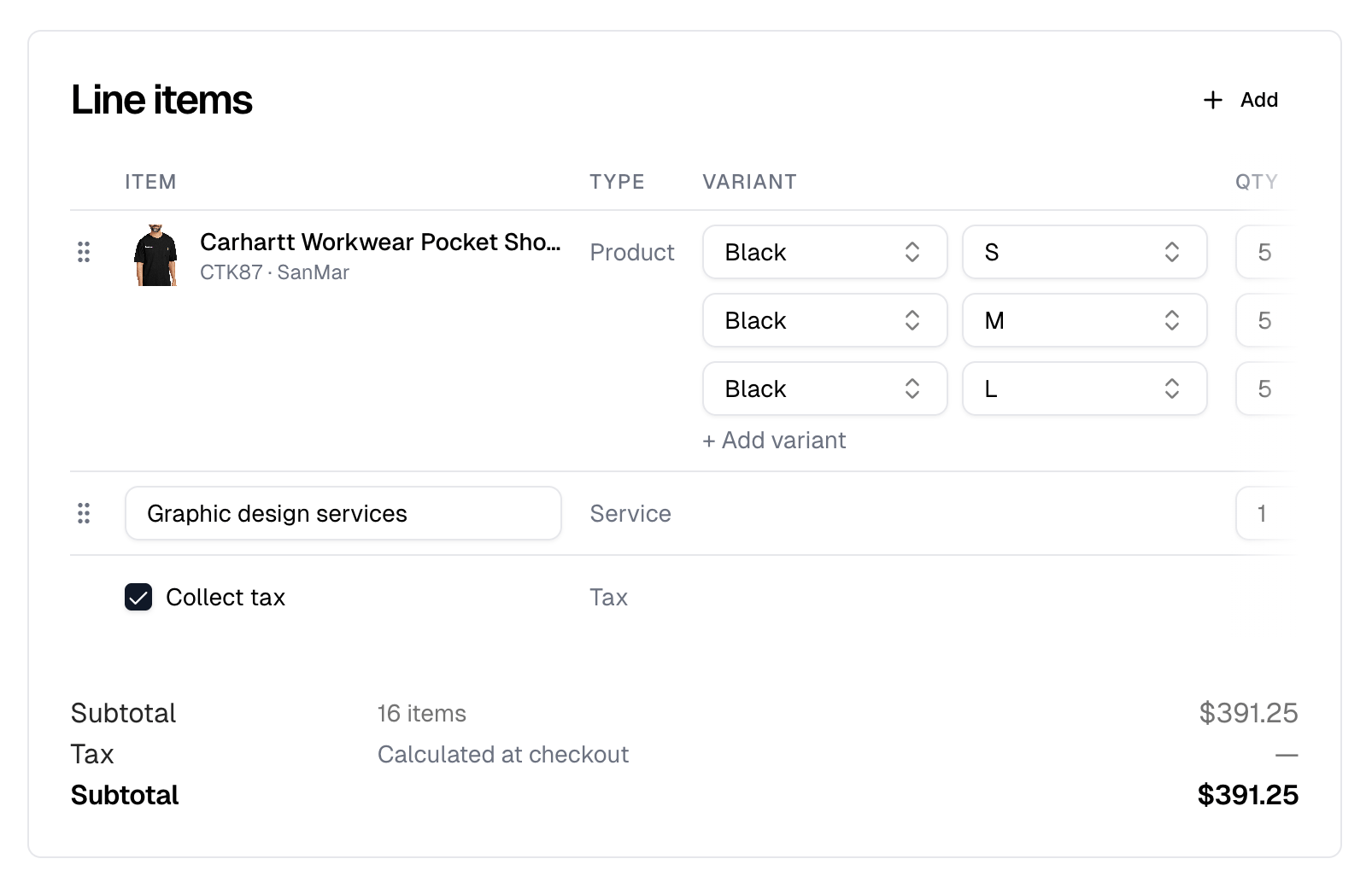
The quote arrives with your products on it as line items. Now make it a real quote.
Every line’s quantity and price stays editable, so the quote is never locked to
catalog pricing.
A pricing rule added here is not quote-only. Saving the quote attaches the rule
to the products on those lines and reprices them in your catalog.
5. Send it and get paid
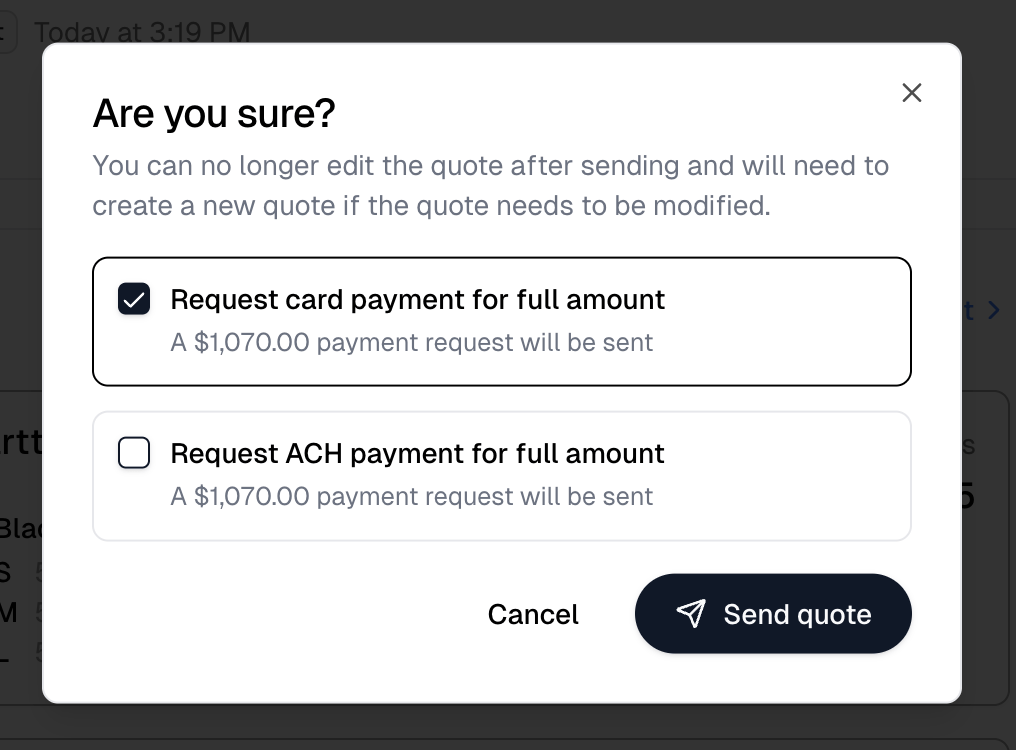
Create quote opens a confirmation. It remembers your choices from the last quote, and the first time only Send quote to customer is checked:- Send quote to customer emails a link to view and pay.
- Request card payment for full amount sends a payment request for the total. Request ACH payment for full amount does the same by bank transfer. Checking one clears the other, and both are only offered while the first box stays checked.
6. It becomes an order
Convert to order hands the job to fulfillment, and from there it works like any other order: purchase order, work order, shipping label. It does not wait for payment. An unpaid quote converts into an order marked awaiting payment that you can start work on right away. The proposal, quote and order stay linked, so any one of them shows you the other two.