
1. Turn it on for the store
1
Open the store's settings
Go to Stores, open the store, and
select Settings, then the Add-ons tab.
2
Switch on Buy now pay later
Turn on Buy now pay later. A store uses either this or Loyalty
program, so the other switch greys out.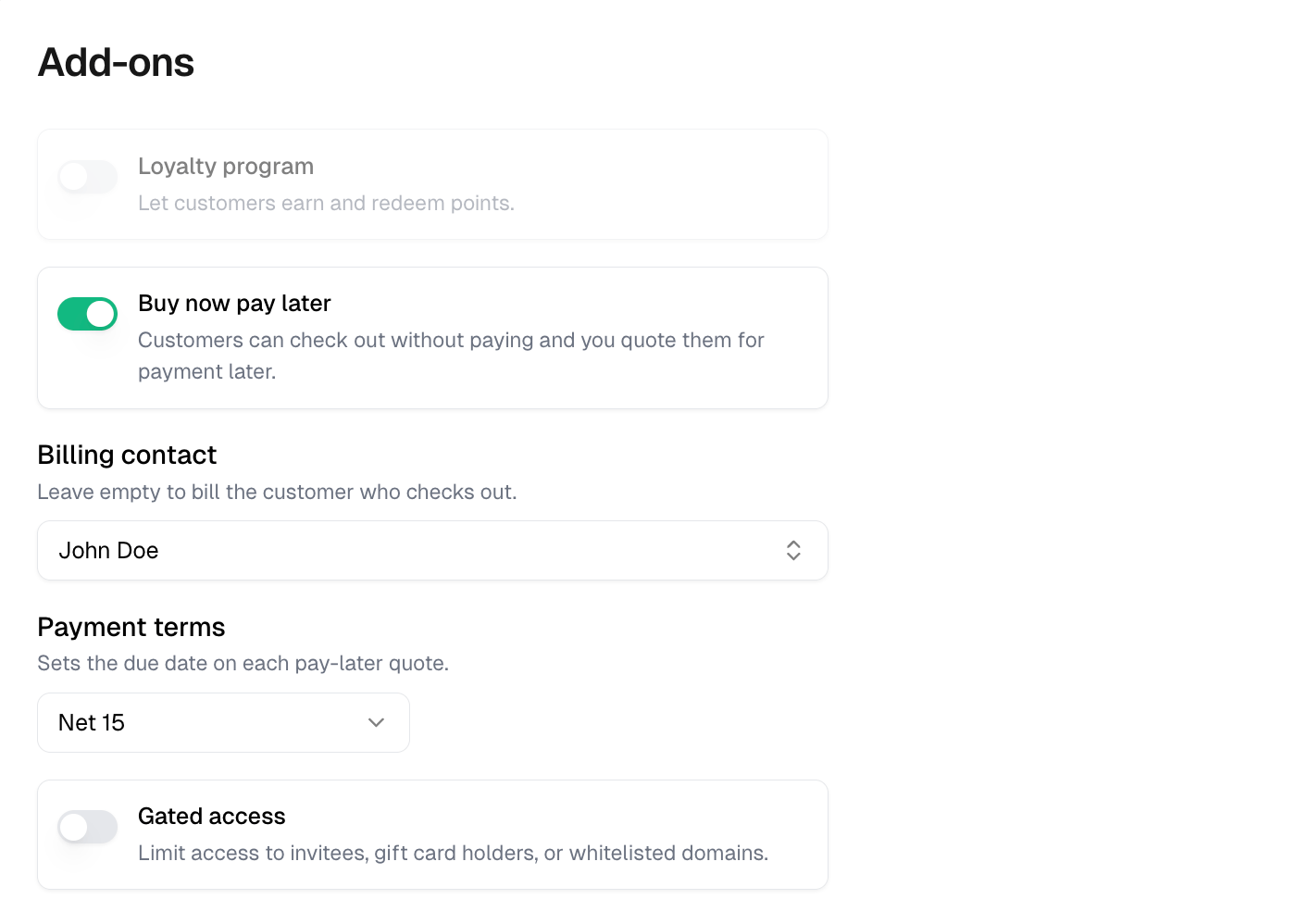
3
Choose who gets billed
Billing contact is who receives every payment request from this store.
Leave it empty to bill whoever checks out. Pick a contact when one person
pays for everyone, such as an office manager ordering for staff or a team
dealer billing parents later.Payment terms sets the due date on each pay-later quote: Due on receipt,
Net 15, Net 30, Net 45 or Net 60. None leaves the due date off.
4
Save
Select Update store. The store’s card and the stores list now carry a
Buy now pay later badge.
2. What the customer does
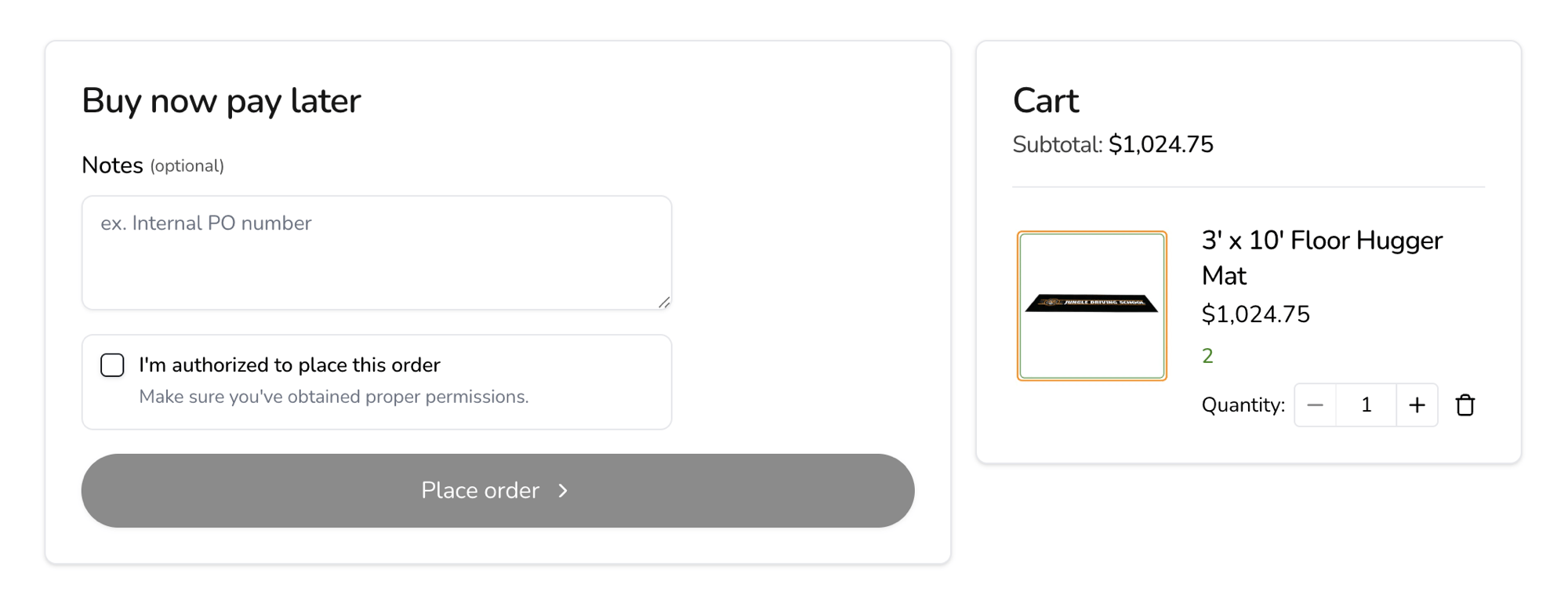
Checkout asks How would you like to pay? with two choices, Buy now pay later and I’ll pay by card now.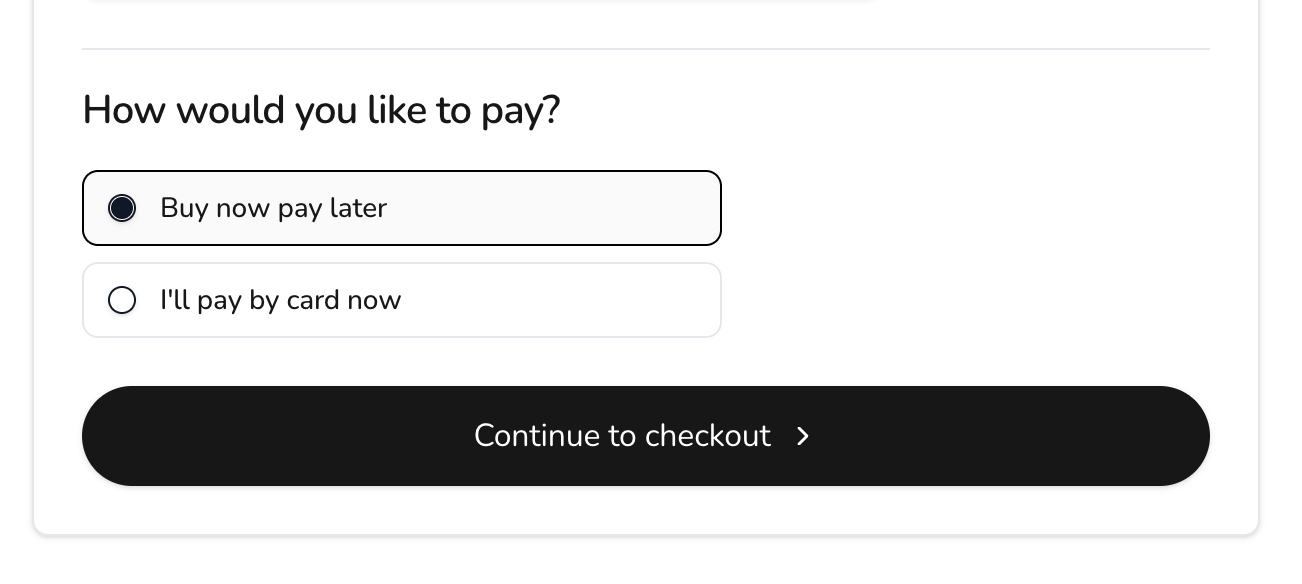
3. What you get
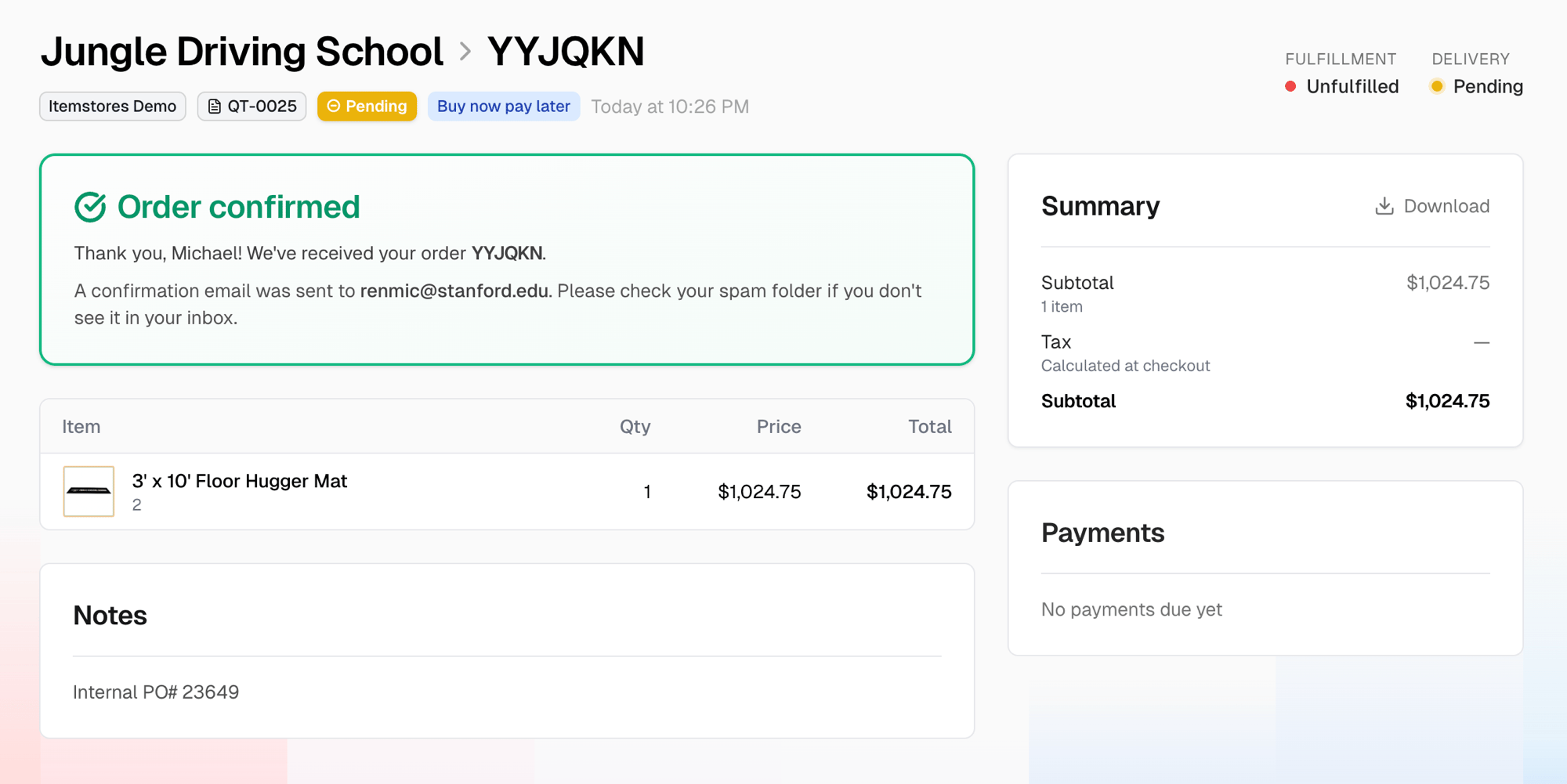
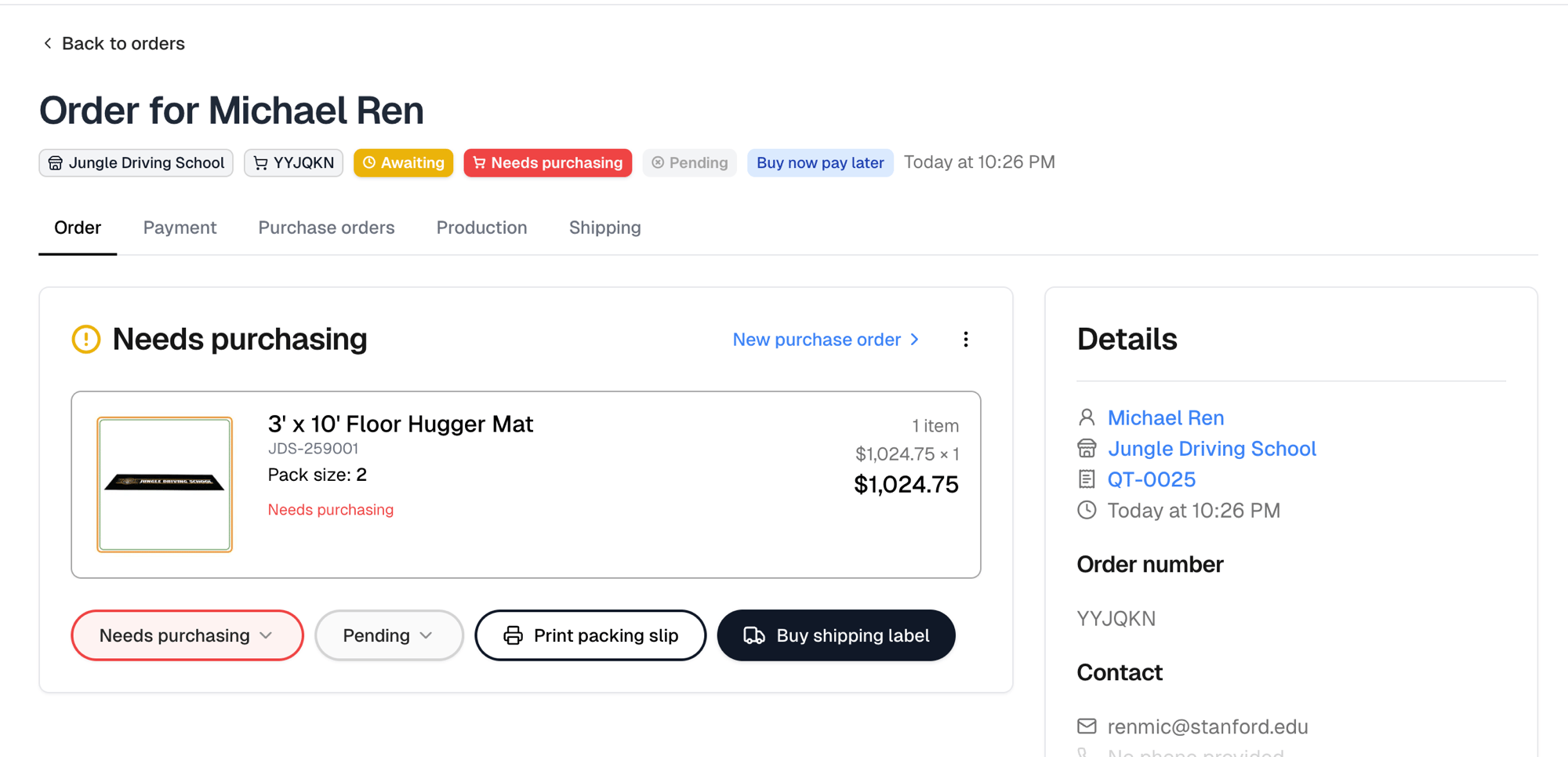
Each pay-later checkout creates two things at once:
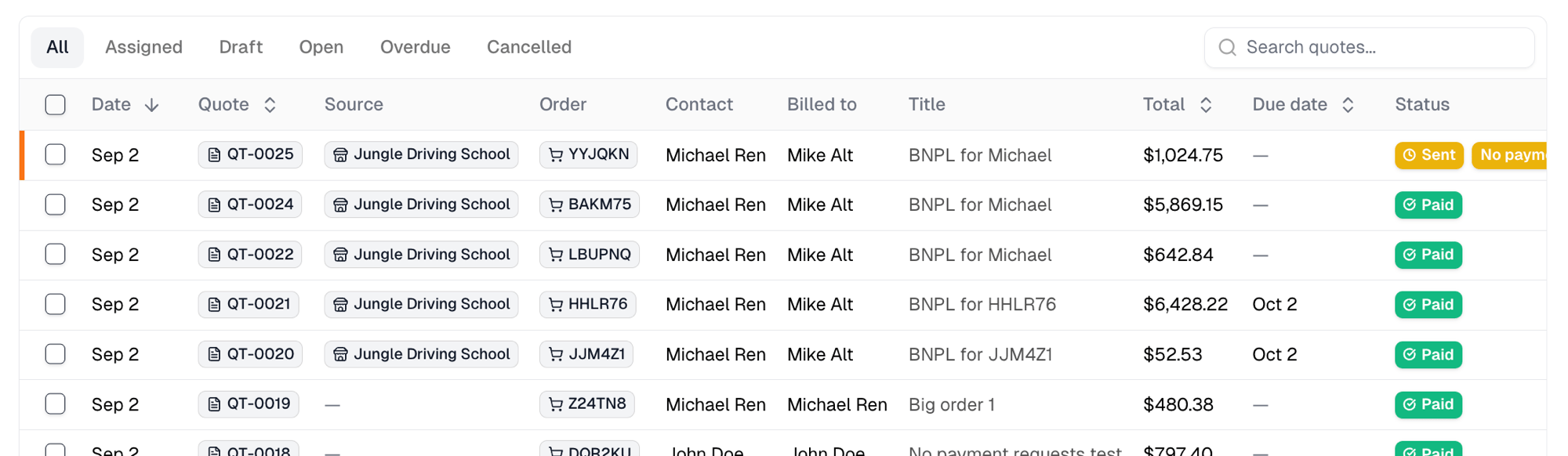
In the quotes list the Source column names the store, and Billed to
names who will receive payment requests. Both pages carry a
Buy now pay later badge, and each links to the other.
4. Request payment
Open the quote. The header shows the customer, the store, and who is billed. Billing contact in the Details card changes the payer for this quote only. Leave it blank to bill the customer.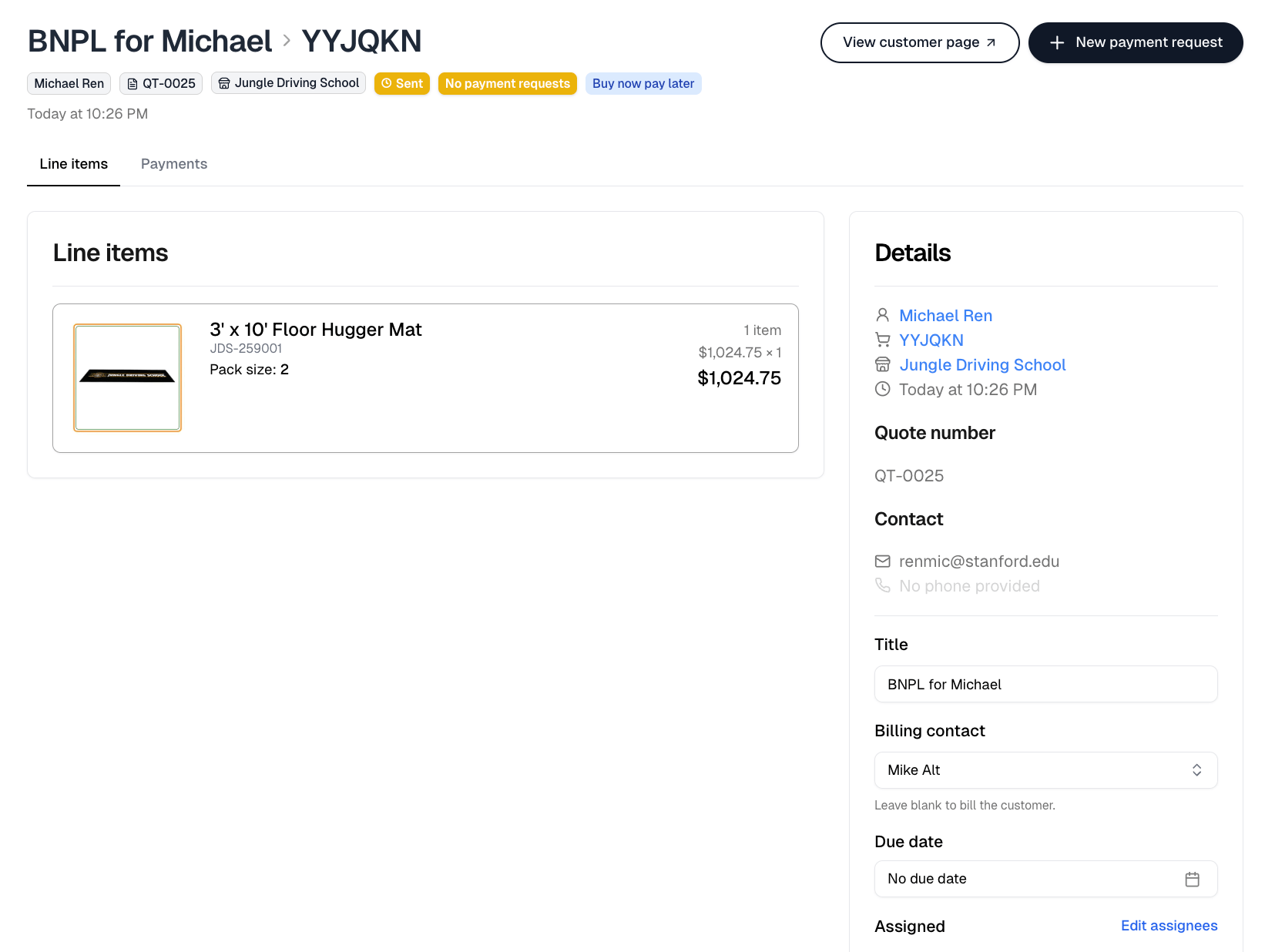
1
Request from one quote
Select New payment request, then Card or Bank transfer. The
billing contact receives an email with a link to pay. Cash or check
records a payment you already have.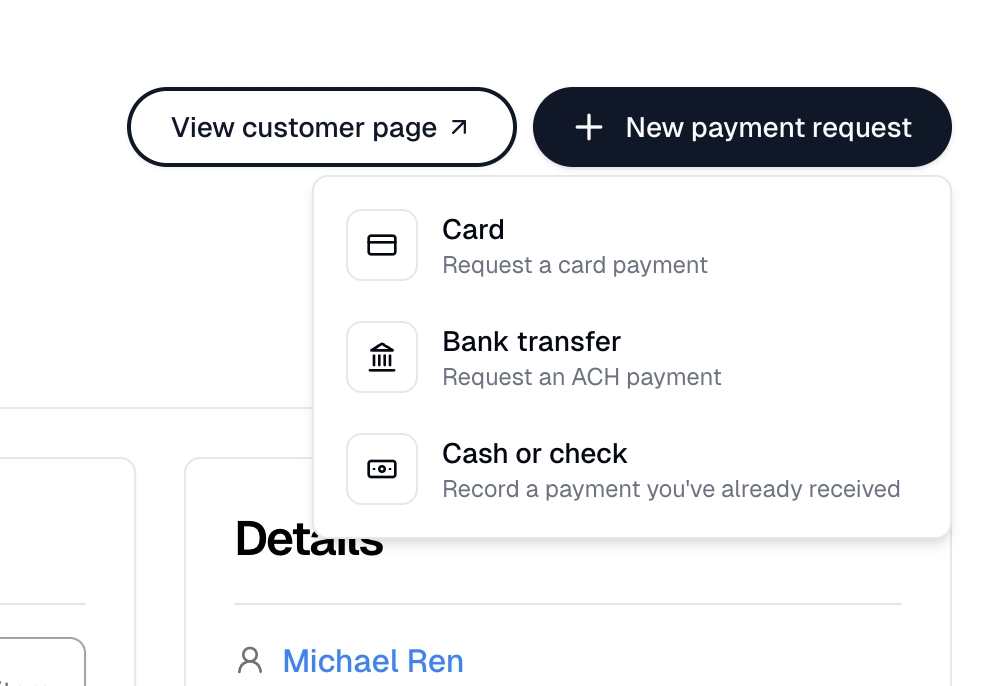
Bank transfer is offered to businesses in the United States.
2
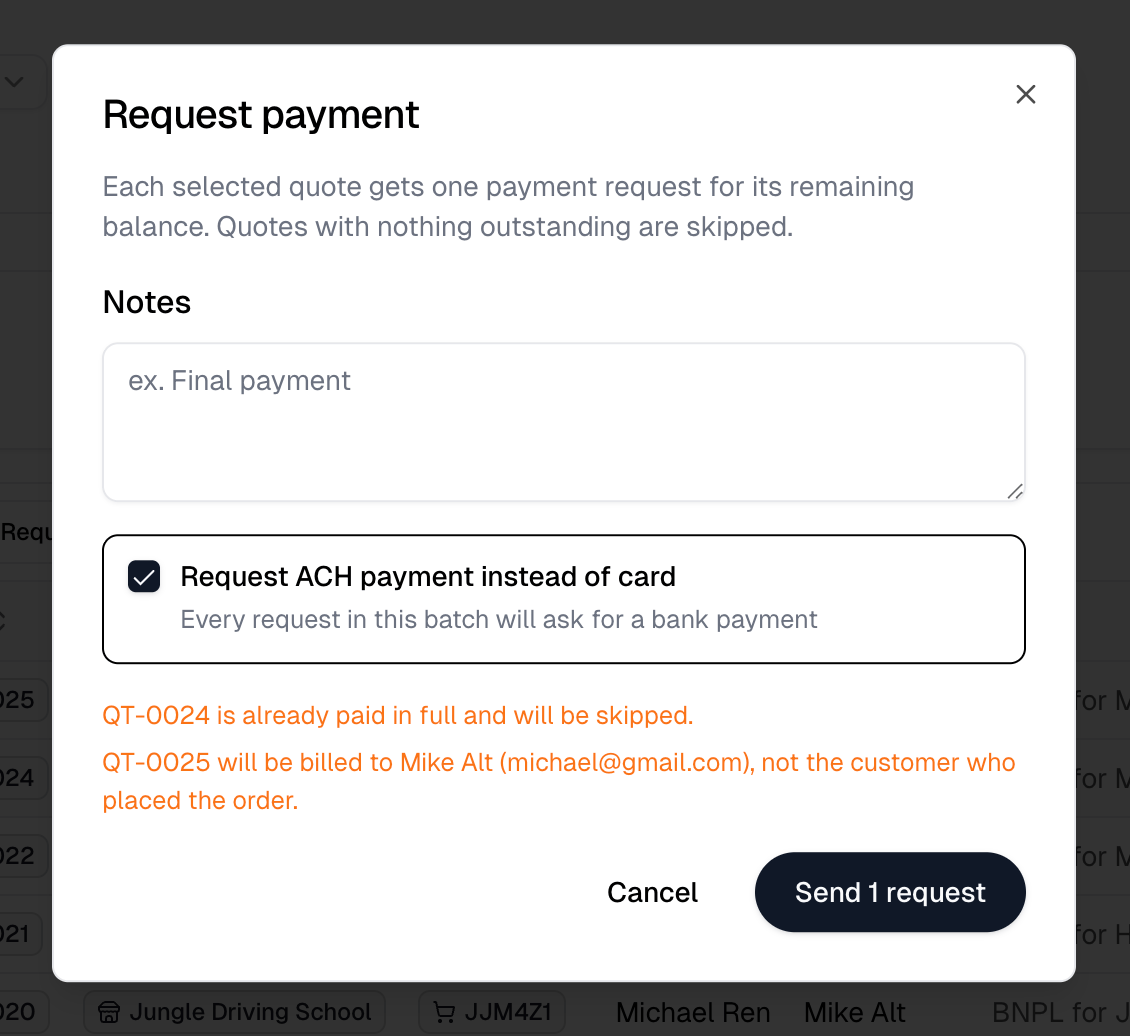
Or request from several at once
In the quotes list, select the quotes. The toolbar shows
Request payment, and Change billing contact when a pay-later quote
is selected.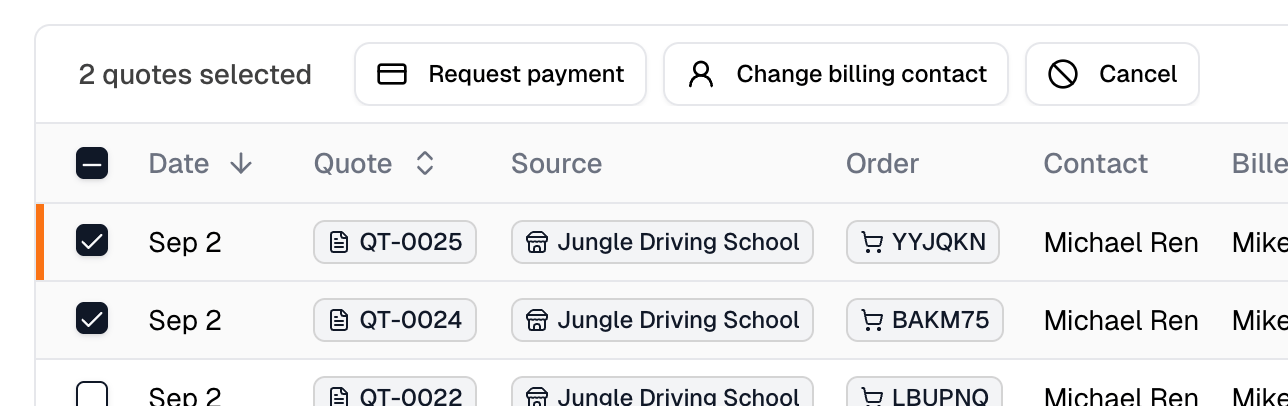
3
Watch it settle
When the request is paid, the quote turns Paid and the order’s payment
status follows. A card payment settles at once. A bank transfer shows
Processing for a few business days first.
Refunds for a pay-later order are made from the quote’s Payments tab.
With QuickBooks connected, the sale posts under the billing contact, not the
customer who checked out.