Orders arrive one at a time. The work does not. Ten orders across three stores can be one press setup and one run, or ten of each, and the difference is whether you batched them. Left alone, the same design gets set up once per order, the same garment gets pulled from the shelf in ones and twos, and nothing on an order tells you that another order needs the identical run. A work order is where that gets consolidated: one job, covering items from as many orders as you put on it.

Batch by how you actually work

Add items on a work order groups what is waiting to be made by Order, Product, Artwork, Store or Decoration method. A group’s checkbox takes the whole group at once. That is the consolidation. Group by decoration method and one tick pulls in everything being embroidered, whichever order it came from. Group by artwork and one tick pulls in every garment carrying that design. Group by store and one tick pulls in a whole team’s orders. Every row names the order and customer it came from, so you can see exactly what you are pulling into the job.
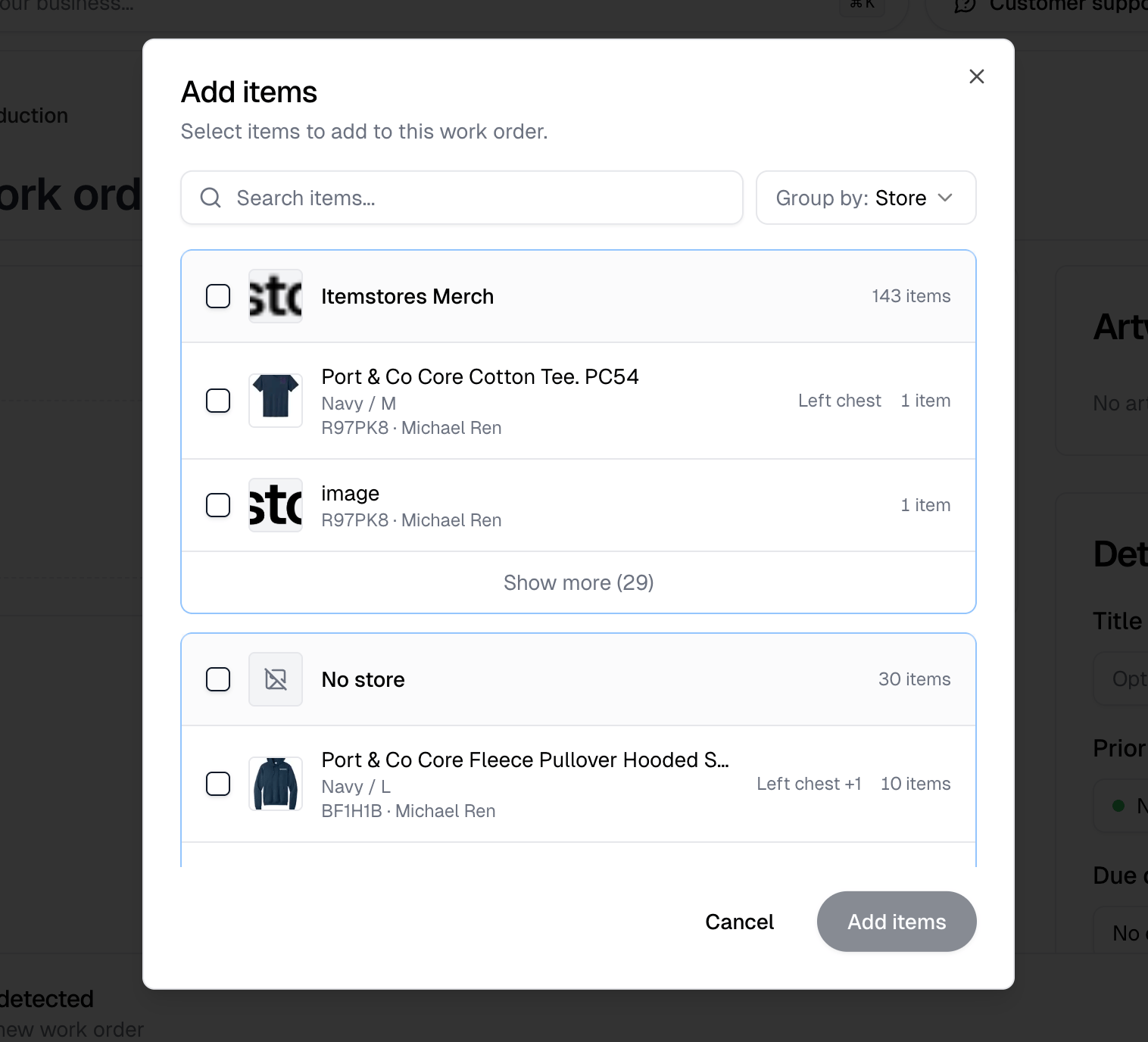
The Add items dialog with items grouped by store, each row naming its order and customer

The artwork adds itself up

The Artwork panel fills itself in from the items you added: one line per artwork, placement and colorway, with the quantity totaled across every order in the job. You read one number per design instead of adding up ten orders by hand. Readiness is tracked per design, not per order. An artwork is Not ready, Pending or Ready, the board card shows a badge while any is outstanding, and Mark all ready clears them together.
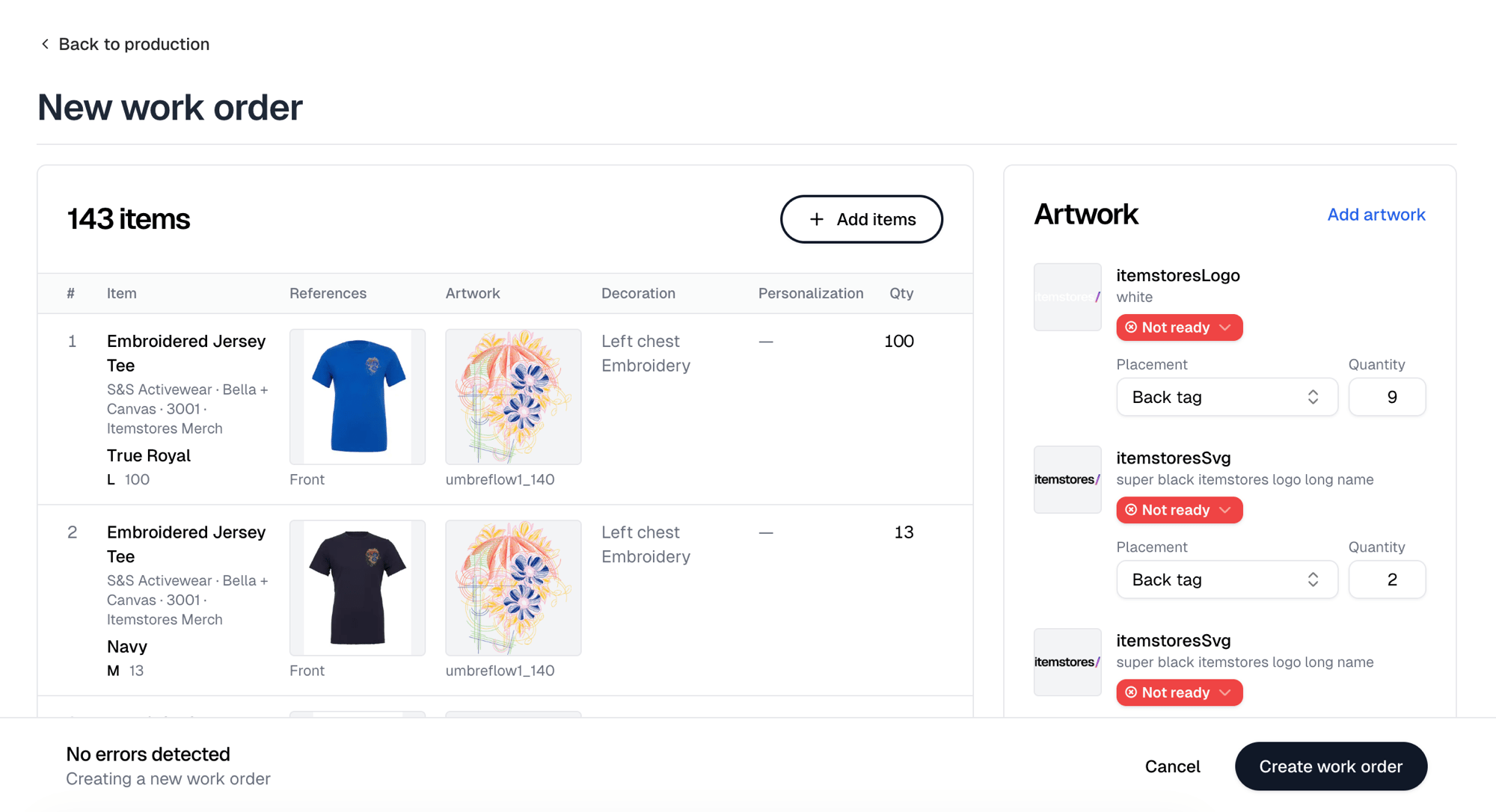
A work order with its items table on the left and the Artwork panel on the right, each artwork carrying a status, placement and quantity

One move updates every order in it

Dragging the card to a new column rewrites the fulfillment status of every order on the work order, and emails each customer whose status changed. Ten orders advance on one drag. Moving a card back to Unfulfilled recalculates each order from stock and open purchase orders, so it can land on Needs purchasing or Awaiting PO. See Production for what each column does.

Nothing is made twice, and nothing is missed

An item already on a work order is not offered to another one, so two people cannot each pull the same garment into their own job. Items from a single order can still sit on different work orders, which is what lets you batch by decoration method across orders. That order reads Partially in production until the rest of it catches up, so a split order still reports honestly.

One document for the floor

Print produces the whole job as one document, with reference photos and the size breakdown, rather than a stack of order printouts to reconcile at the press. Work orders are not the only way to move an order along. You can set a fulfillment status directly on the order, or on a selection of orders in the list. What a work order adds is that the work itself is batched, and the status follows the job instead of being kept in step by hand.