> ## Documentation Index
> Fetch the complete documentation index at: https://itemstores.com/help/llms.txt
> Use this file to discover all available pages before exploring further.
# Set up your pricing
> Turn supplier costs into what you actually charge
You can always type a price in by hand. Every product's price grid is editable,
and so is every line on a quote. Pricing rules are the alternative to doing that
over and over: set your markup once and it applies wherever you attach it,
across every color and size.
## Where prices start
A blank arrives with its supplier cost, and it already varies by size. Larger
sizes cost more, so your base prices are uneven before you do anything.
That is what a rule works on top of.
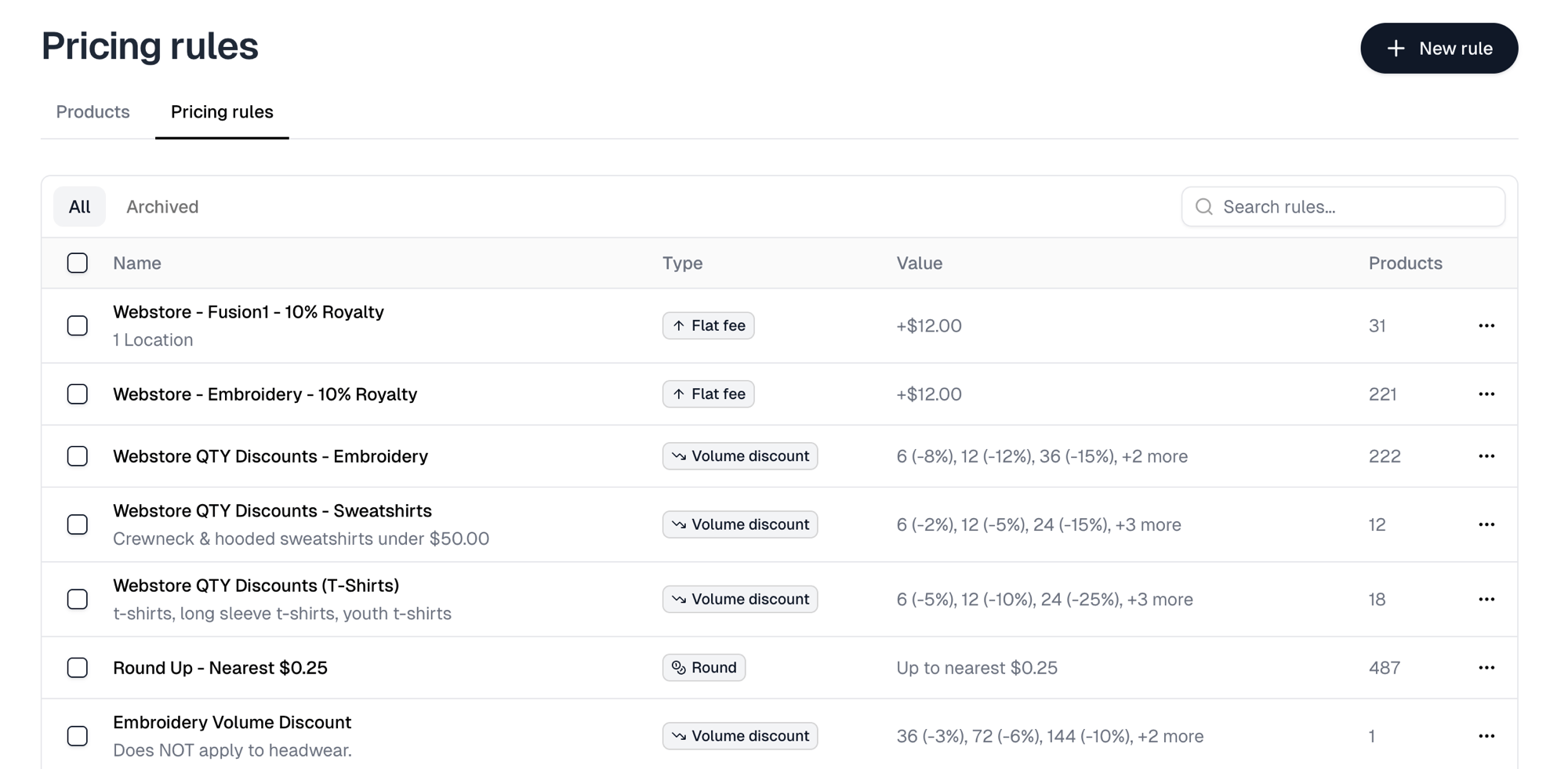
## Create a rule
In [Pricing rules](https://itemstores.com/app/pricing-rules), select
**New rule**. Give it a name you will recognize later, since you will pick it
from a list.
 ## Choose the kind of rule
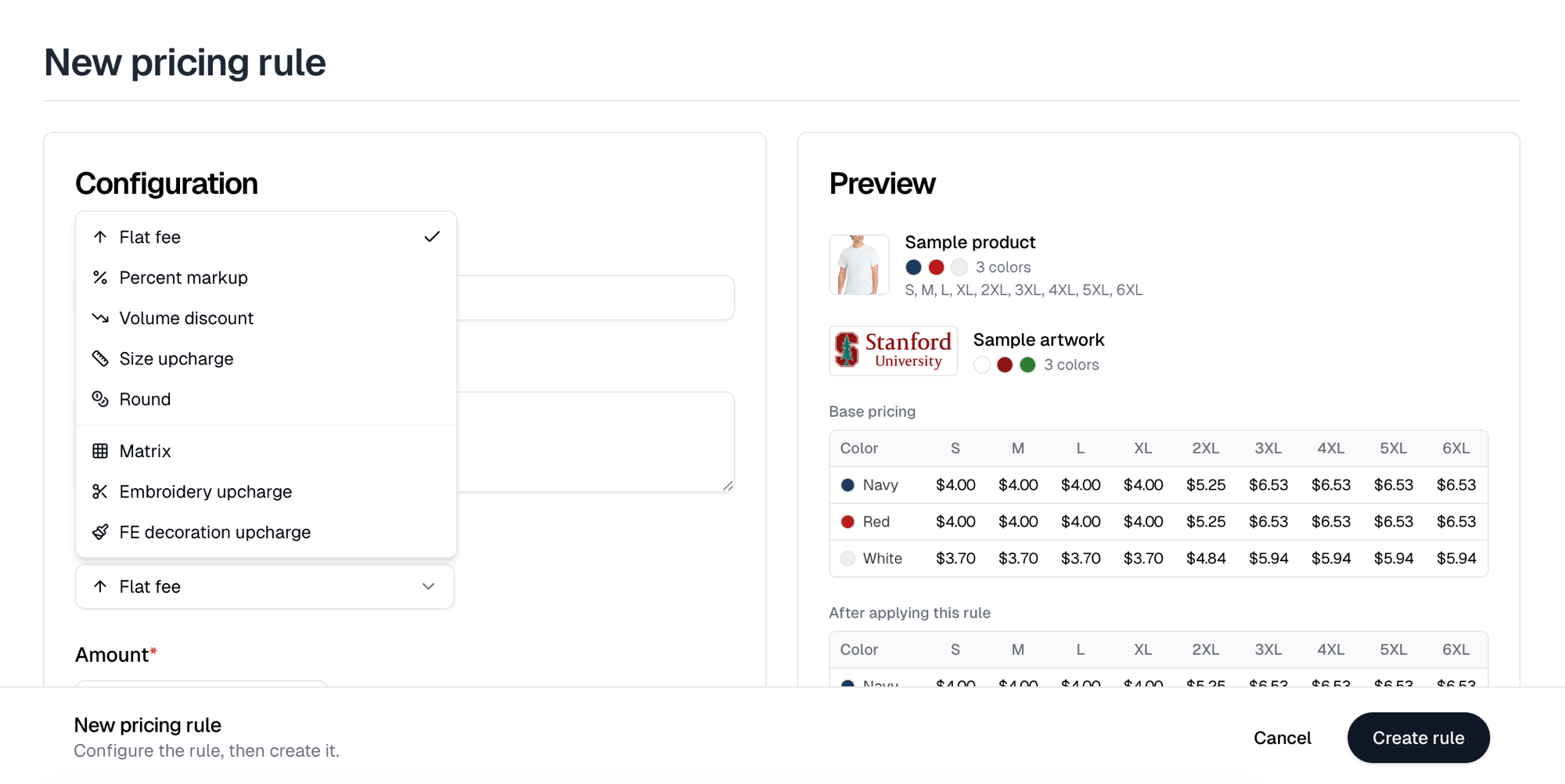
The type menu is in two halves, and the split matters.
**Price adjustments** work on the product's price:
| Type | What it does |
| --------------- | --------------------------------- |
| Flat fee | Adds a fixed amount |
| Percent markup | Adds a percentage |
| Volume discount | Discounts by order quantity |
| Size upcharge | Charges more for particular sizes |
| Round | Rounds the final price |
**Decoration pricing** works on how the item is decorated:
| Type | Priced by |
| ---------------------- | ------------------------------------------------------------------ |
| Matrix | How many colors the artwork has, and quantity. Added once per unit |
| Embroidery upcharge | Stitch count and quantity, per embroidery location per unit |
| FE decoration upcharge | Printing method, per decoration location per unit |
Most businesses start with one markup rule and one rounding rule, then add
decoration pricing when they need it.
FE decoration upcharge is in the menu only once Fulfill Engine is connected, and
it can only be attached to Fulfill Engine products.
## Choose the kind of rule
The type menu is in two halves, and the split matters.
**Price adjustments** work on the product's price:
| Type | What it does |
| --------------- | --------------------------------- |
| Flat fee | Adds a fixed amount |
| Percent markup | Adds a percentage |
| Volume discount | Discounts by order quantity |
| Size upcharge | Charges more for particular sizes |
| Round | Rounds the final price |
**Decoration pricing** works on how the item is decorated:
| Type | Priced by |
| ---------------------- | ------------------------------------------------------------------ |
| Matrix | How many colors the artwork has, and quantity. Added once per unit |
| Embroidery upcharge | Stitch count and quantity, per embroidery location per unit |
| FE decoration upcharge | Printing method, per decoration location per unit |
Most businesses start with one markup rule and one rounding rule, then add
decoration pricing when they need it.
FE decoration upcharge is in the menu only once Fulfill Engine is connected, and
it can only be attached to Fulfill Engine products.
 ## Watch the preview
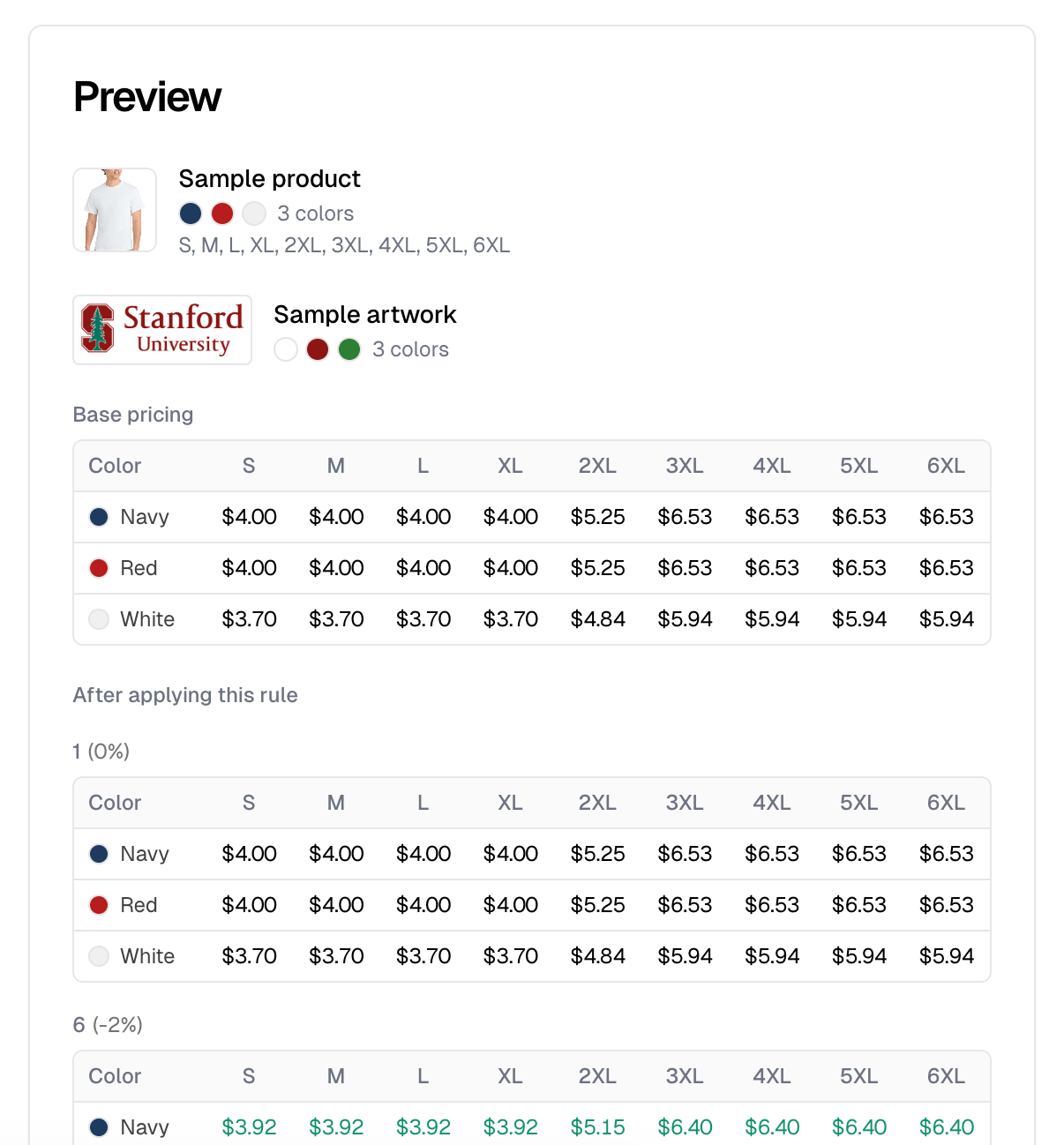
Every rule previews itself against a sample product and artwork as you
configure it: base pricing above, the result below, across every color and size.
Use it. A percent markup on uneven base costs produces uneven prices, and this
is where you see that before it reaches a customer.
## Watch the preview
Every rule previews itself against a sample product and artwork as you
configure it: base pricing above, the result below, across every color and size.
Use it. A percent markup on uneven base costs produces uneven prices, and this
is where you see that before it reaches a customer.
 ## Apply it
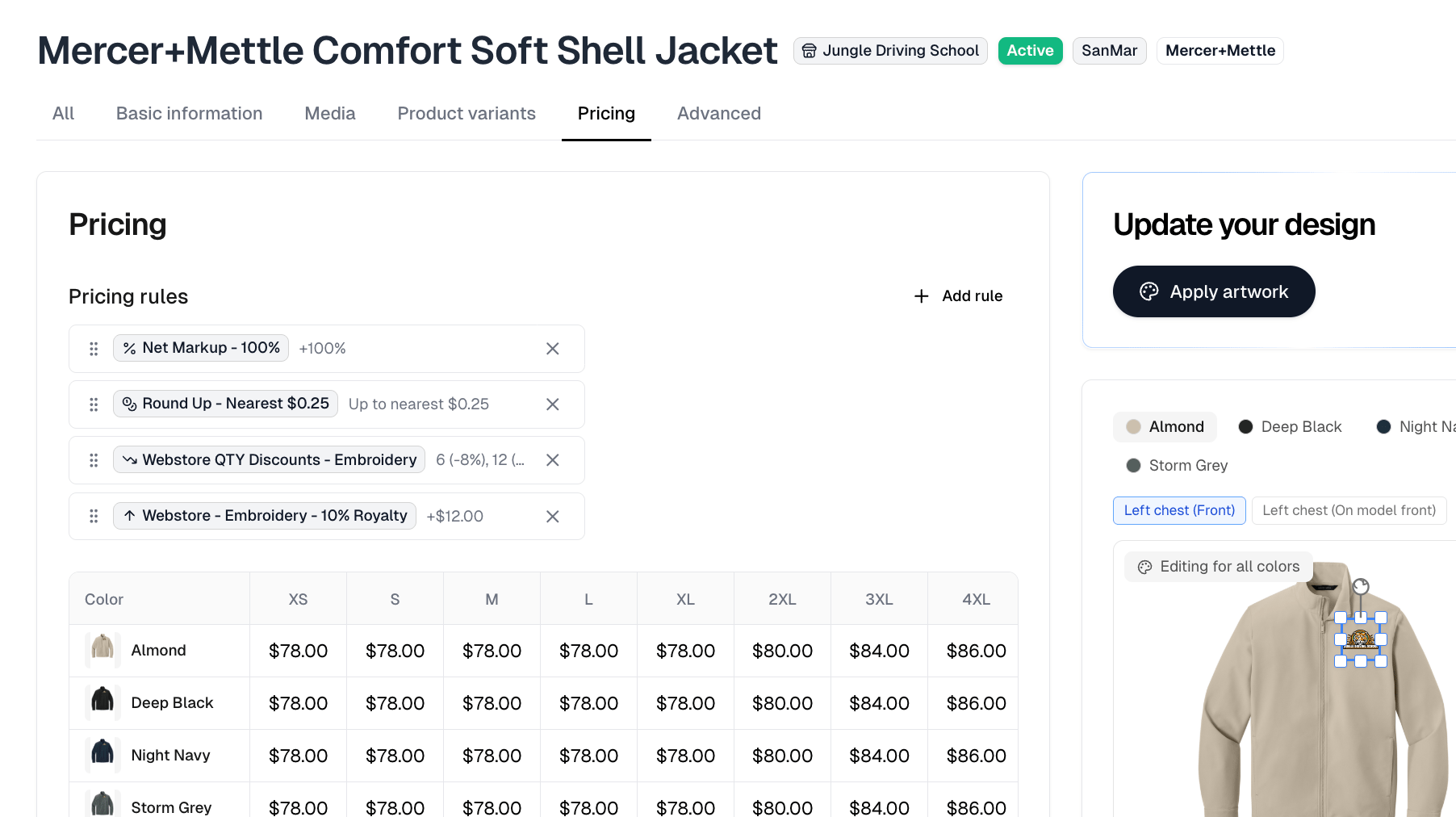
A rule does nothing until it is attached to products. There are four moments to
do that:
| Where | When to use it |
| --------------------------------------------------------- | ----------------------------------------------------------- |
| A product's **Pricing** tab | Fixing up one product |
| While [importing a blank](/help/knowledge-base/catalog/import) | Setting your markup as stock comes in, which is the tidiest |
| On a [quote](/help/knowledge-base/quotes) | Pricing the lines you choose on one job |
| The Products list | Select products, then **Edit** and **Add pricing rules** |
Several rules can stack on one product. They apply in the order listed, and you
can drag them to change it.
A rule applied on a quote is not quote-only. Saving the quote also attaches that
rule to the products on those lines and reprices them in your catalog.
## Apply it
A rule does nothing until it is attached to products. There are four moments to
do that:
| Where | When to use it |
| --------------------------------------------------------- | ----------------------------------------------------------- |
| A product's **Pricing** tab | Fixing up one product |
| While [importing a blank](/help/knowledge-base/catalog/import) | Setting your markup as stock comes in, which is the tidiest |
| On a [quote](/help/knowledge-base/quotes) | Pricing the lines you choose on one job |
| The Products list | Select products, then **Edit** and **Add pricing rules** |
Several rules can stack on one product. They apply in the order listed, and you
can drag them to change it.
A rule applied on a quote is not quote-only. Saving the quote also attaches that
rule to the products on those lines and reprices them in your catalog.
 ## Three things that surprise people
**Hand-editing a price removes the rules.** On a product with rules attached,
typing a price into the grid clears every rule from that product. Itemstores
asks first, and it cannot be undone.
**Rounding happens last.** It applies after every other rule, which is what
makes "round up to the nearest quarter" behave predictably no matter what else
is stacked.
**Matrix and embroidery tiers are upcharges, not discounts.** Every cell is an
amount added per unit, and the tier that applies is the one matching the order
quantity. The listed price carries the first tier, so a larger order adds less
and the price comes down from there. It is not a discount table with a free
first row.
Size upcharge has its own catch worth knowing: alternate spellings are covered
automatically, so 2XL also covers XXL, and tall, petite, short and long sizes
use the matching regular size unless you list them, so 2XL also covers 2XLT. To
charge nothing for one of those, list it at \$0.00 rather than leaving it out.
## Where to go deeper
Every rule type, with its exact configuration, is in the
[Pricing rules guide](/help/knowledge-base/pricing-rules).
## Three things that surprise people
**Hand-editing a price removes the rules.** On a product with rules attached,
typing a price into the grid clears every rule from that product. Itemstores
asks first, and it cannot be undone.
**Rounding happens last.** It applies after every other rule, which is what
makes "round up to the nearest quarter" behave predictably no matter what else
is stacked.
**Matrix and embroidery tiers are upcharges, not discounts.** Every cell is an
amount added per unit, and the tier that applies is the one matching the order
quantity. The listed price carries the first tier, so a larger order adds less
and the price comes down from there. It is not a discount table with a free
first row.
Size upcharge has its own catch worth knowing: alternate spellings are covered
automatically, so 2XL also covers XXL, and tall, petite, short and long sizes
use the matching regular size unless you list them, so 2XL also covers 2XLT. To
charge nothing for one of those, list it at \$0.00 rather than leaving it out.
## Where to go deeper
Every rule type, with its exact configuration, is in the
[Pricing rules guide](/help/knowledge-base/pricing-rules).