> ## Documentation Index
> Fetch the complete documentation index at: https://itemstores.com/help/llms.txt
> Use this file to discover all available pages before exploring further.
# Sell with quotes and proposals
> Walk one job from a design idea to money in your account
This is the sales path for work you quote rather than sell from a store. One job
moves through three documents, and each one links to the next so you can follow
it later.
## 1. Propose the designs
Start a proposal when the customer has not settled on what they want. A proposal
carries no prices and no quantities, only what you are putting in front of them.
In [Proposals](https://itemstores.com/app/proposals), select **New
proposal**. A title and a contact are both required.
**Add product** opens a browser with **Blanks**, **Collections** and
**Decorated products**. Pick several at once.
**Add** in the Artwork card attaches a design. If the proposal holds
blanks, the **Apply artwork** dialog opens straight after, where you set a
placement per product and a colorway per product color. Select an artwork
row later to reopen it.
**Notes** is what the customer reads when deciding. Say what you want from
them, such as which items they want and how many.
**Create proposal** emails the contact a link and marks the proposal Sent.
There is no separate send step, so finish the proposal before you create it.
## 2. Let them respond
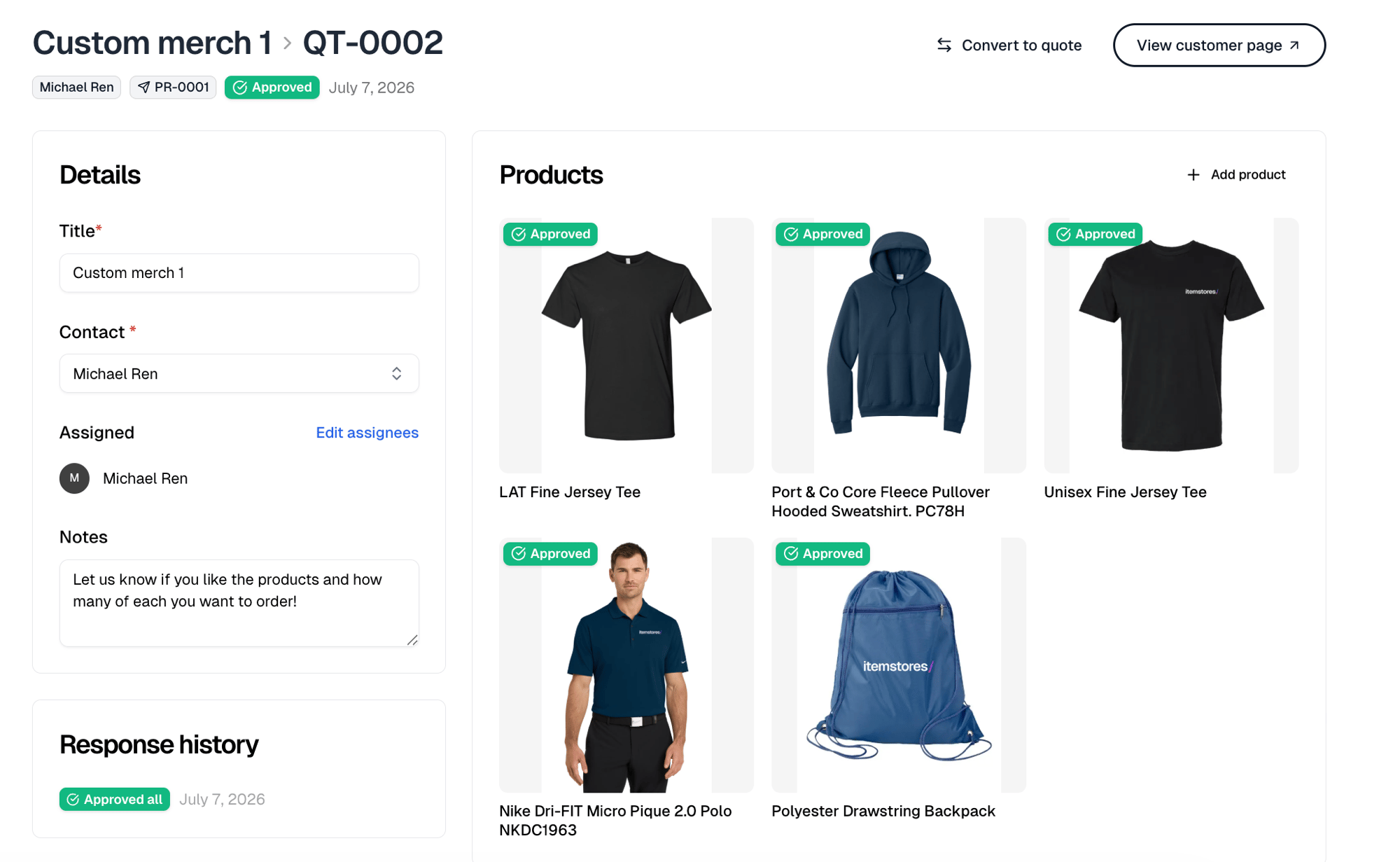
**View customer page** shows you exactly what the customer sees.
They approve or reject **each product separately**, with a comment on any of
them, or answer everything at once with **Approve all** or **Reject all**.
Rejections are as useful as approvals here. The point of a proposal is finding
out what to drop before you price anything.
Their answers come back badged on each product, with their comments, and a
**Response history** of every response in order.
 ## 3. Turn it into a quote
**Convert to quote** sits on the proposal as soon as it holds a product. It does
not wait for the customer's answers, and rejected products are still listed, in
red.
Each product starts as **Not configured yet**. Open one and set the quantities
and sizes you are quoting. **Convert** turns on at the first configured product,
and anything left unconfigured is dropped from the quote.
This is the moment the job gains numbers. Nothing before it commits anyone to
an amount.
## 4. Price it
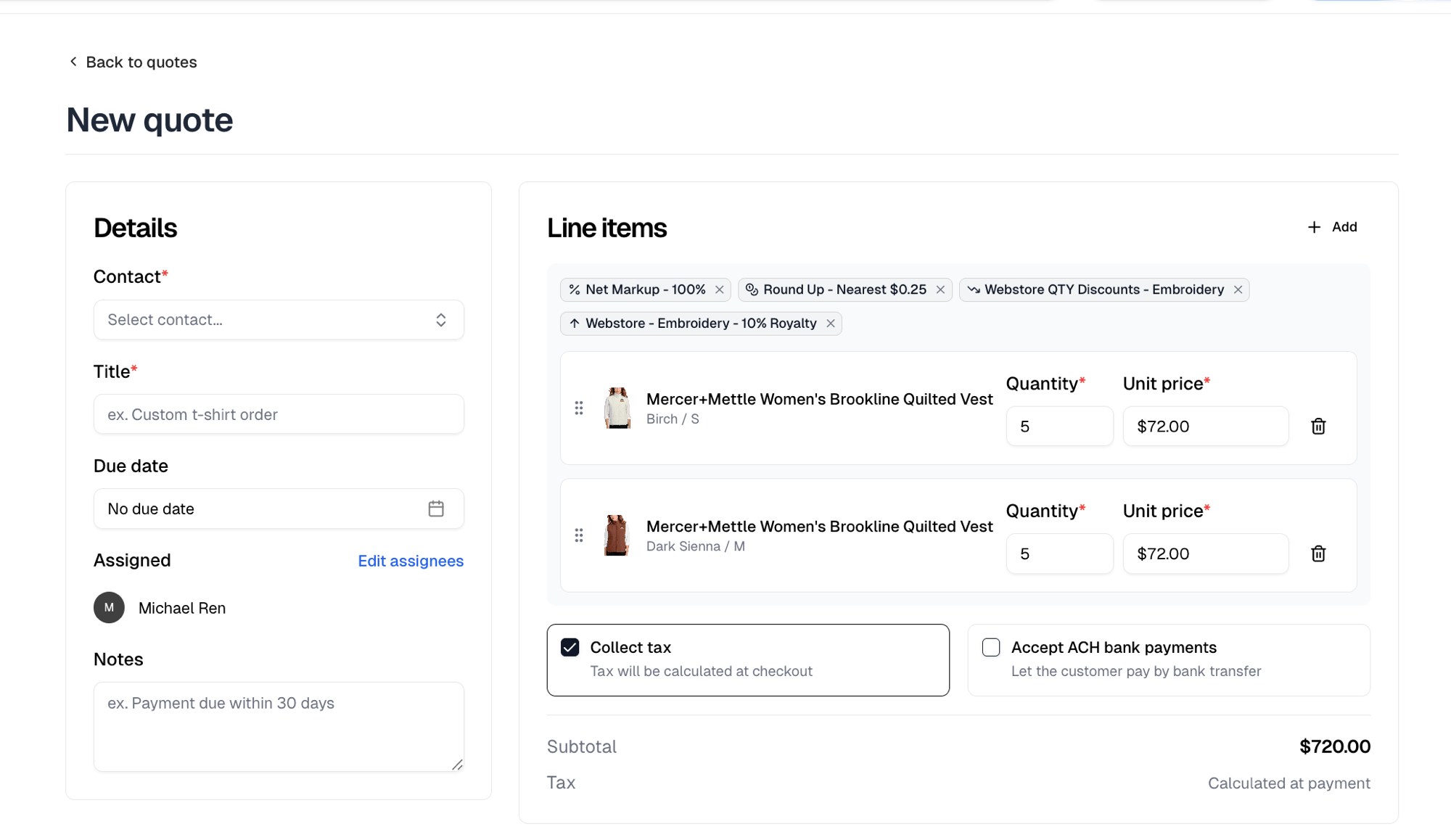
The quote arrives with your products on it as line items. Now make it a real
quote.
| Add | For |
| ------------ | ------------------------------------------------------------------ |
| Product | More items from your catalog |
| Pricing rule | An upcharge or volume discount, applied to the products you choose |
| Service | Digitizing, folding, bagging, anything reusable you charge for |
| Surcharge | A one-off charge, like a late fee |
| Shipping | What delivery costs |
| Discount | An amount off the total |
Every line's quantity and price stays editable, so the quote is never locked to
catalog pricing.
A pricing rule added here is not quote-only. Saving the quote attaches the rule
to the products on those lines and reprices them in your catalog.
Decide two things before sending: **Collect tax**, and whether to
**Accept ACH bank payments** so they can pay by bank transfer instead of card.
## 3. Turn it into a quote
**Convert to quote** sits on the proposal as soon as it holds a product. It does
not wait for the customer's answers, and rejected products are still listed, in
red.
Each product starts as **Not configured yet**. Open one and set the quantities
and sizes you are quoting. **Convert** turns on at the first configured product,
and anything left unconfigured is dropped from the quote.
This is the moment the job gains numbers. Nothing before it commits anyone to
an amount.
## 4. Price it
The quote arrives with your products on it as line items. Now make it a real
quote.
| Add | For |
| ------------ | ------------------------------------------------------------------ |
| Product | More items from your catalog |
| Pricing rule | An upcharge or volume discount, applied to the products you choose |
| Service | Digitizing, folding, bagging, anything reusable you charge for |
| Surcharge | A one-off charge, like a late fee |
| Shipping | What delivery costs |
| Discount | An amount off the total |
Every line's quantity and price stays editable, so the quote is never locked to
catalog pricing.
A pricing rule added here is not quote-only. Saving the quote attaches the rule
to the products on those lines and reprices them in your catalog.
Decide two things before sending: **Collect tax**, and whether to
**Accept ACH bank payments** so they can pay by bank transfer instead of card.
 ## 5. Send it and get paid
**Create quote** opens a confirmation with two checkboxes, both on by default:
* **Send quote to customer** emails a link to view and pay.
* **Request card payment for full amount** sends a payment request for the
total. It reads **Request ACH payment for full amount** when the quote accepts
ACH, and it is only offered while the first box stays checked.
Clearing **Send quote to customer** clears the payment request with it and saves
a draft. A draft carries **Edit quote** and **Send quote**, and **Send quote** is
the point of no return.
A quote cannot be edited once it is sent. Fixing anything after that means
creating a new quote.
The confirmation only ever requests the full amount. To take a deposit, clear
the payment request there, then use **New payment** on the sent quote for the
deposit and again for the balance. **New payment** appears once the quote is
sent and offers **Card**, **Bank transfer** when the quote accepts ACH, and
**Cash or check** to record money you already took. The **Payments** tab tracks
each one, and shows your revenue, fees and net once paid.
## 6. It becomes an order
**Convert to order** hands the job to fulfillment, and from there it works like
[any other order](/help/tutorials/fulfilling-orders): purchase order, work order,
shipping label. It does not wait for payment. An unpaid quote converts into an
order marked awaiting payment that you can start work on right away.
If the quote contains Fulfill Engine products, converting submits them to
Fulfill Engine for production immediately.
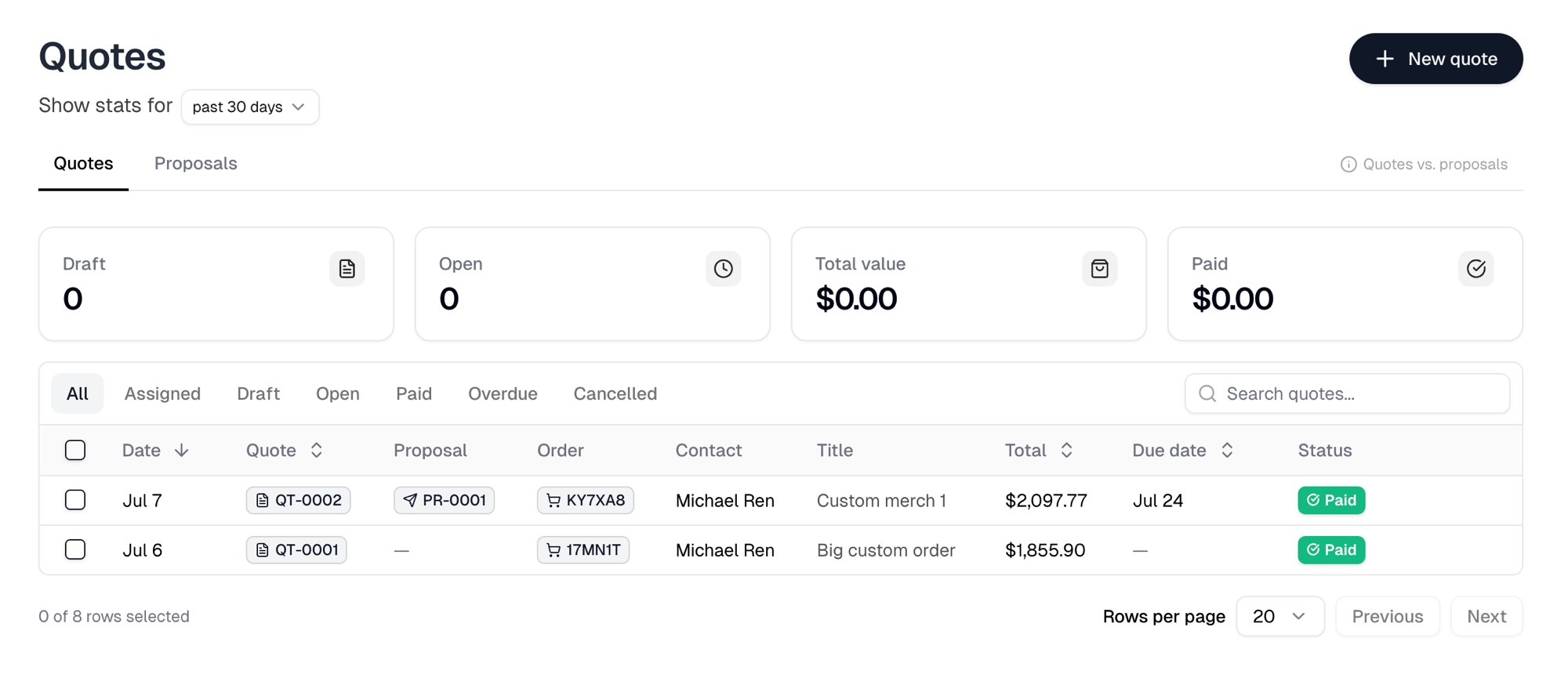
The proposal, quote and order stay linked, so any one of them shows you the
other two.
## 5. Send it and get paid
**Create quote** opens a confirmation with two checkboxes, both on by default:
* **Send quote to customer** emails a link to view and pay.
* **Request card payment for full amount** sends a payment request for the
total. It reads **Request ACH payment for full amount** when the quote accepts
ACH, and it is only offered while the first box stays checked.
Clearing **Send quote to customer** clears the payment request with it and saves
a draft. A draft carries **Edit quote** and **Send quote**, and **Send quote** is
the point of no return.
A quote cannot be edited once it is sent. Fixing anything after that means
creating a new quote.
The confirmation only ever requests the full amount. To take a deposit, clear
the payment request there, then use **New payment** on the sent quote for the
deposit and again for the balance. **New payment** appears once the quote is
sent and offers **Card**, **Bank transfer** when the quote accepts ACH, and
**Cash or check** to record money you already took. The **Payments** tab tracks
each one, and shows your revenue, fees and net once paid.
## 6. It becomes an order
**Convert to order** hands the job to fulfillment, and from there it works like
[any other order](/help/tutorials/fulfilling-orders): purchase order, work order,
shipping label. It does not wait for payment. An unpaid quote converts into an
order marked awaiting payment that you can start work on right away.
If the quote contains Fulfill Engine products, converting submits them to
Fulfill Engine for production immediately.
The proposal, quote and order stay linked, so any one of them shows you the
other two.
 ## Skipping the proposal
If the customer already knows what they want, start with **New quote** and add
products there. Proposals exist for the design conversation, not as a required
stage.
## Skipping the proposal
If the customer already knows what they want, start with **New quote** and add
products there. Proposals exist for the design conversation, not as a required
stage.