> ## Documentation Index
> Fetch the complete documentation index at: https://itemstores.com/help/llms.txt
> Use this file to discover all available pages before exploring further.
# Invite your team
> Add people to your business and choose what they can do
Requires a Full or Enterprise license and a connected Stripe account.
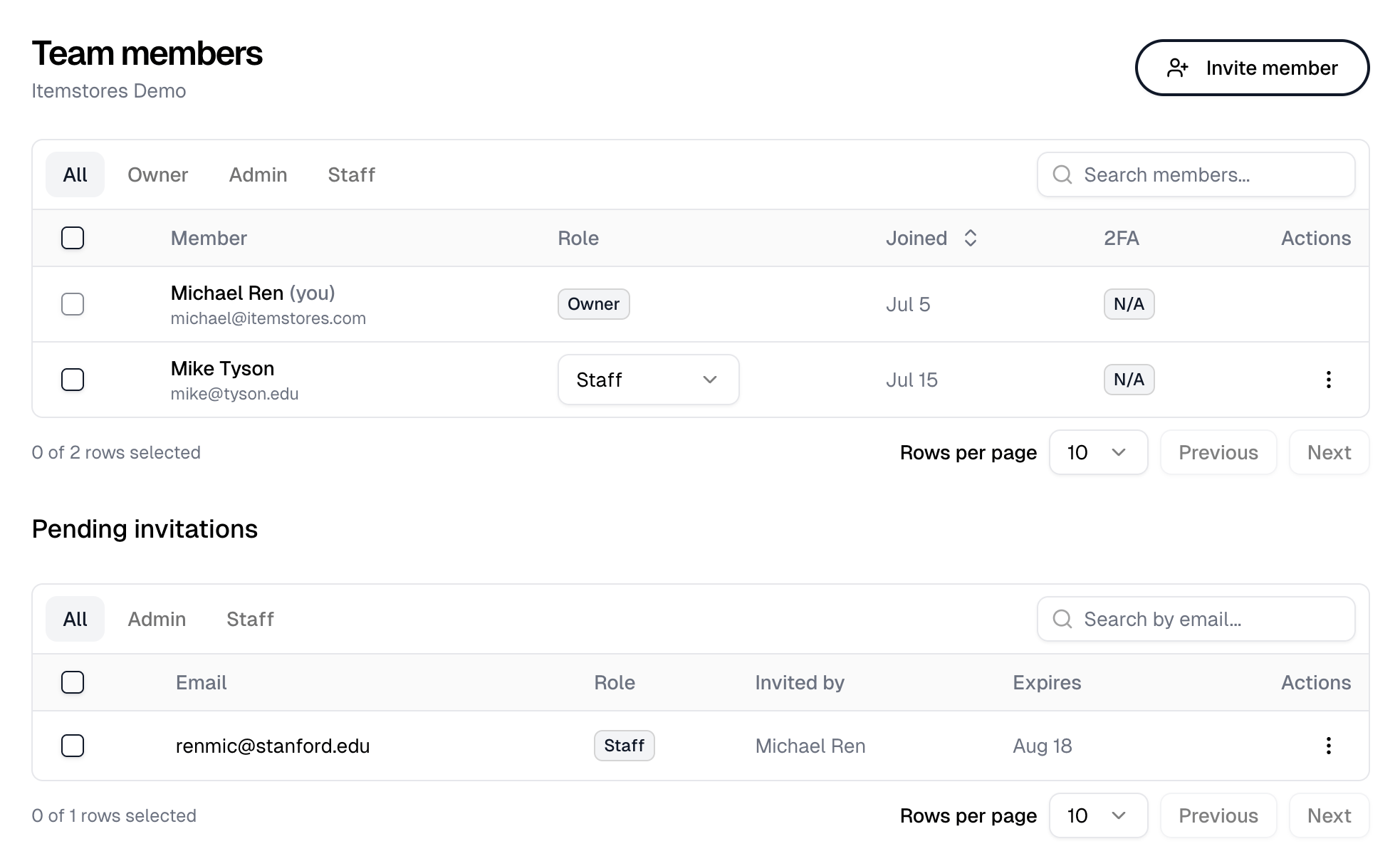
Go to [Settings › Team](https://itemstores.com/app/settings/team) and select
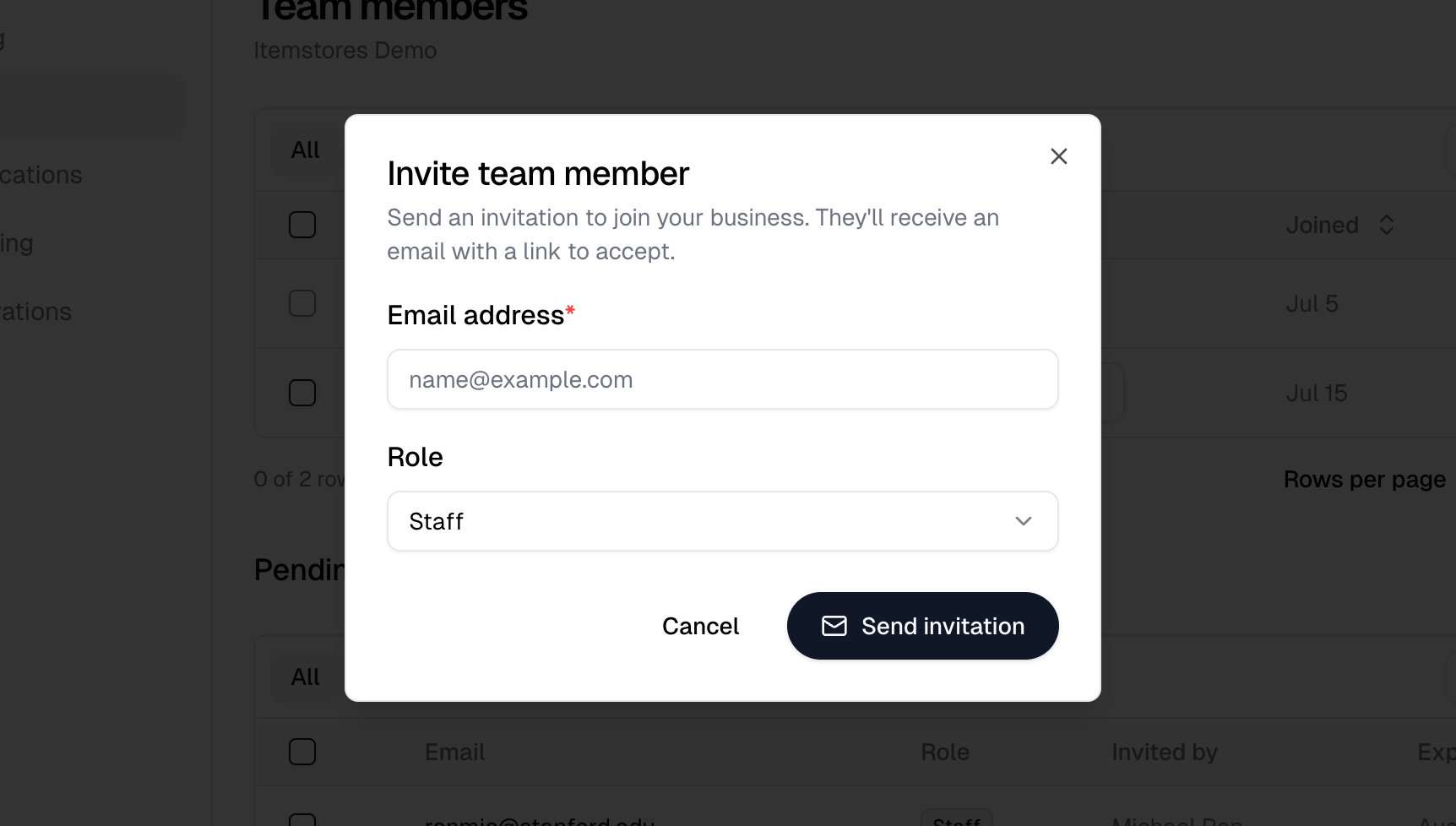
**Invite member**. Enter their email and pick a role. Only owners and admins see
that button.
 An invitation expires after 7 days. Unaccepted ones sit under **Pending
invitations** with their expiry date, so you can see what has gone stale.
A business holds up to 100 team members, counting pending invitations.
## Roles
| Role | What it is |
| ----- | ------------------------------------------------------------- |
| Owner | Owns the business. One per business, and cannot be invited. |
| Admin | Can invite and manage staff, but not other admins. |
| Staff | The default for a new invite. Cannot invite or manage anyone. |
Only the owner can invite an admin. See the [Team guide](/help/knowledge-base/settings/team)
for what each role can do.
An invitation expires after 7 days. Unaccepted ones sit under **Pending
invitations** with their expiry date, so you can see what has gone stale.
A business holds up to 100 team members, counting pending invitations.
## Roles
| Role | What it is |
| ----- | ------------------------------------------------------------- |
| Owner | Owns the business. One per business, and cannot be invited. |
| Admin | Can invite and manage staff, but not other admins. |
| Staff | The default for a new invite. Cannot invite or manage anyone. |
Only the owner can invite an admin. See the [Team guide](/help/knowledge-base/settings/team)
for what each role can do.