> ## Documentation Index
> Fetch the complete documentation index at: https://itemstores.com/help/llms.txt
> Use this file to discover all available pages before exploring further.
# Import blanks and artwork
> Get the garments and designs you need before making a product
A product is a blank with your artwork on it, so bring both in first.
## Import a blank
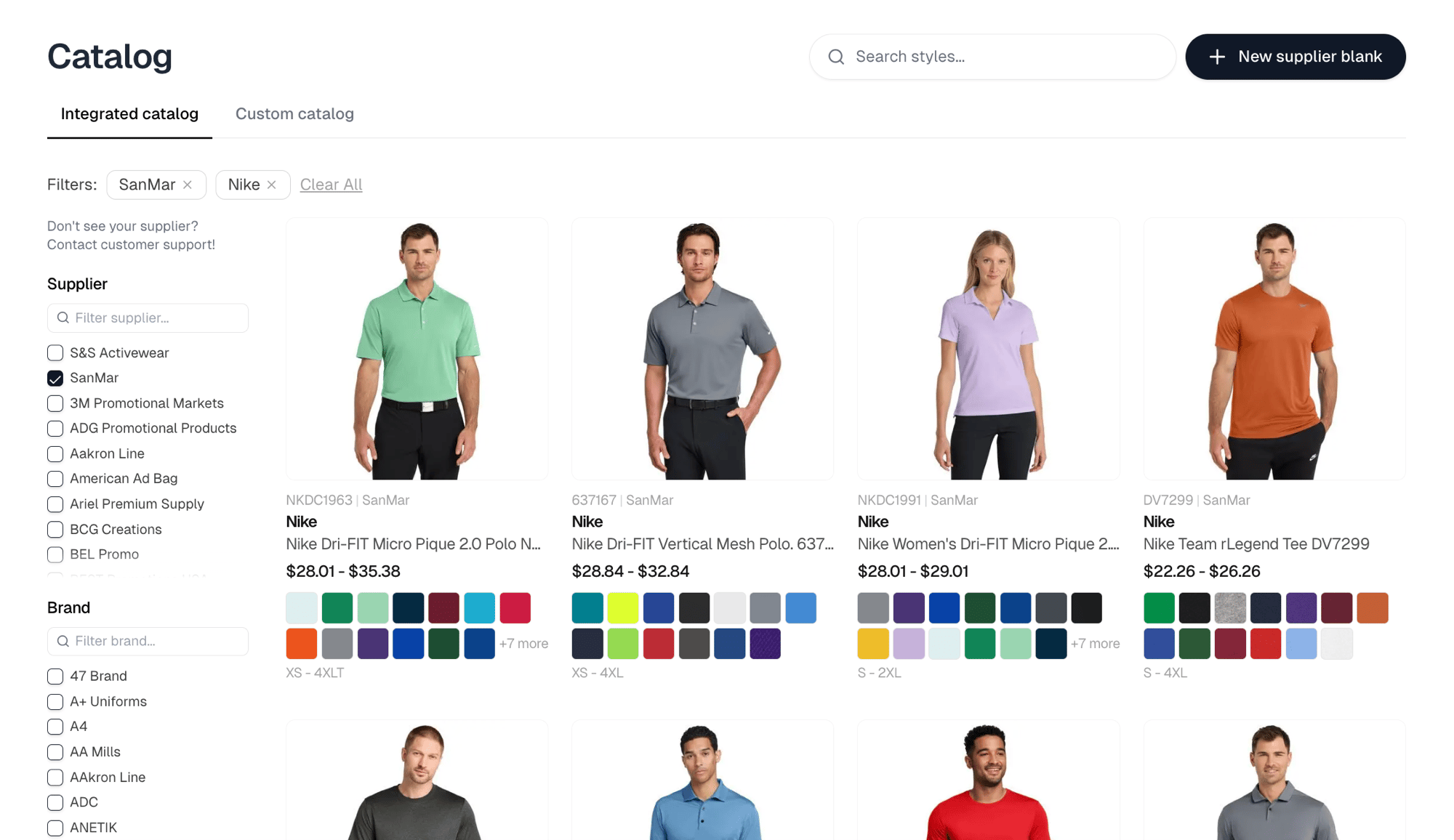
In [Catalog](https://itemstores.com/app/catalog), open the garment you want.
Search styles, or narrow the list by supplier, brand, and category down the
left.
 Pick the colors and sizes you want first. No color is selected to begin with,
and every size is. **Select all** takes every color the current filter shows,
then reads **Deselect all** until you clear the selection. On a list of twenty
or more colors it asks you to confirm first.
The filter beside it offers **All colors**, **In-stock colors** and
**High-stock colors**. It starts on **In-stock colors** for suppliers with live
stock counts, so switch to **All colors** to see the rest.
Pick the colors and sizes you want first. No color is selected to begin with,
and every size is. **Select all** takes every color the current filter shows,
then reads **Deselect all** until you clear the selection. On a list of twenty
or more colors it asks you to confirm first.
The filter beside it offers **All colors**, **In-stock colors** and
**High-stock colors**. It starts on **In-stock colors** for suppliers with live
stock counts, so switch to **All colors** to see the rest.
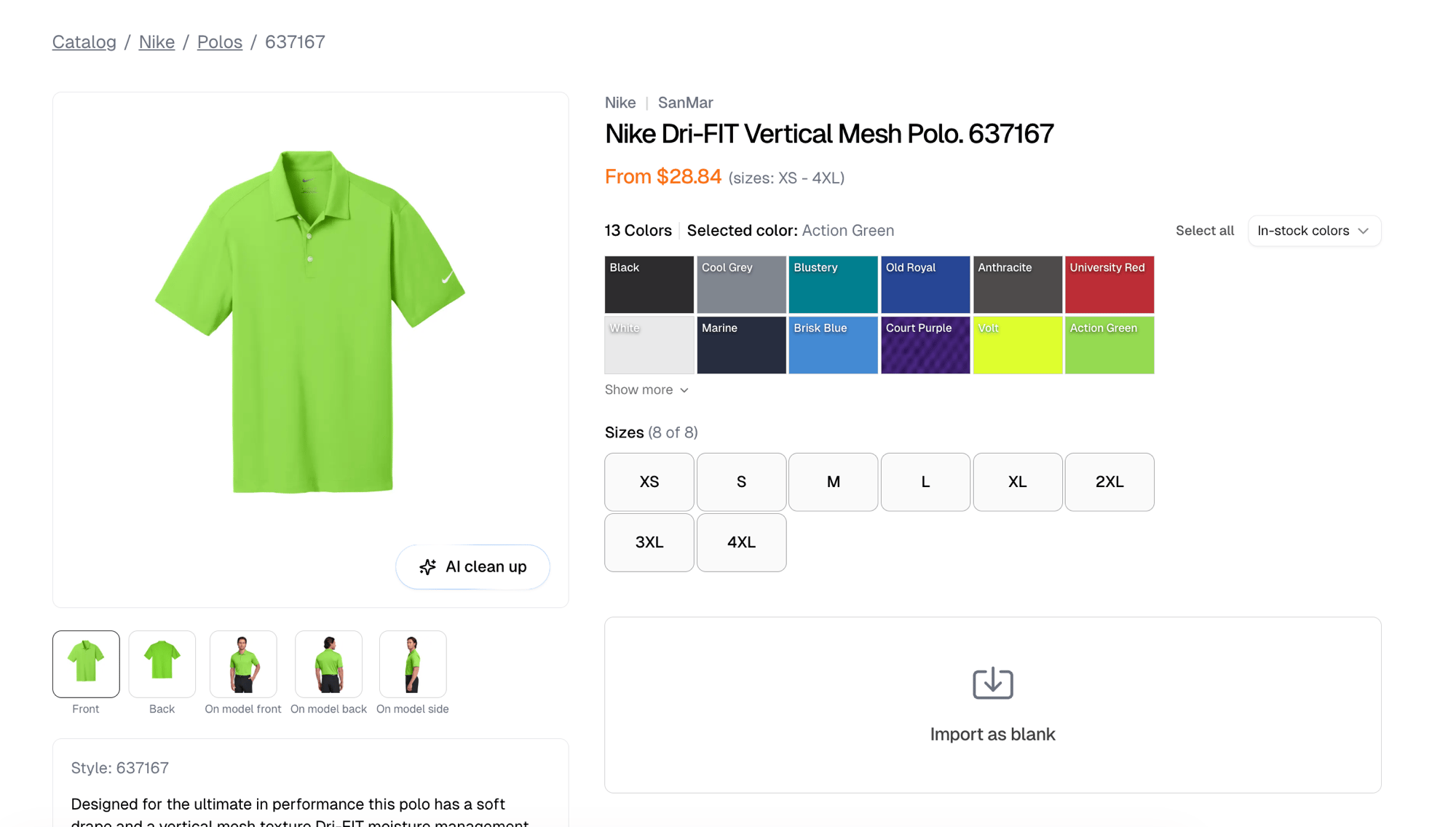 **Import as blank** opens the import form under the swatches, where you set a
primary decoration method and any pricing rules. **Import** at the bottom of
that form opens a placement review, and the blank is created from there. It
appears in [Blanks](https://itemstores.com/app/blanks).
## Upload artwork
In [Artwork](https://itemstores.com/app/artwork), select **New artwork** and
choose **Image** for a PNG, JPG, or other image file, or **Embroidery file** for
a `.dst` file with thread data.
Colorways, approvals and embroidery files are covered in the
[Artwork guide](/help/knowledge-base/artwork). For the full import options, including which
colors come across, see [Importing a style](/help/knowledge-base/catalog/import).
**Import as blank** opens the import form under the swatches, where you set a
primary decoration method and any pricing rules. **Import** at the bottom of
that form opens a placement review, and the blank is created from there. It
appears in [Blanks](https://itemstores.com/app/blanks).
## Upload artwork
In [Artwork](https://itemstores.com/app/artwork), select **New artwork** and
choose **Image** for a PNG, JPG, or other image file, or **Embroidery file** for
a `.dst` file with thread data.
Colorways, approvals and embroidery files are covered in the
[Artwork guide](/help/knowledge-base/artwork). For the full import options, including which
colors come across, see [Importing a style](/help/knowledge-base/catalog/import).