> ## Documentation Index
> Fetch the complete documentation index at: https://itemstores.com/help/llms.txt
> Use this file to discover all available pages before exploring further.
# Create your account
> Sign up and set up your profile
## Sign up
Sign up with an email and password, or with Google. Passwords need at least 12
characters.
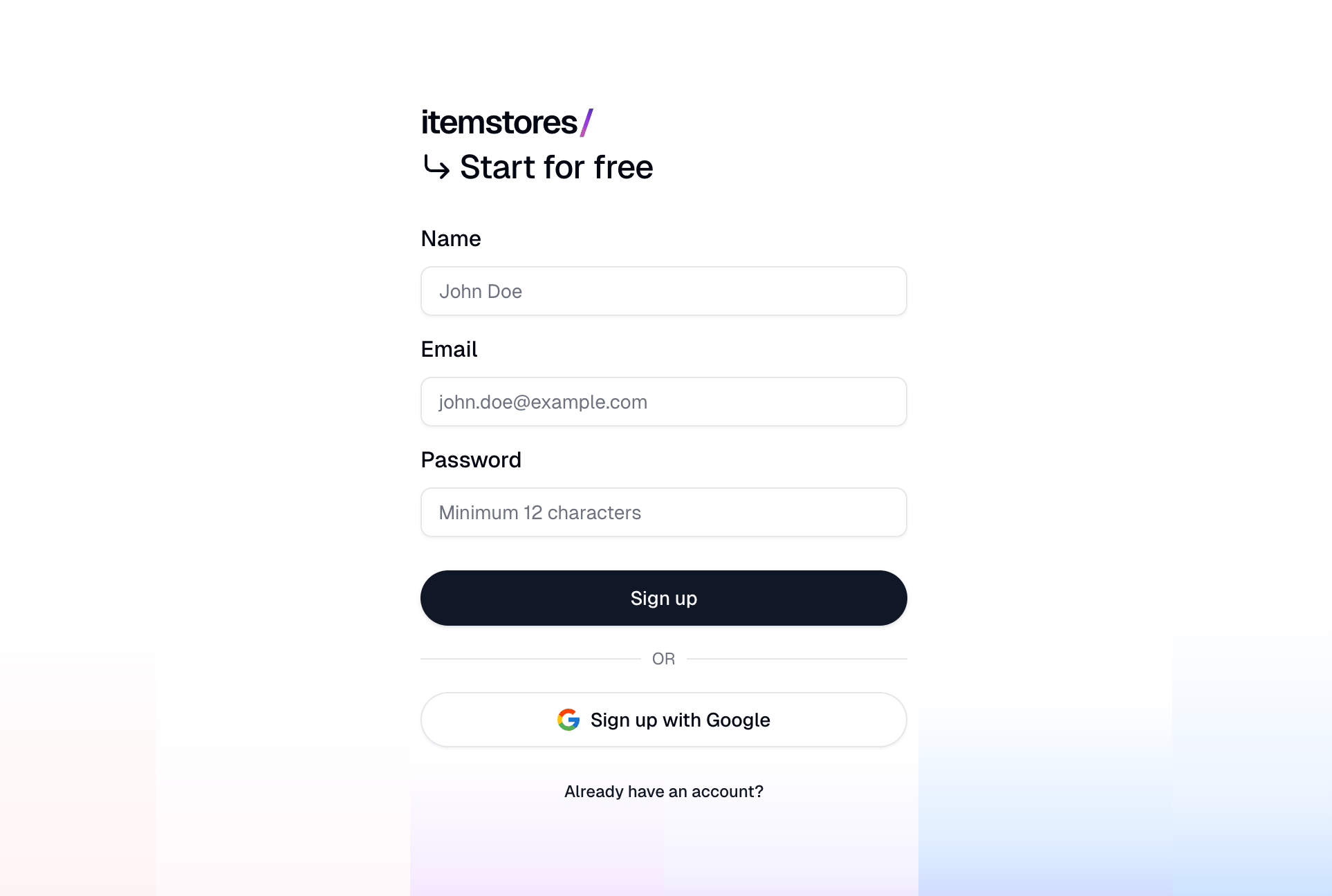 Signing up with an email and password sends you a verification email. Open the
link in it to finish creating the account. You cannot log in until you do.
Signing up with Google skips this.
## Signing in
If you signed up with an email and password, Itemstores emails you a
verification code each time you log in. There is no authenticator app to set up.
If you signed up with Google, you sign in through Google, and Itemstores keeps
no password or two-factor settings for you.
## Your profile
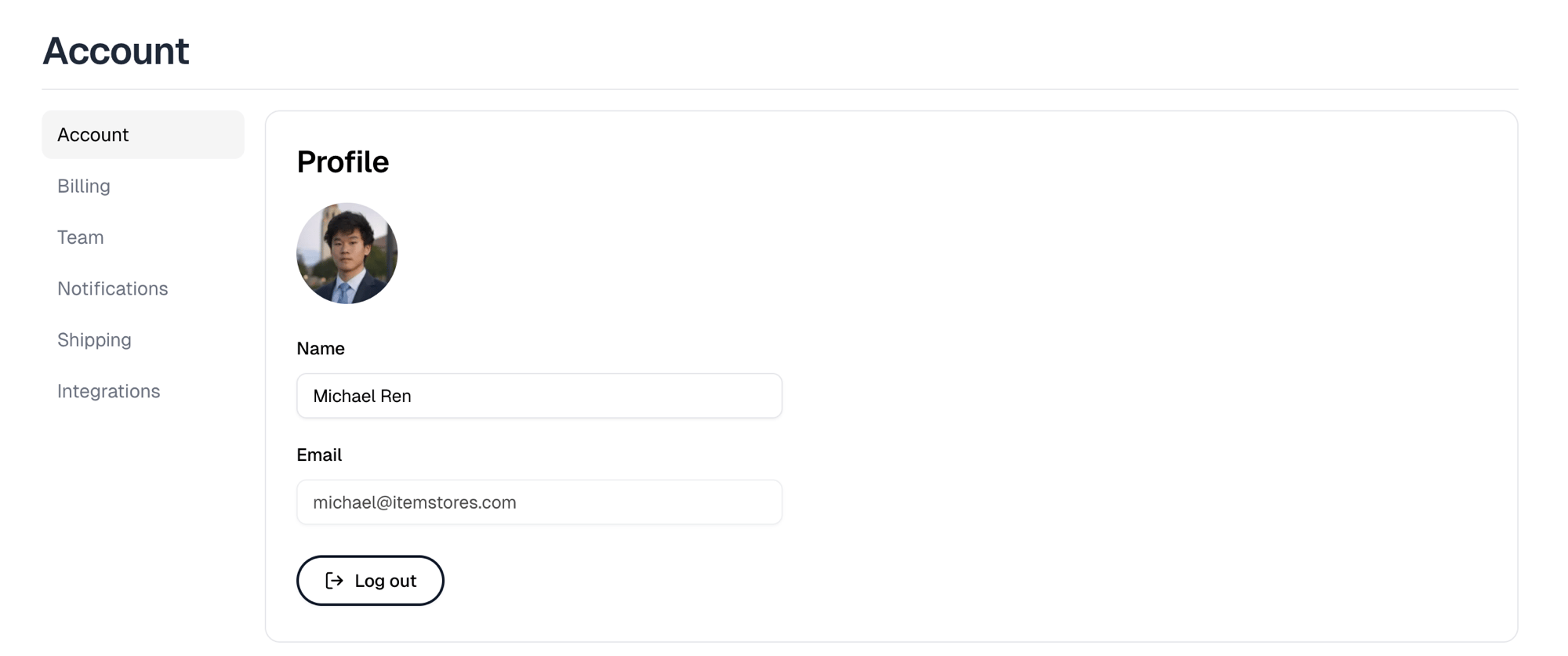
Go to [Settings › Account](https://itemstores.com/app/settings/account) to set your name and
profile picture.
Signing up with an email and password sends you a verification email. Open the
link in it to finish creating the account. You cannot log in until you do.
Signing up with Google skips this.
## Signing in
If you signed up with an email and password, Itemstores emails you a
verification code each time you log in. There is no authenticator app to set up.
If you signed up with Google, you sign in through Google, and Itemstores keeps
no password or two-factor settings for you.
## Your profile
Go to [Settings › Account](https://itemstores.com/app/settings/account) to set your name and
profile picture.
 Changing your password, turning two-factor off, and signing out other devices
are covered in the [Account guide](/help/knowledge-base/settings/account).
Changing your password, turning two-factor off, and signing out other devices
are covered in the [Account guide](/help/knowledge-base/settings/account).