> ## Documentation Index
> Fetch the complete documentation index at: https://itemstores.com/help/llms.txt
> Use this file to discover all available pages before exploring further.
# Website editor
> Lay out your store's pages and sections
Open a store and go to its website editor. The left panel edits, the right side
previews, and **Desktop**, **Tablet** and **Mobile** at the top switch what the
preview is sized for. **View live store** opens the real thing.
There is no Save button. Every change is written as you make it, and the top
right reads **Saving** and then **Saved**.
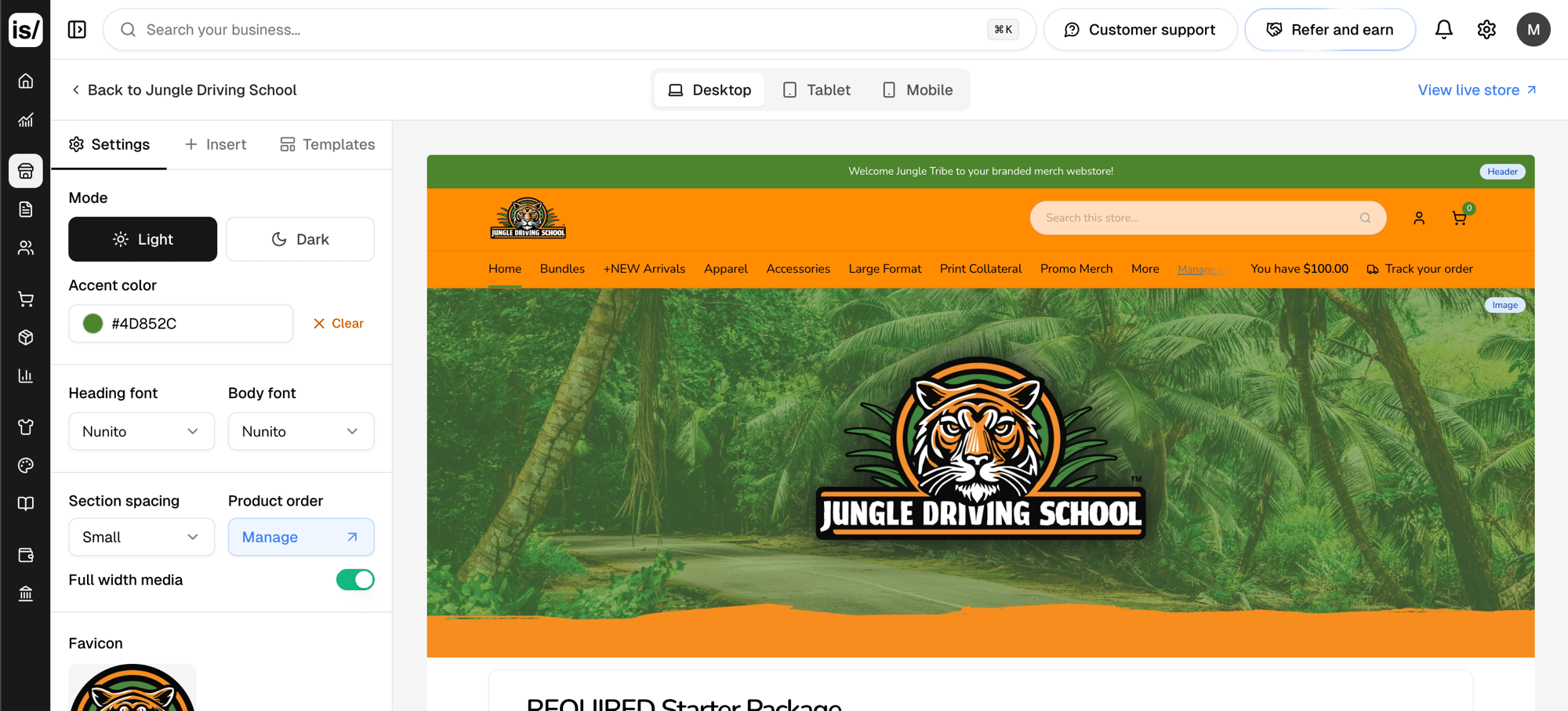 The left panel has two tabs, **Settings** and **Insert**, with a **Templates**
button beside them that opens a dialog.
## Settings
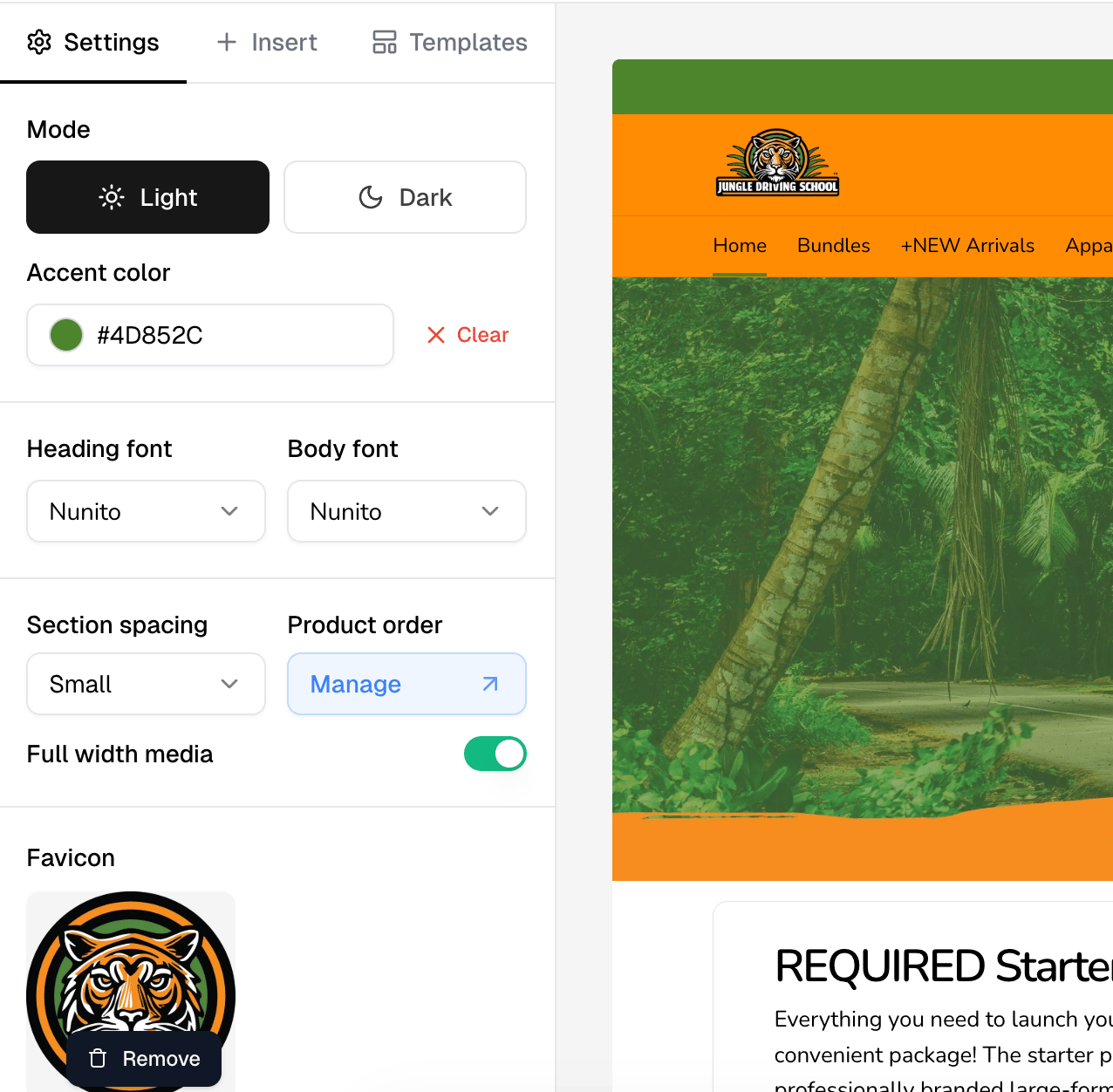
Applies to the whole store, not one section.
| Setting | What it does |
| ------------------------------------------------------- | ---------------------------------------------------------------------------------------------------------------------------------- |
| Mode | Light or dark. Switching resets section and header colors to that mode's defaults, after a confirmation |
| Accent color | The store's highlight color |
| Heading font, Body font | Typefaces for headings and everything else |
| Section spacing | Space between every section. Adjust this if there is too much gap above your footer |
| Product order | Opens the product ordering screen. See [Product order](#product-order) |
| Full width media | Lets media stretch edge to edge instead of sitting in the content column |
| Favicon | The small icon browsers show in the tab |
| Animated background, Background color, Background image | The page background behind your sections. An animated background replaces **Background color** with brightness and opacity sliders |
Uploaded images are capped at 8 MB.
The left panel has two tabs, **Settings** and **Insert**, with a **Templates**
button beside them that opens a dialog.
## Settings
Applies to the whole store, not one section.
| Setting | What it does |
| ------------------------------------------------------- | ---------------------------------------------------------------------------------------------------------------------------------- |
| Mode | Light or dark. Switching resets section and header colors to that mode's defaults, after a confirmation |
| Accent color | The store's highlight color |
| Heading font, Body font | Typefaces for headings and everything else |
| Section spacing | Space between every section. Adjust this if there is too much gap above your footer |
| Product order | Opens the product ordering screen. See [Product order](#product-order) |
| Full width media | Lets media stretch edge to edge instead of sitting in the content column |
| Favicon | The small icon browsers show in the tab |
| Animated background, Background color, Background image | The page background behind your sections. An animated background replaces **Background color** with brightness and opacity sliders |
Uploaded images are capped at 8 MB.
 ## Insert
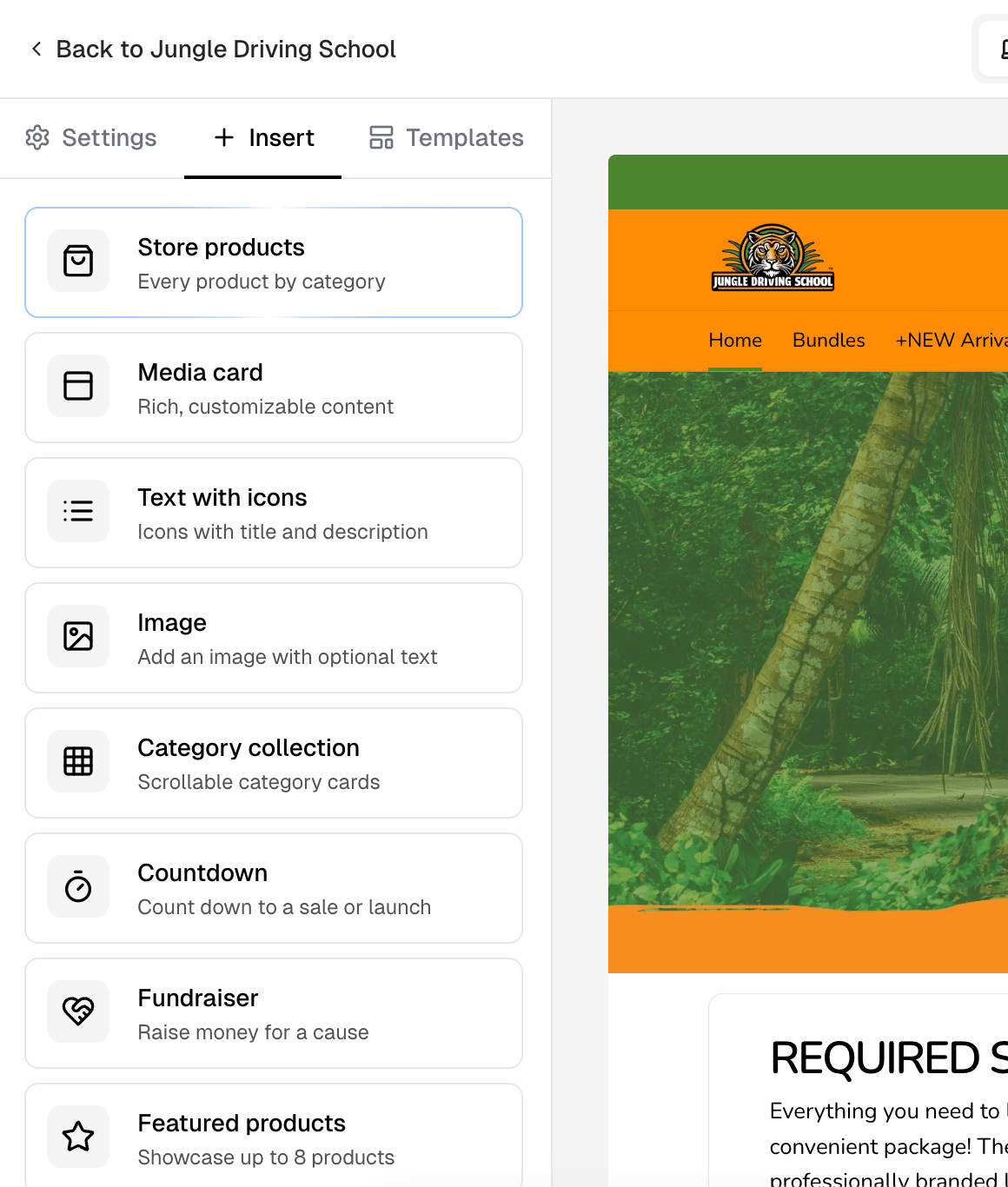
**Insert** adds a section. Select a card to add it at the end of the page, or
drag it into the preview to drop it between two sections. Each option says what
it is:
| Section | What it adds |
| ------------------- | --------------------------------- |
| Store products | Every product by category |
| Store bundles | Every active bundle |
| Media card | Rich, customizable content |
| Text with icons | Icons with title and description |
| Image | An image with optional text |
| Category collection | Scrollable category cards |
| Countdown | Counts down to a sale or launch |
| Fundraiser | Raises money for a cause |
| Featured products | Showcases up to 8 products |
| Slideshow | Multiple slides with navigation |
| Product spotlight | Highlights a single product |
| Quote | Customer testimonials and reviews |
| Video | Embeds a video with optional text |
Most sections can be added as many times as you like. **Store products**,
**Store bundles** and **Fundraiser** are the exceptions: one each per store.
Once one is on the page its card greys out and sinks to the bottom of the
list, so the ones you can still add stay at the top.
## Insert
**Insert** adds a section. Select a card to add it at the end of the page, or
drag it into the preview to drop it between two sections. Each option says what
it is:
| Section | What it adds |
| ------------------- | --------------------------------- |
| Store products | Every product by category |
| Store bundles | Every active bundle |
| Media card | Rich, customizable content |
| Text with icons | Icons with title and description |
| Image | An image with optional text |
| Category collection | Scrollable category cards |
| Countdown | Counts down to a sale or launch |
| Fundraiser | Raises money for a cause |
| Featured products | Showcases up to 8 products |
| Slideshow | Multiple slides with navigation |
| Product spotlight | Highlights a single product |
| Quote | Customer testimonials and reviews |
| Video | Embeds a video with optional text |
Most sections can be added as many times as you like. **Store products**,
**Store bundles** and **Fundraiser** are the exceptions: one each per store.
Once one is on the page its card greys out and sinks to the bottom of the
list, so the ones you can still add stay at the top.
 ## Editing a section
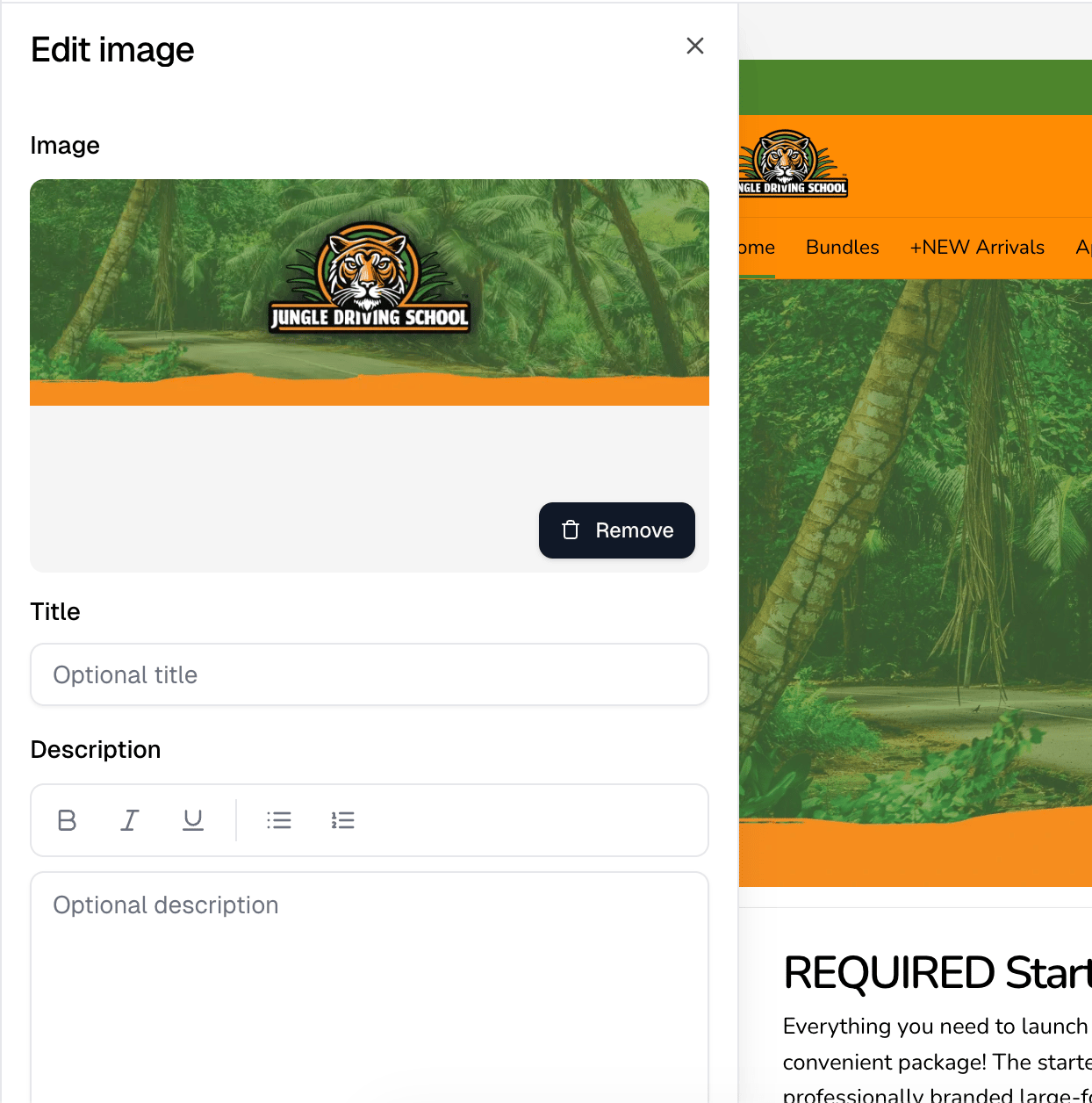
Select a section in the preview to open its panel. Fields differ by section
type, but most offer a title, a rich text description, a background image and
color, a text color, a fixed height, and content alignment.
Hovering a section also shows a small toolbar in its corner: a grip to drag it
to a new position, a pencil that opens the same panel, and a trash icon that
deletes it. **Store products** and **Store bundles** have nothing to configure,
so they show no pencil.
**Mobile settings** hold a separate mobile height and mobile background image,
so a section can be framed differently on a phone.
## Editing a section
Select a section in the preview to open its panel. Fields differ by section
type, but most offer a title, a rich text description, a background image and
color, a text color, a fixed height, and content alignment.
Hovering a section also shows a small toolbar in its corner: a grip to drag it
to a new position, a pencil that opens the same panel, and a trash icon that
deletes it. **Store products** and **Store bundles** have nothing to configure,
so they show no pencil.
**Mobile settings** hold a separate mobile height and mobile background image,
so a section can be framed differently on a phone.
 ### Buttons
Sections take up to two buttons. Use **Add button**, then set **Button text**
and a **Link**. The first button is the primary one and the second is secondary,
**Add button** disappears once both exist, and the trash icon removes one.
**Link** is free text. A store path, a full URL, a bare domain, an email address
and a phone number all resolve.
## Templates
**Templates** applies a saved layout to the store, and each one shows how many
sections it carries. **Save current website as template** stores the current
design so you can reuse it on another store.
Applying a template replaces your theme, header, footer and every section,
including the store title and the footer copyright. This cannot be undone, and
you confirm it first. Deleting a saved template leaves the sites already using
it alone.
## The header
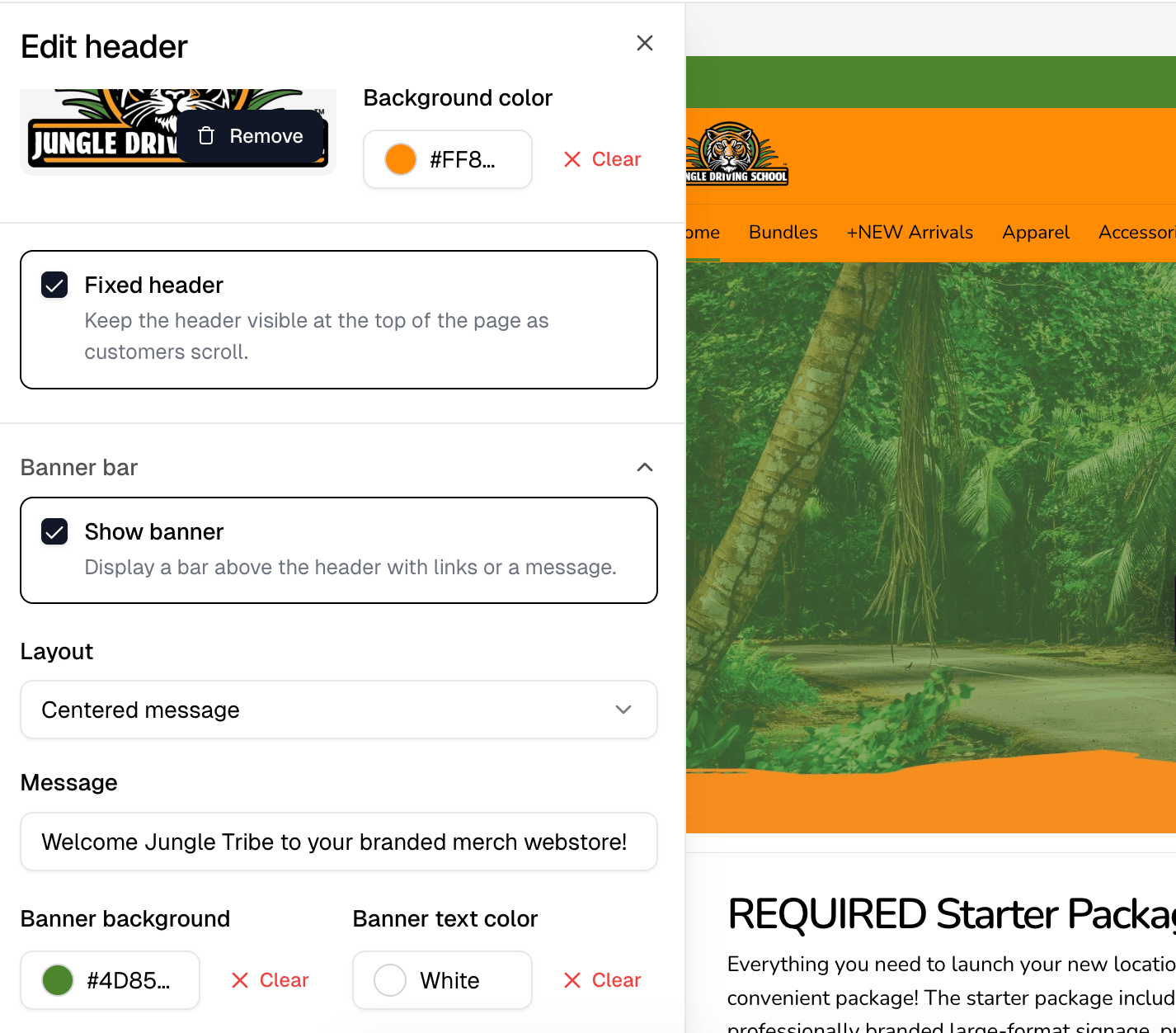
Select the header in the preview to edit it.
| Field | What it does |
| ---------------------------- | -------------------------------------------------------------------------------------------------------------------- |
| Title, Description | The store name and the line under it |
| Logo | An image beside the title, not a replacement for it. It renders larger when the title and description are both empty |
| Text color, Background color | The header's colors |
| Fixed header | Keeps the header visible at the top of the page as customers scroll |
### Banner bar
**Show banner** displays a bar above the header with links or a message. Set a
**Layout**, either **Centered message** or **Links left, message right**, and a
**Message**. The split layout also takes links: **Add link** adds one, each with
its own icon, label and URL, up to 10. **Banner background** and **Banner text
color** style it.
### Buttons
Sections take up to two buttons. Use **Add button**, then set **Button text**
and a **Link**. The first button is the primary one and the second is secondary,
**Add button** disappears once both exist, and the trash icon removes one.
**Link** is free text. A store path, a full URL, a bare domain, an email address
and a phone number all resolve.
## Templates
**Templates** applies a saved layout to the store, and each one shows how many
sections it carries. **Save current website as template** stores the current
design so you can reuse it on another store.
Applying a template replaces your theme, header, footer and every section,
including the store title and the footer copyright. This cannot be undone, and
you confirm it first. Deleting a saved template leaves the sites already using
it alone.
## The header
Select the header in the preview to edit it.
| Field | What it does |
| ---------------------------- | -------------------------------------------------------------------------------------------------------------------- |
| Title, Description | The store name and the line under it |
| Logo | An image beside the title, not a replacement for it. It renders larger when the title and description are both empty |
| Text color, Background color | The header's colors |
| Fixed header | Keeps the header visible at the top of the page as customers scroll |
### Banner bar
**Show banner** displays a bar above the header with links or a message. Set a
**Layout**, either **Centered message** or **Links left, message right**, and a
**Message**. The split layout also takes links: **Add link** adds one, each with
its own icon, label and URL, up to 10. **Banner background** and **Banner text
color** style it.
 ### Header categories
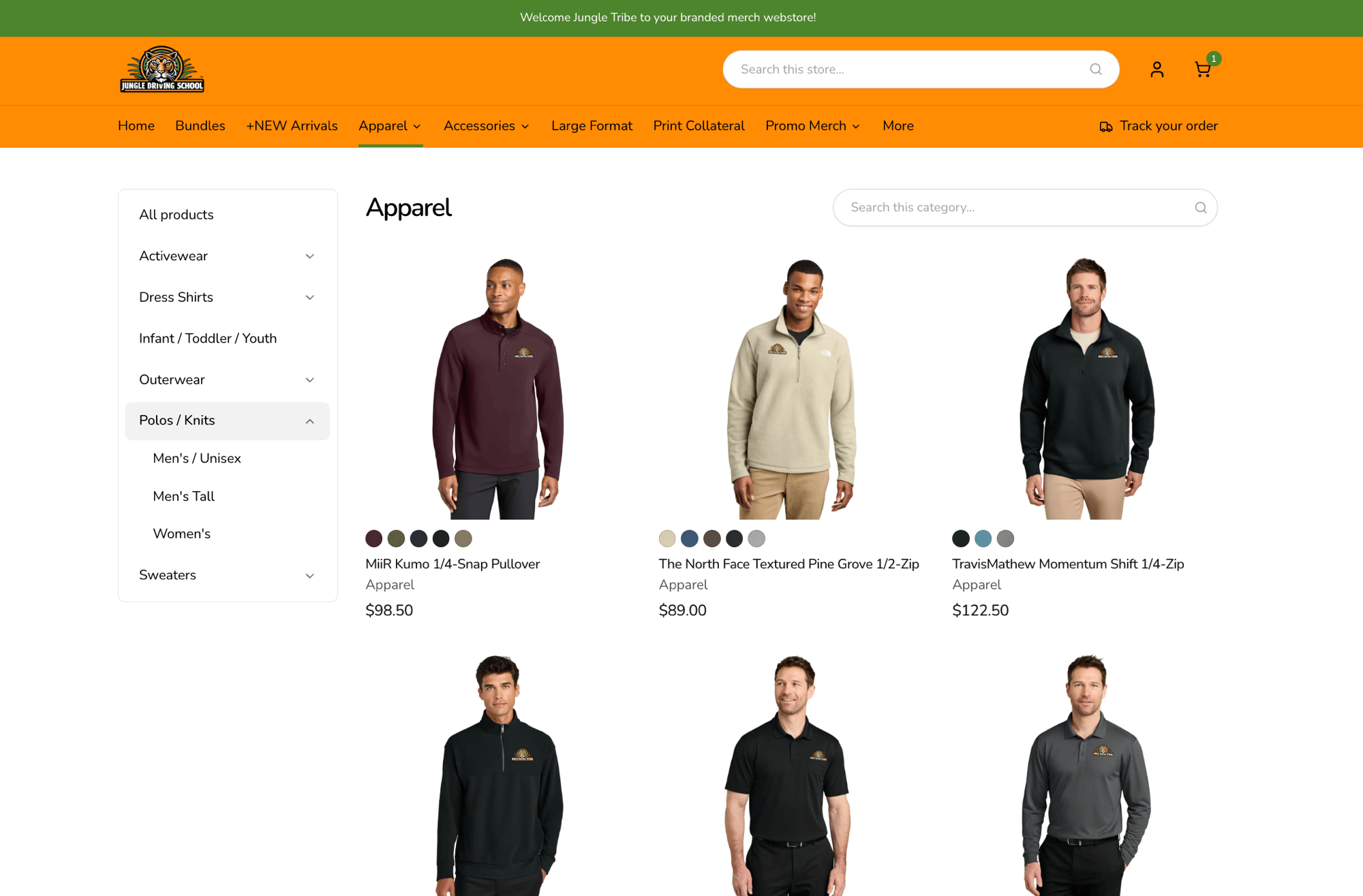
The categories along the header are not edited here. Top-level categories
display as tabs in the store's header, with their subcategories listed down the
side of a category page. You manage them in the store's settings under
**Basic information**, with **Manage categories**.
### Header categories
The categories along the header are not edited here. Top-level categories
display as tabs in the store's header, with their subcategories listed down the
side of a category page. You manage them in the store's settings under
**Basic information**, with **Manage categories**.
 ## Product order
**Manage** under Product order opens a dialog. Pick a list down the left, either
a top-level category or **Uncategorized products**, then pin up to 12 products
to it. Pinned products always come first, in the order you drag them. **Sort
remaining products by** orders everything else: newest first, name A to Z, or
price either way. Each change saves as you make it.
## Product order
**Manage** under Product order opens a dialog. Pick a list down the left, either
a top-level category or **Uncategorized products**, then pin up to 12 products
to it. Pinned products always come first, in the order you drag them. **Sort
remaining products by** orders everything else: newest first, name A to Z, or
price either way. Each change saves as you make it.