> ## Documentation Index
> Fetch the complete documentation index at: https://itemstores.com/help/llms.txt
> Use this file to discover all available pages before exploring further.
# Bundles
> Sell several products together as one item
A bundle groups products a customer buys together, like a required uniform set.
Bundles belong to one store. Open the store, go to its Bundles page, and select
**New bundle**.
 ## Building a bundle
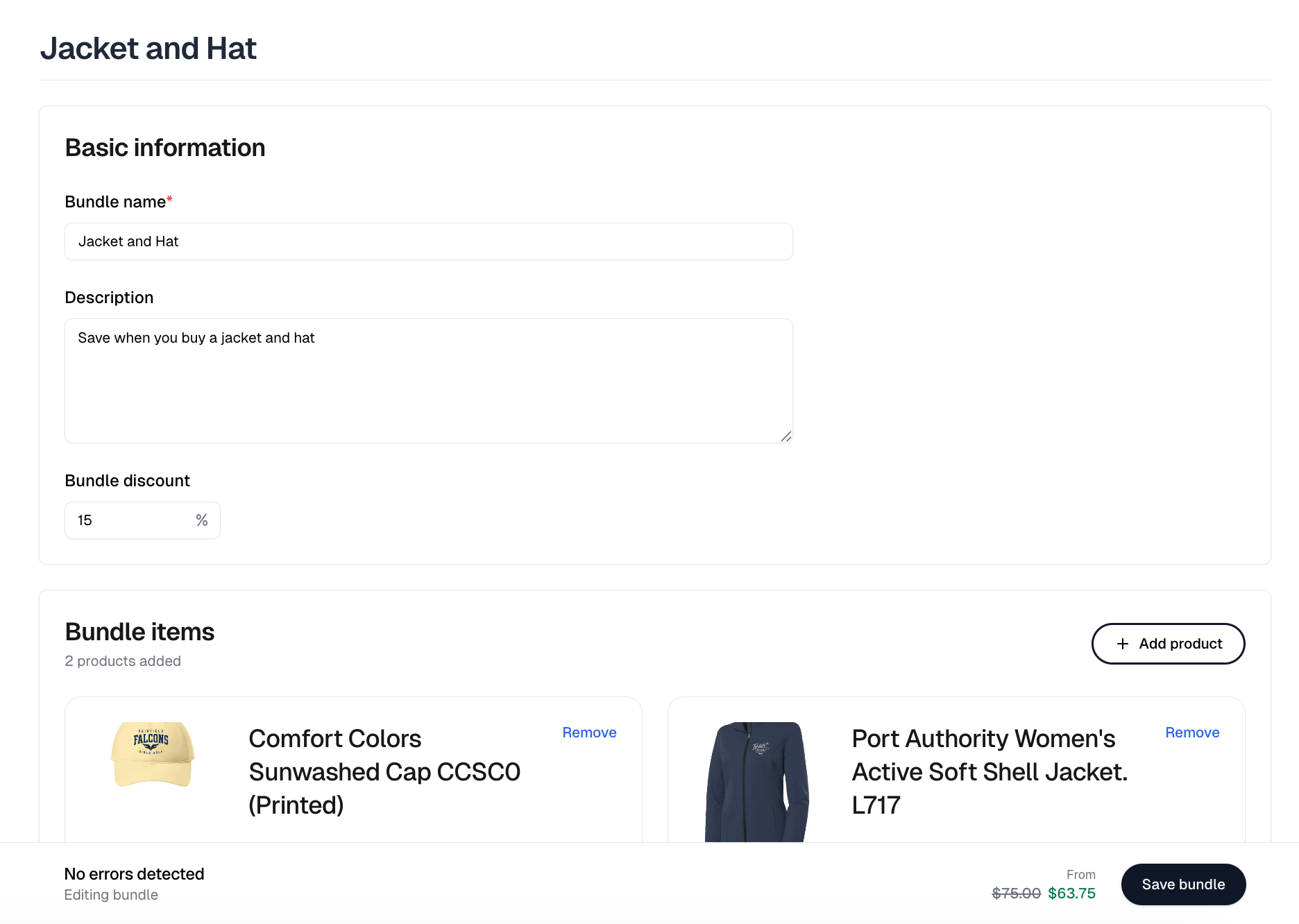
Give it a **Bundle name** and a description, then **Add product** for each
product that makes it up. A bundle needs at least one, and **Remove** takes one
back out. Each item carries a **Quantity**, so a bundle can include two of one
shirt and one of another.
If a product has variants, each attribute gets a **Required** control, such as
**Required Color**. Pick a value to fix it for everyone, or leave it on **N/A**
so the customer chooses at checkout. You can fix one attribute and leave another
open, for example a required color in any size.
## Building a bundle
Give it a **Bundle name** and a description, then **Add product** for each
product that makes it up. A bundle needs at least one, and **Remove** takes one
back out. Each item carries a **Quantity**, so a bundle can include two of one
shirt and one of another.
If a product has variants, each attribute gets a **Required** control, such as
**Required Color**. Pick a value to fix it for everyone, or leave it on **N/A**
so the customer chooses at checkout. You can fix one attribute and leave another
open, for example a required color in any size.
 ## Bundle discount
**Bundle discount** is a whole percentage, 0 to 100, off the combined price of
the items. Leave it at zero to sell the bundle at the sum of its parts. The bar
at the bottom of the form tracks the result under **From**, which is the cheapest
combination of the items you have added.
Items can have variants at different prices, so a bundle has no single price. A
bundle at full price shows a range on the storefront, and a discounted one shows
its cheapest combination struck through beside the discounted figure and a
percent-off badge.
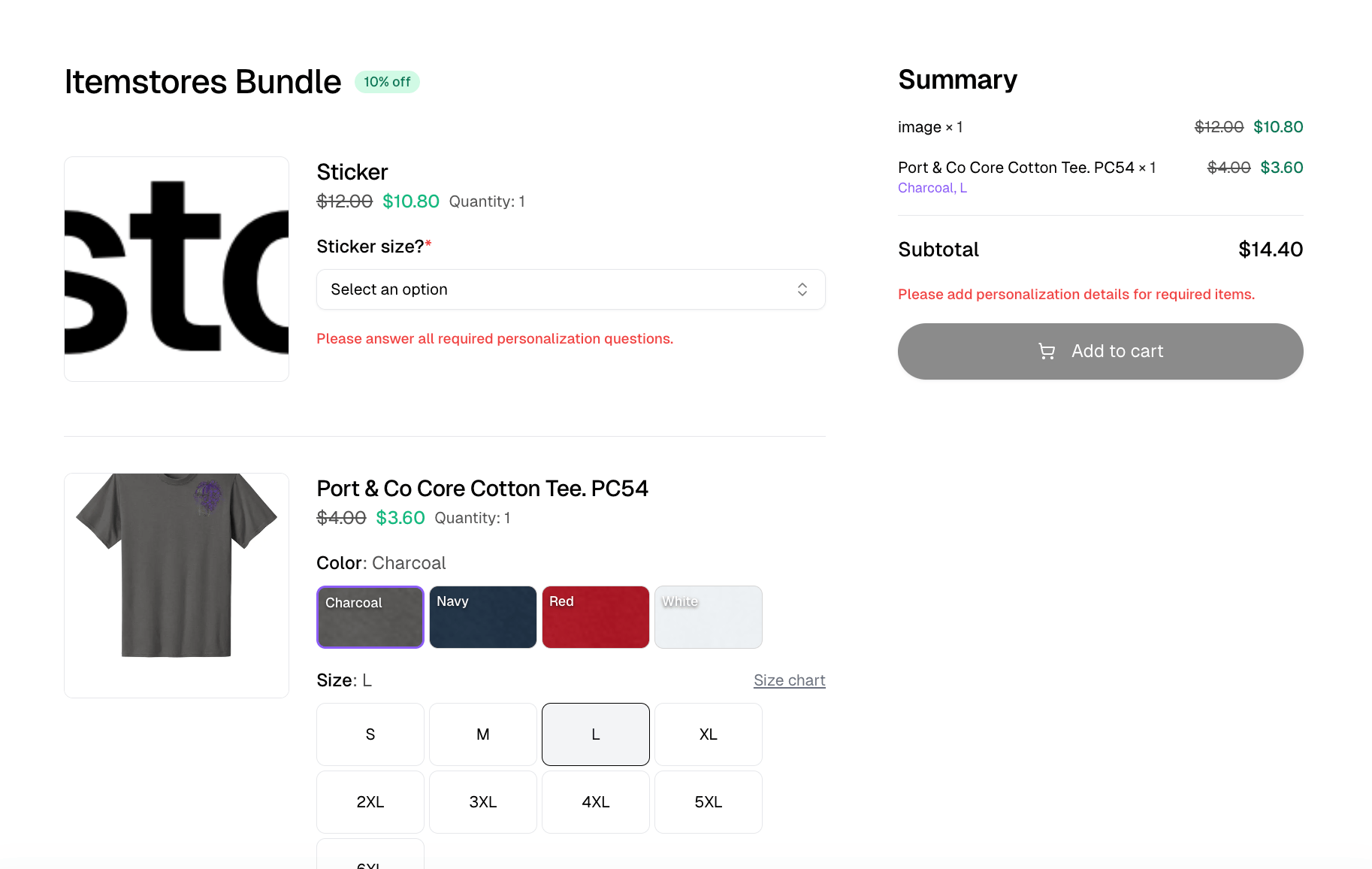
On the storefront the customer picks each item's variants in place, with the
original price struck through beside the discounted one. An item carrying a
required personalization question has to be answered before **Add to cart**
will work.
## Bundle discount
**Bundle discount** is a whole percentage, 0 to 100, off the combined price of
the items. Leave it at zero to sell the bundle at the sum of its parts. The bar
at the bottom of the form tracks the result under **From**, which is the cheapest
combination of the items you have added.
Items can have variants at different prices, so a bundle has no single price. A
bundle at full price shows a range on the storefront, and a discounted one shows
its cheapest combination struck through beside the discounted figure and a
percent-off badge.
On the storefront the customer picks each item's variants in place, with the
original price struck through beside the discounted one. An item carrying a
required personalization question has to be answered before **Add to cart**
will work.
 ## The bundles list
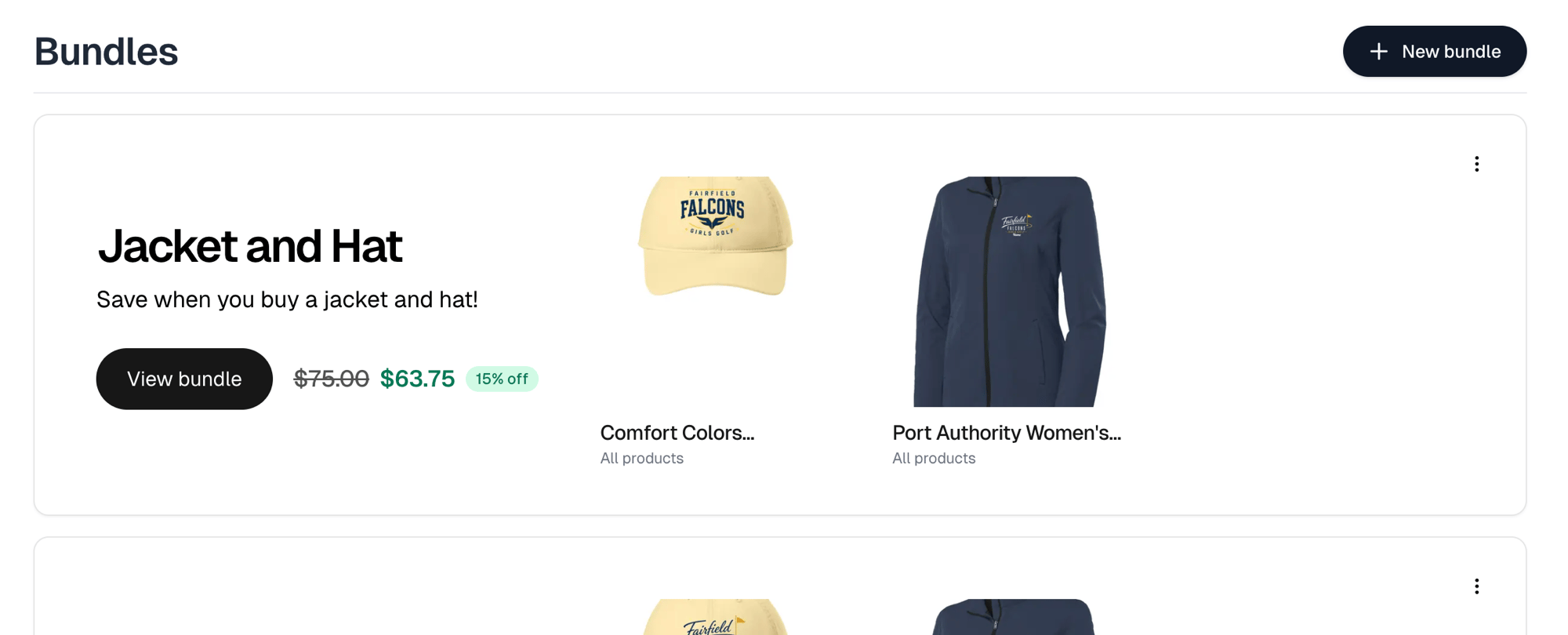
Each bundle is a card carrying its items and its price. The card's menu offers
**Edit bundle**, **Deactivate** or **Activate**, and **Delete**, which is
permanent.
A card also flags what would stop a customer buying it: **Inactive**, **One or
more items out of stock**, **Has inactive items** and **Has archived items**.
A **Store bundles** section on the store's website lists only active bundles, so
deactivating one takes it off the storefront without deleting it.
## The bundles list
Each bundle is a card carrying its items and its price. The card's menu offers
**Edit bundle**, **Deactivate** or **Activate**, and **Delete**, which is
permanent.
A card also flags what would stop a customer buying it: **Inactive**, **One or
more items out of stock**, **Has inactive items** and **Has archived items**.
A **Store bundles** section on the store's website lists only active bundles, so
deactivating one takes it off the storefront without deleting it.