> ## Documentation Index
> Fetch the complete documentation index at: https://itemstores.com/help/llms.txt
> Use this file to discover all available pages before exploring further.
# Stores
> Create and manage storefronts
A store is a storefront with its own products, deadline, and checkout, living at
`item.store/your-website`.
## Settings
**New store** creates one, and the same form edits it afterwards from the
store's settings. It is grouped into **Basic information**, **Shipping**,
**Customer support** and **Advanced**, with an **All** tab showing everything at
once. Beside the form, on a wide screen, sit **Points system** and **Gated
access**, the store's banner image, and internal notes with a contact.
A business on a Starter license can create 5 stores per calendar month. Until
Stripe is connected, a business can create 1 store in total. Either limit
disables **Create store**.
### Basic information
Name and website, both required, then start date and deadline.
The control to the left of the website field chooses the address format:
`item.store/your-store`, or `your-store.item.store` with a Full license. Format
and key are both locked once the store exists.
**Categories** appears only when you edit an existing store, so a new store gets
its categories after it is created. Top-level categories display as tabs in the
store's header, and **Manage categories** is where you edit them.
The website link cannot be changed after the store is created.
### Shipping
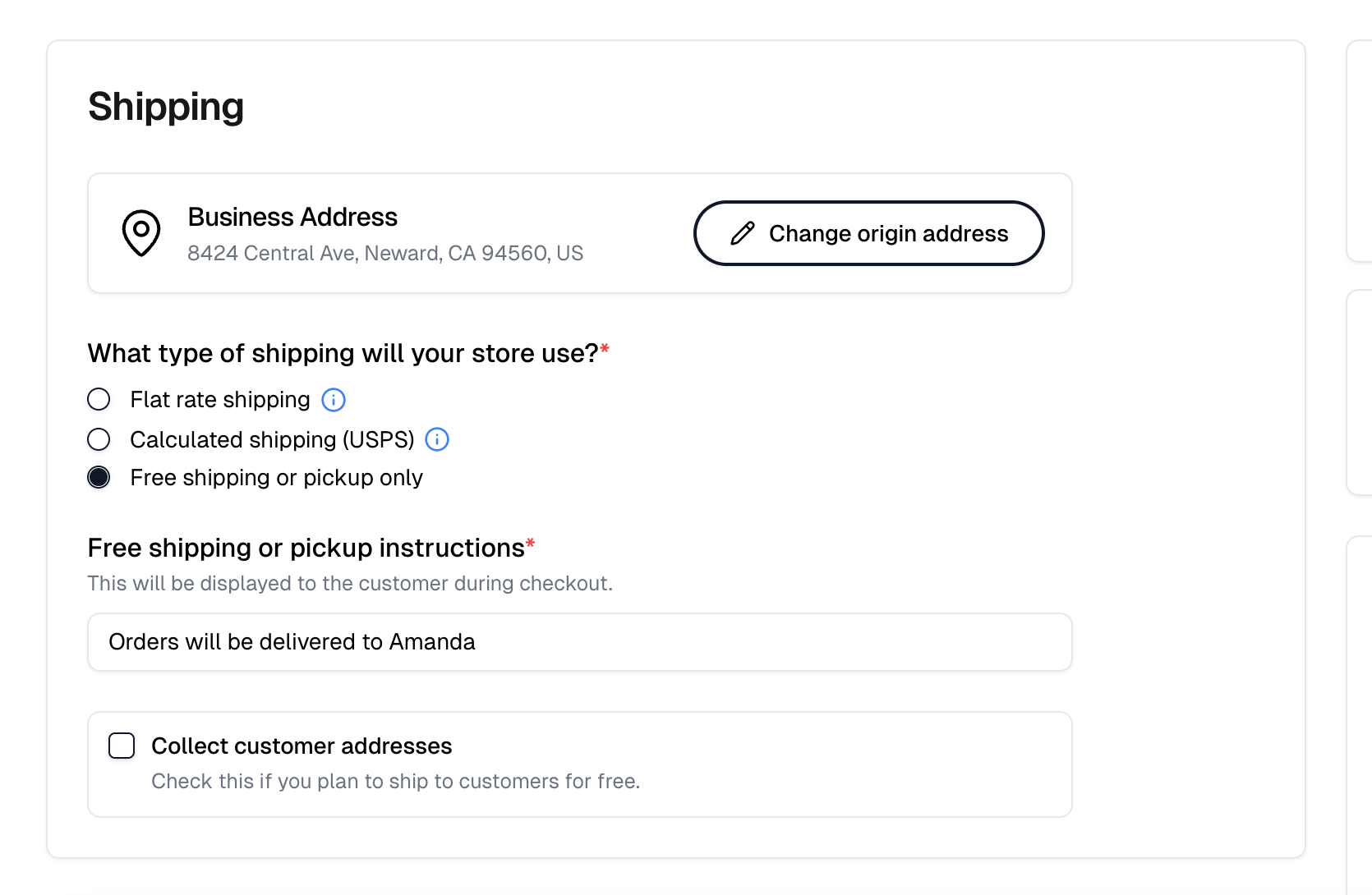
The section opens with the origin address, which is required and is where rates
are quoted from. The button beside it reads **Select origin address** until one
is set, then **Change origin address**.
**What type of shipping will your store use?** offers three choices.
| Option | How it charges |
| ---------------------------- | ---------------------------------------------------------------------------------------------------------------------------------------------------------------------------------------------------------------------------------------------------------- |
| Flat rate shipping | One fee for the whole order, entered in **Flat shipping fee**. Minimum \$0.10 |
| Calculated shipping | Live carrier rates from the order's weight and your default package dimensions. Stays disabled until a carrier is enabled in [Settings › Shipping](https://itemstores.com/app/settings/shipping), and names the carrier in the label when only one applies |
| Free shipping or pickup only | No shipping charge |
Calculated shipping adds **Shipping services**, where you pick which services
customers choose between at checkout, the default package those rates are quoted
for, and **Configure maximum weight per shipment**. At least one service and a
package are required to save. **Handling fee** sits here too, and only here. It
is included in the shipping price, so customers never see it as a separate
charge.
Free shipping or pickup can run alongside the other two options. Under flat rate
or calculated shipping, **Enable free shipping or pickup** adds it. Selecting
**Free shipping or pickup only** turns it on and hides the button.
Once it is on, **Free shipping or pickup instructions** is required and appears
to customers at checkout. This is where you explain in-store pickup. **Collect
customer addresses** starts off. Check it if you plan to ship for free rather
than hand items over. A store with Fulfill Engine products has it checked and
locked.
 ### Customer support
Support email, phone, and website. These appear to customers on the storefront.
### Advanced
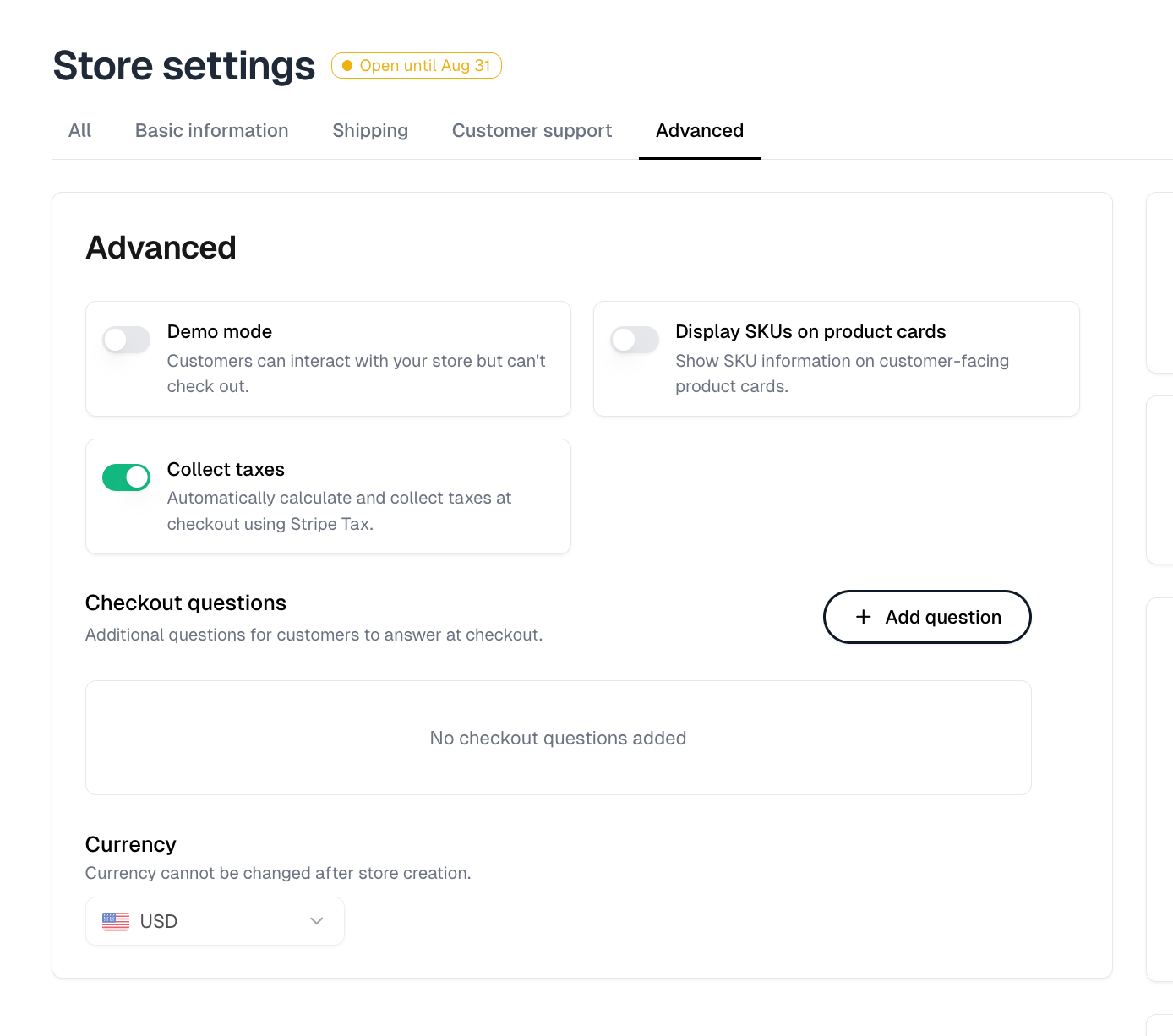
| Setting | What it does |
| ----------------------------- | -------------------------------------------------------------------------------------------------------------------------------------------- |
| Demo mode | Customers can interact with your store but can't check out |
| Display SKUs on product cards | Shows SKU information on customer-facing product cards |
| Collect taxes | Automatically calculates and collects taxes at checkout using Stripe Tax |
| Checkout questions | Extra questions customers answer at checkout. **Add question** creates one |
| Currency | The currency the store sells in, USD or CAD. Picking one that differs from your settlement currency warns that Stripe converts at settlement |
To stop charging tax on a store, for example for a school or church, turn off
**Collect taxes**.
Currency cannot be changed after the store is created.
### Customer support
Support email, phone, and website. These appear to customers on the storefront.
### Advanced
| Setting | What it does |
| ----------------------------- | -------------------------------------------------------------------------------------------------------------------------------------------- |
| Demo mode | Customers can interact with your store but can't check out |
| Display SKUs on product cards | Shows SKU information on customer-facing product cards |
| Collect taxes | Automatically calculates and collects taxes at checkout using Stripe Tax |
| Checkout questions | Extra questions customers answer at checkout. **Add question** creates one |
| Currency | The currency the store sells in, USD or CAD. Picking one that differs from your settlement currency warns that Stripe converts at settlement |
To stop charging tax on a store, for example for a school or church, turn off
**Collect taxes**.
Currency cannot be changed after the store is created.
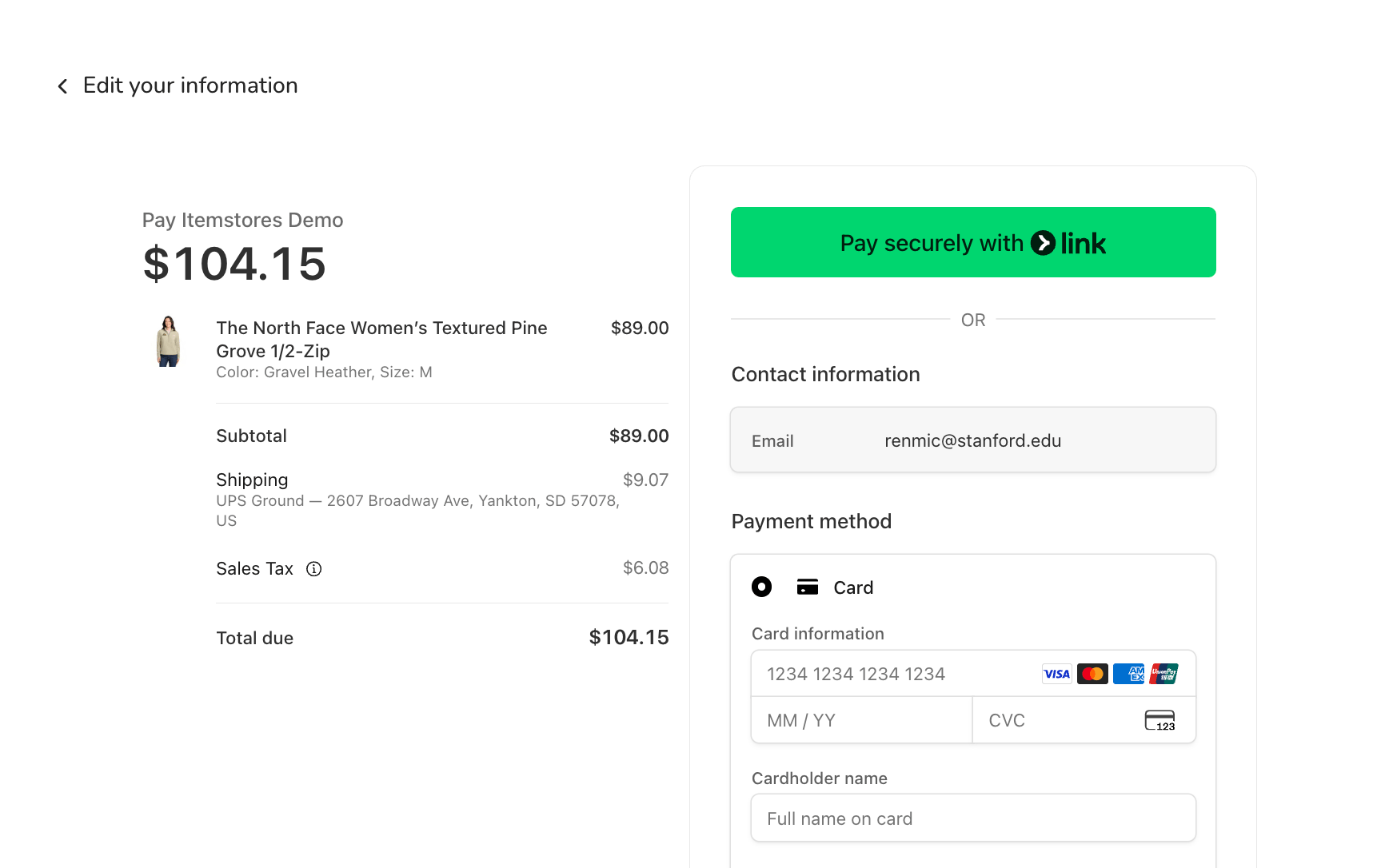
 Tax is worked out on the payment page, where it appears as its own line
alongside shipping.
Tax is worked out on the payment page, where it appears as its own line
alongside shipping.
 ## Store status
A store's badge is calculated from its start date, deadline, and timezone. An
archive wins over everything, and an override wins over the dates.
| Badge | Meaning |
| ------------------------------- | ------------------------------ |
| Opens on *date* | The start date has not arrived |
| Open until *date* | Open, with a deadline set |
| Open indefinitely | Open, no deadline |
| Closed on *date* | The deadline has passed |
| Archived | The store has been archived |
| Open (forced) / Closed (forced) | An override is in place |
**Override** forces a store open or closed regardless of its dates.
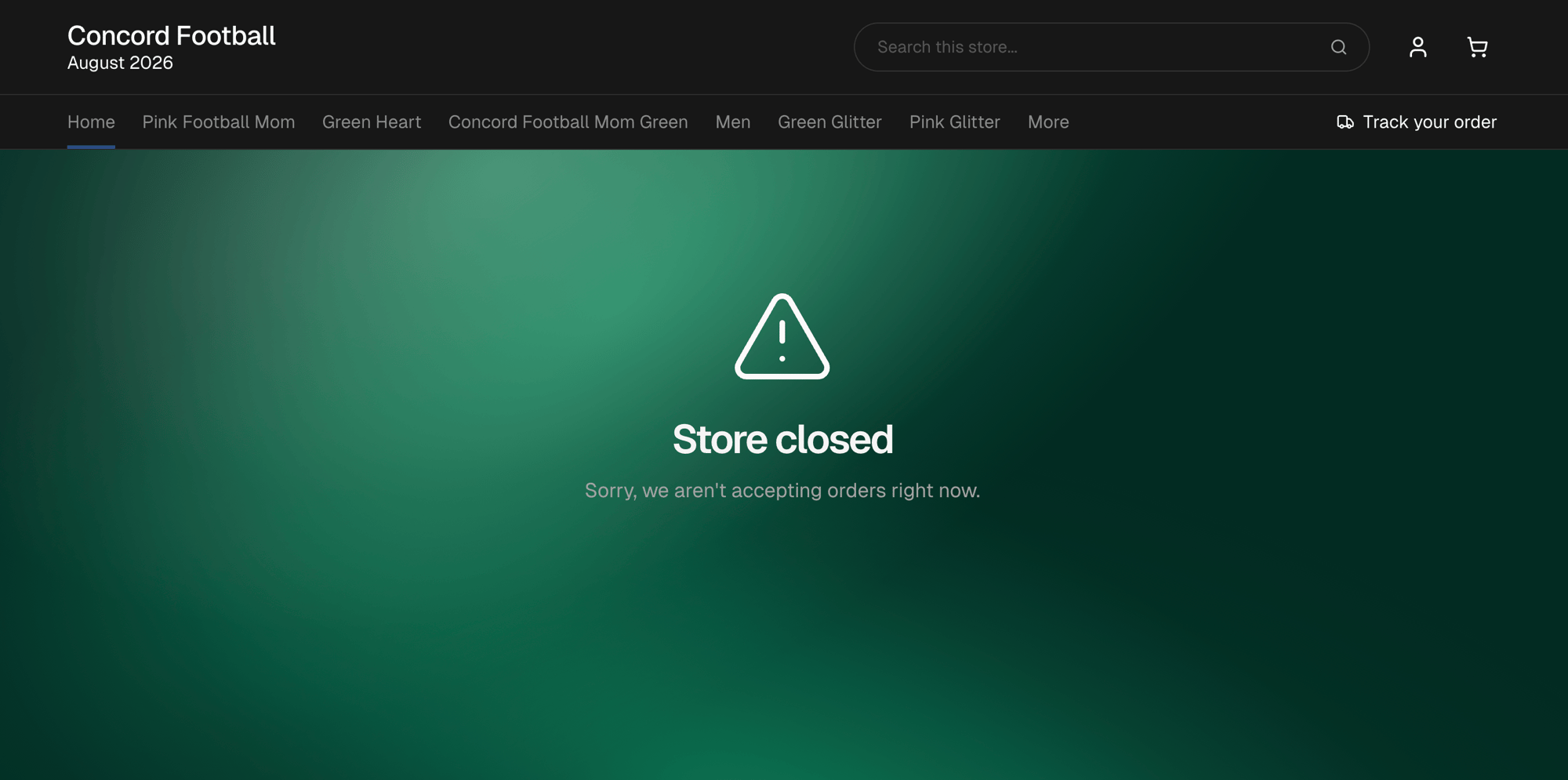
A closed store still loads, with its header and categories, but shows
**Store closed** in place of products.
## Store status
A store's badge is calculated from its start date, deadline, and timezone. An
archive wins over everything, and an override wins over the dates.
| Badge | Meaning |
| ------------------------------- | ------------------------------ |
| Opens on *date* | The start date has not arrived |
| Open until *date* | Open, with a deadline set |
| Open indefinitely | Open, no deadline |
| Closed on *date* | The deadline has passed |
| Archived | The store has been archived |
| Open (forced) / Closed (forced) | An override is in place |
**Override** forces a store open or closed regardless of its dates.
A closed store still loads, with its header and categories, but shows
**Store closed** in place of products.
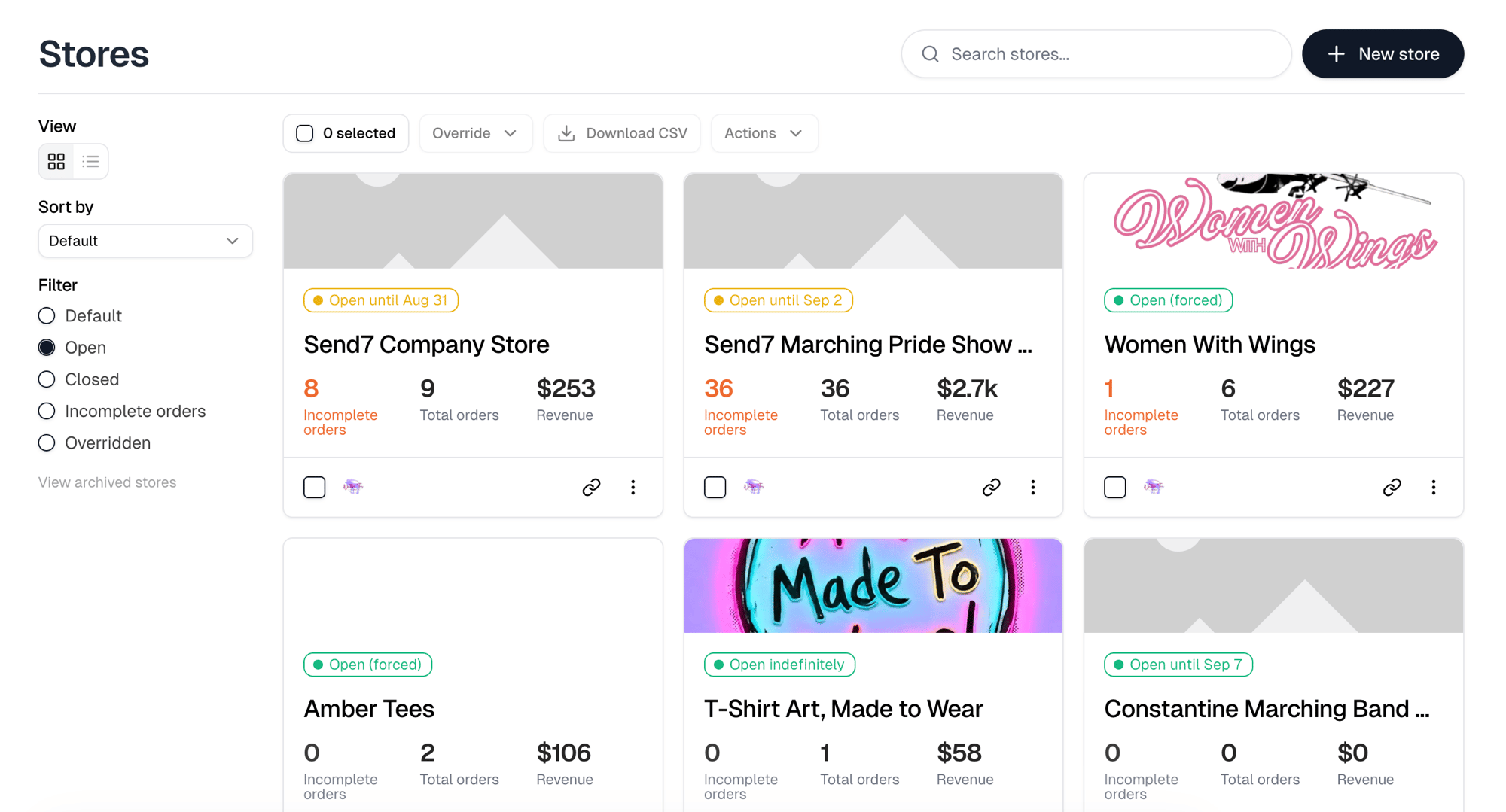
 ## The stores list
[Stores](https://itemstores.com/app/stores) lists every store in your business.
Each card carries the store's status badge, its incomplete and total order
counts, and its revenue. Down the left, **Sort by** and **Filter** narrow the
list, and **View archived stores** shows the ones you archived. A toggle above
them swaps the cards for a table.
**Override**, **Download CSV** and **Actions** sit above the list and stay
disabled until you select stores with the checkbox on each card. **Actions**
holds **Assign**, **Archive** and **Delete**, applied to everything selected.
## The stores list
[Stores](https://itemstores.com/app/stores) lists every store in your business.
Each card carries the store's status badge, its incomplete and total order
counts, and its revenue. Down the left, **Sort by** and **Filter** narrow the
list, and **View archived stores** shows the ones you archived. A toggle above
them swaps the cards for a table.
**Override**, **Download CSV** and **Actions** sit above the list and stay
disabled until you select stores with the checkbox on each card. **Actions**
holds **Assign**, **Archive** and **Delete**, applied to everything selected.
 Each store's menu offers:
| Action | What it does |
| -------- | -------------------------------------------------------------------------------------------- |
| Override | Forces the store open or closed regardless of its dates. **None** returns it to its schedule |
| Assign | Chooses which team members are responsible for the store |
| Copy | Creates a new store from this one |
| Archive | Hides the store. **Restore** brings it back |
| Delete | Permanently removes the store |
Deleting a store is permanent. The confirmation dialog carries **Delete all
products in this store**, already checked, so confirming removes the store's
products as well. Clear it to keep them.
A store that appears on any order cannot be deleted at all. The dialog says so
and points you to archiving instead.
The link icon on each card copies the public store URL. Its tooltip reads
**Copy store link**.
Each store's menu offers:
| Action | What it does |
| -------- | -------------------------------------------------------------------------------------------- |
| Override | Forces the store open or closed regardless of its dates. **None** returns it to its schedule |
| Assign | Chooses which team members are responsible for the store |
| Copy | Creates a new store from this one |
| Archive | Hides the store. **Restore** brings it back |
| Delete | Permanently removes the store |
Deleting a store is permanent. The confirmation dialog carries **Delete all
products in this store**, already checked, so confirming removes the store's
products as well. Clear it to keep them.
A store that appears on any order cannot be deleted at all. The dialog says so
and points you to archiving instead.
The link icon on each card copies the public store URL. Its tooltip reads
**Copy store link**.