> ## Documentation Index
> Fetch the complete documentation index at: https://itemstores.com/help/llms.txt
> Use this file to discover all available pages before exploring further.
# Shipping
> Buying labels, packing slips and tracking
Shipping is where you buy labels and follow parcels. It sits beside Orders and
Production.
## Before you can buy a label
Add a carrier first, in
[Settings › Shipping](/help/knowledge-base/settings/shipping). That screen also holds
your package presets and the addresses you ship from.
You also need an origin address. A label ships from the store's shipping origin
address, falling back to your business address, and the buy-label page will not
open without one.
## How labels are paid for
It depends on the carrier.
| Carrier | Paid with |
| ----------- | -------------------------------------------------------------------------------------------------------- |
| USPS | Itemstores credits. You buy these labels from Itemstores, at rates up to 89% below retail |
| Canada Post | Itemstores credits, at rates up to 44% below retail |
| UPS | Your own UPS account. Itemstores does not bill you, which is why a UPS rate shows **Itemstores: \$0.00** |
The **Available credits** card shows your balance. Owners and admins get a link
from it to [Settings › Billing](https://itemstores.com/app/settings/billing) to
add more.
Running out of credits stops you buying USPS and Canada Post labels. Top up
before a large batch.
## Buying one label
**New shipping label** opens **Select orders to ship**. Pick the fulfillments and
select **Continue**. One selection takes you to the single-label form below.
Several take you to the bulk table. You can also start from an order and select
**Buy shipping label** there.
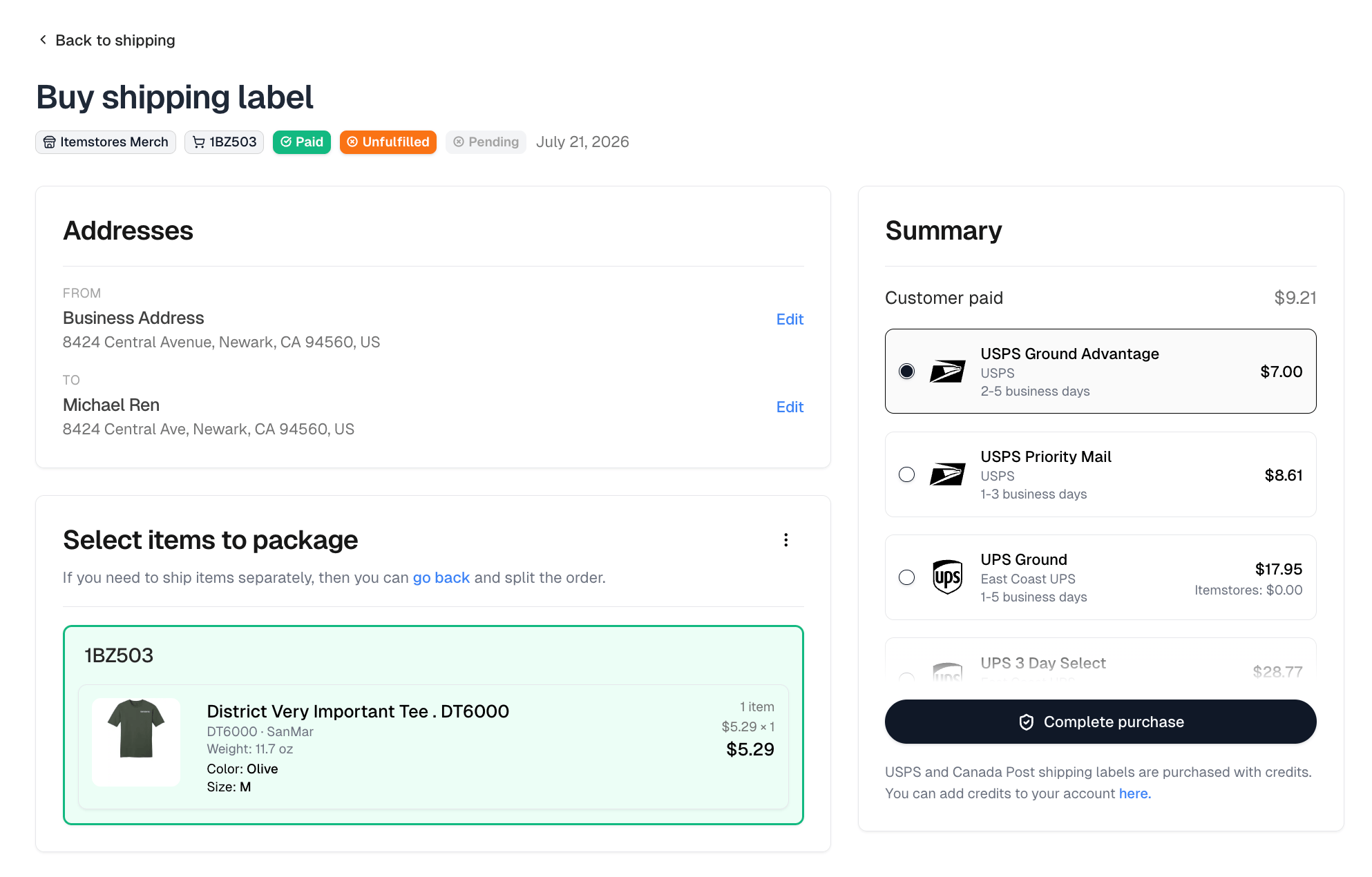
**From** is the store's shipping origin address, falling back to your
business address on an order that came from a quote. **To** is the
customer's. **Edit** beside either one changes it for this label.
**Select items to package** lists the fulfillments this label can cover. To
ship items separately, go back and split the order instead. Fulfill Engine
fulfillments are not listed, because Fulfill Engine buys their labels.
Under **Edit package details**, **Change package** picks a different box and
**Total package weight** is calculated from the items and the box until you
type over it.
Rates come back live from every connected carrier account, each with its
service, account, transit time and price, next to what the customer paid.
Then **Complete purchase**, or **Create label** when the rate you picked is
on your own carrier account.
On a store that charges calculated shipping, changing the package or the weight
may produce a different rate from the one the customer paid at checkout.
 ### Combining orders into one box
The `⋮` menu beside **Select items to package** holds **Add from another order**,
which pulls another order's fulfillments into this box so they ship together.
Anything added this way is packed in **this** box and goes to **this**
shipment's address, not the address on its own order.
## Buying labels in bulk
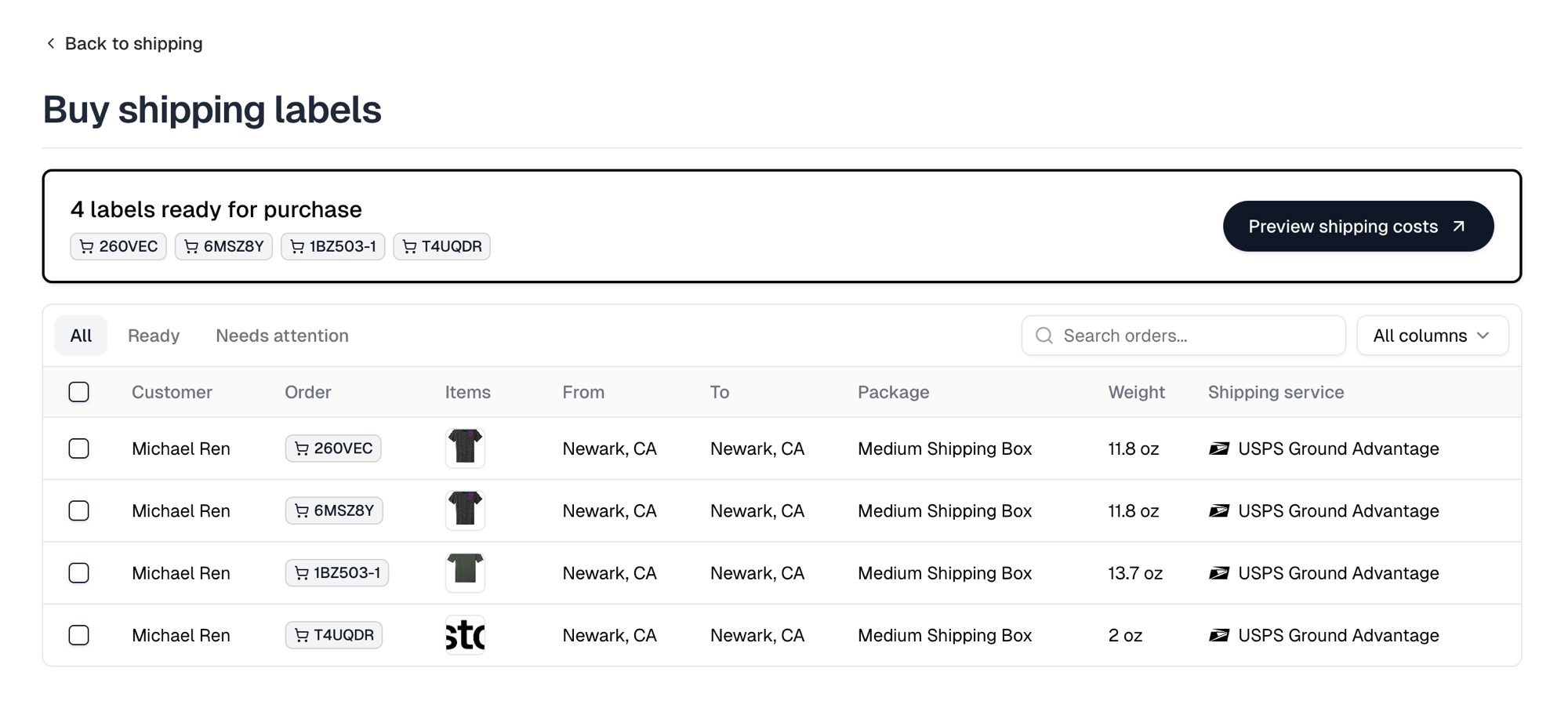
Selecting more than one order in **Select orders to ship**, or **Buy shipping
labels** on the Orders list, opens a table of every label with its addresses,
package, weight and service.
Filter it with **All**, **Ready** or **Needs attention**. Needs attention is the
rows that cannot ship yet, so you can fix those rather than scanning the whole
table. Select rows and a toolbar appears with **Edit from address**, **Edit to
address**, **Edit package** and **Edit shipping service**, which apply to every
selected row at once.
A card above the table counts the labels ready for purchase, and its **Preview
shipping costs** prices only those. The purchase dialog then shows the total,
your credit balance, and what you will have left. Labels on your own carrier
account are listed separately there and do not spend credits.
### Combining orders into one box
The `⋮` menu beside **Select items to package** holds **Add from another order**,
which pulls another order's fulfillments into this box so they ship together.
Anything added this way is packed in **this** box and goes to **this**
shipment's address, not the address on its own order.
## Buying labels in bulk
Selecting more than one order in **Select orders to ship**, or **Buy shipping
labels** on the Orders list, opens a table of every label with its addresses,
package, weight and service.
Filter it with **All**, **Ready** or **Needs attention**. Needs attention is the
rows that cannot ship yet, so you can fix those rather than scanning the whole
table. Select rows and a toolbar appears with **Edit from address**, **Edit to
address**, **Edit package** and **Edit shipping service**, which apply to every
selected row at once.
A card above the table counts the labels ready for purchase, and its **Preview
shipping costs** prices only those. The purchase dialog then shows the total,
your credit balance, and what you will have left. Labels on your own carrier
account are listed separately there and do not spend credits.
 ## After buying
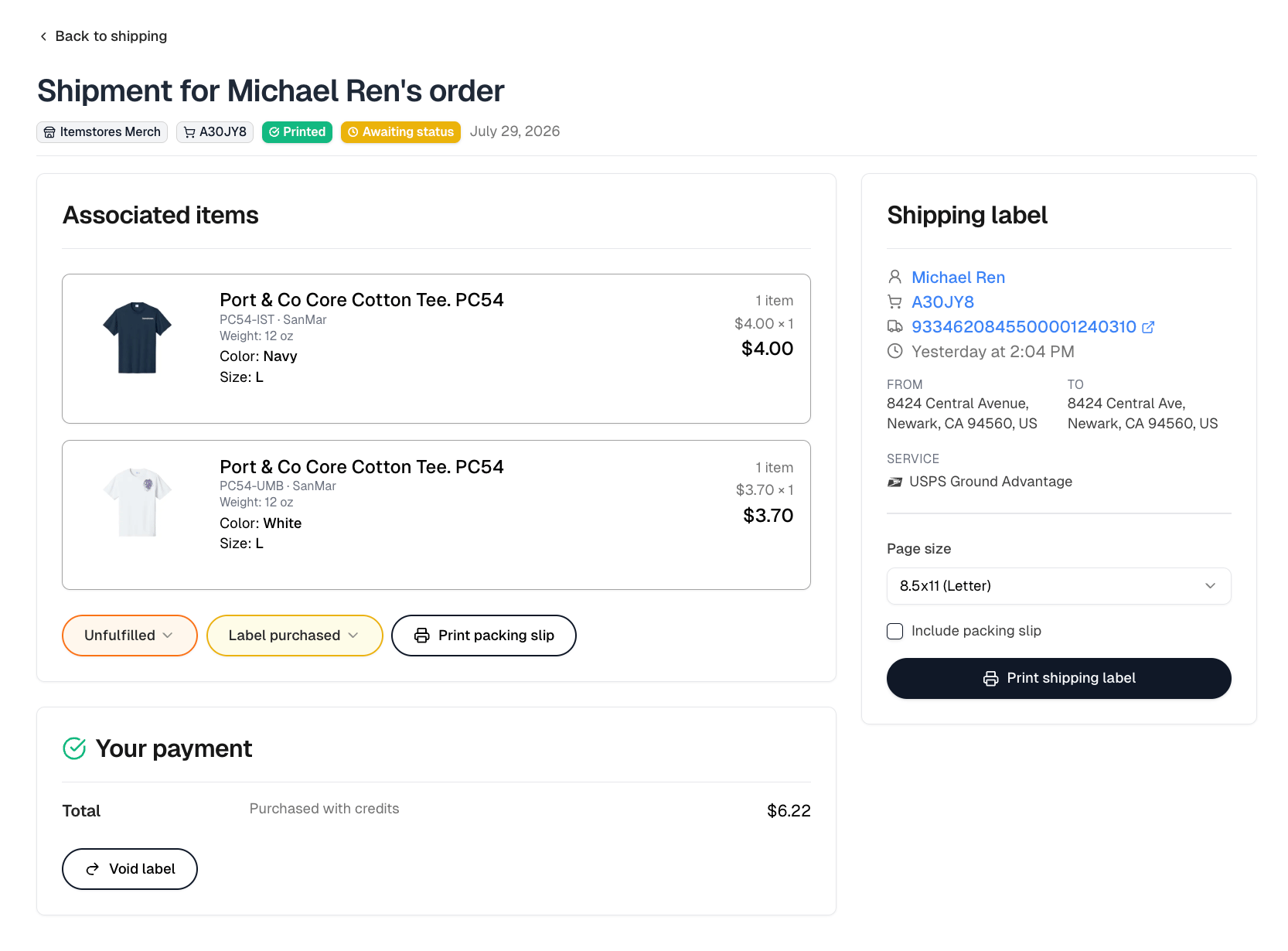
A shipment carries a **Print status** and a **Tracking status**.
**Print shipping label** offers a **Page size** of 8.5x11 (Letter), A4 or 4x6,
and can **Include packing slip**. **Print packing slip**, on each fulfillment's
card, prints one on its own.
**Void label** sits under **Your payment** with what the label cost. What it does
depends on who paid for the label.
| Label | What Void label does |
| --------------------------- | ----------------------------------------------------------------------------------------------------------------------- |
| Bought with credits | Asks the carrier to refund it. The refund shows as In progress, then Refunded to credits or Rejected |
| On your own carrier account | Nothing at the carrier. Void the shipment on the carrier's website first, then use **Mark as voided** here to record it |
A credits label can only be voided within 30 days of purchase and only while the
carrier has not scanned it. Voiding cannot be undone, the carrier can still
reject the refund, and a voided label cannot be printed.
A voided shipment shows a **Voided** badge in the list.
## After buying
A shipment carries a **Print status** and a **Tracking status**.
**Print shipping label** offers a **Page size** of 8.5x11 (Letter), A4 or 4x6,
and can **Include packing slip**. **Print packing slip**, on each fulfillment's
card, prints one on its own.
**Void label** sits under **Your payment** with what the label cost. What it does
depends on who paid for the label.
| Label | What Void label does |
| --------------------------- | ----------------------------------------------------------------------------------------------------------------------- |
| Bought with credits | Asks the carrier to refund it. The refund shows as In progress, then Refunded to credits or Rejected |
| On your own carrier account | Nothing at the carrier. Void the shipment on the carrier's website first, then use **Mark as voided** here to record it |
A credits label can only be voided within 30 days of purchase and only while the
carrier has not scanned it. Voiding cannot be undone, the carrier can still
reject the refund, and a voided label cannot be printed.
A voided shipment shows a **Voided** badge in the list.
 ## Tracking
Tracking updates on their own once a label is bought. A new shipment reads
**Awaiting status** until the carrier's first scan, then moves through the
shipping stages. You never enter tracking numbers for a label bought here.
## The shipments list
**Shipping stage** counts your parcels as **Unknown**, **Pre transit**,
**In transit** and **Delivered**. Delivered counts the past 30 days only.
Filter with **All**, **Not printed**, **Not delivered** or **Delivered**.
**Assigned** joins them once you are assigned to a store. Each row shows its
date, source, tracking number, order, customer, total, print status, tracking
status and service.
**Source** is one of three, and there is a filter for it: **Label** for one
bought here, **Fulfill Engine** for one Fulfill Engine shipped, and **External**
for a tracking number entered by hand.
## Tracking
Tracking updates on their own once a label is bought. A new shipment reads
**Awaiting status** until the carrier's first scan, then moves through the
shipping stages. You never enter tracking numbers for a label bought here.
## The shipments list
**Shipping stage** counts your parcels as **Unknown**, **Pre transit**,
**In transit** and **Delivered**. Delivered counts the past 30 days only.
Filter with **All**, **Not printed**, **Not delivered** or **Delivered**.
**Assigned** joins them once you are assigned to a store. Each row shows its
date, source, tracking number, order, customer, total, print status, tracking
status and service.
**Source** is one of three, and there is a filter for it: **Label** for one
bought here, **Fulfill Engine** for one Fulfill Engine shipped, and **External**
for a tracking number entered by hand.