> ## Documentation Index
> Fetch the complete documentation index at: https://itemstores.com/help/llms.txt
> Use this file to discover all available pages before exploring further.
# Notifications
> Your notification inbox and what you are alerted about
The bell in the top bar opens your notification inbox.
## The inbox
**All** and **Unread** filter the list, and each notification links straight to
what it is about, such as **View order**. The search box above the list matches
on the notification text.
Each row has an archive icon and a read icon. Selecting rows reveals a toolbar
for doing the same to several at once, plus delete. **Mark all read** clears the
unread count, and **Archive** switches the list to what you have put away, where
the icon on each row unarchives it instead.
Where you belong to more than one business, each notification is badged with the
business it came from.
## Preferences
**Preferences** opens **Notification preferences**, which controls what you are
told about, with two switches per event:
| Switch | Effect |
| ------- | --------------------------------------- |
| Enabled | Whether it appears in your inbox at all |
| Email | Whether it is also emailed to you |
That split is the useful part. You can keep something in the app without it
reaching your email. Turning Enabled off greys out the Email switch, since an
event you do not get cannot be emailed.
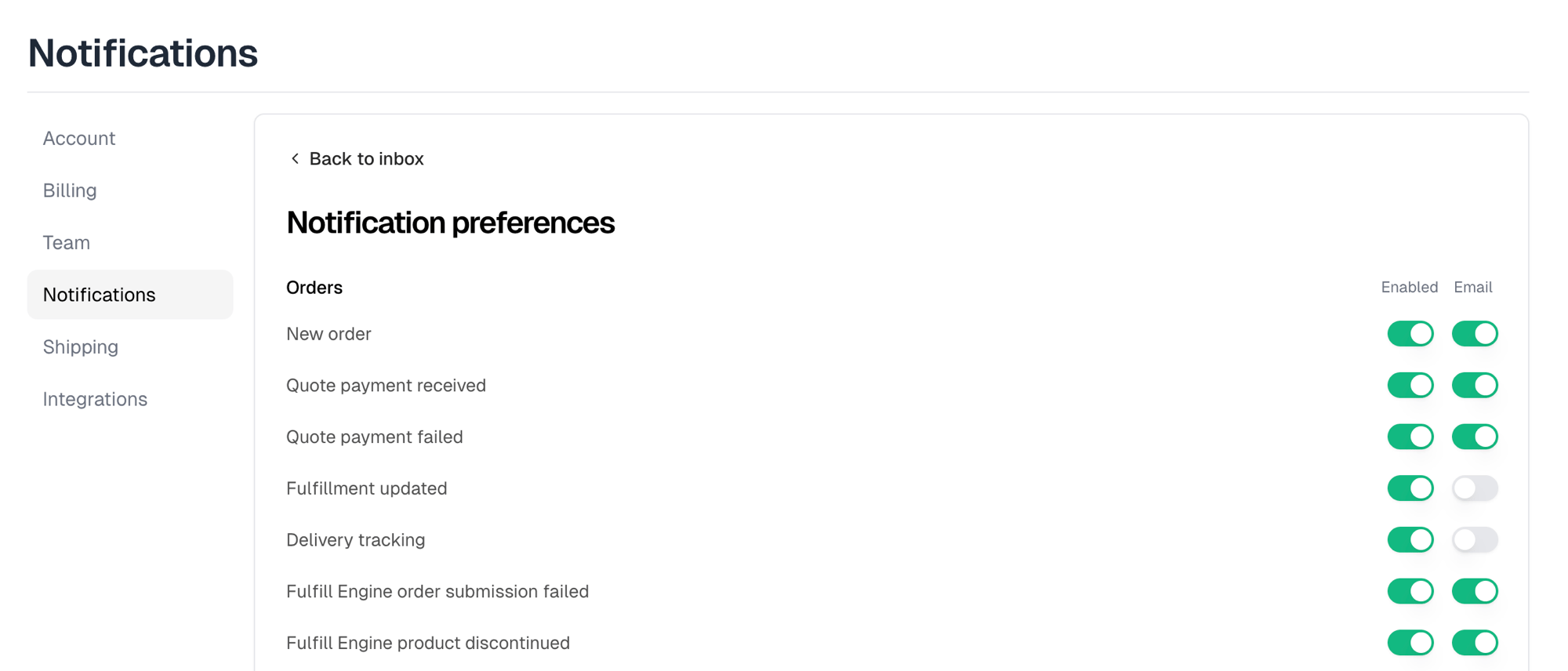 Events are grouped under Orders, Inventory, Store, Financial, Proposals,
Comments and Team. Only the owner and admins get the Financial group, which
covers payouts, credits, invoices and referral rewards.
Every event starts Enabled. Email starts on for most of them, and off for
fulfillment and delivery updates, the inventory warnings, store assignment and
deadline changes, and team changes.
Not everything is listed here. Security alerts, team invitations, ownership
transfers, order disputes and refunds, and payment problems always reach you,
and have no switch.
Preferences are per person, so changing yours does not change your team's.
Events are grouped under Orders, Inventory, Store, Financial, Proposals,
Comments and Team. Only the owner and admins get the Financial group, which
covers payouts, credits, invoices and referral rewards.
Every event starts Enabled. Email starts on for most of them, and off for
fulfillment and delivery updates, the inventory warnings, store assignment and
deadline changes, and team changes.
Not everything is listed here. Security alerts, team invitations, ownership
transfers, order disputes and refunds, and payment problems always reach you,
and have no switch.
Preferences are per person, so changing yours does not change your team's.