> ## Documentation Index
> Fetch the complete documentation index at: https://itemstores.com/help/llms.txt
> Use this file to discover all available pages before exploring further.
# Domains
> Serve a store at your own domain
Adding a domain requires a Full or Enterprise license. Removing one does not,
so a Starter business can still remove a domain it already has.
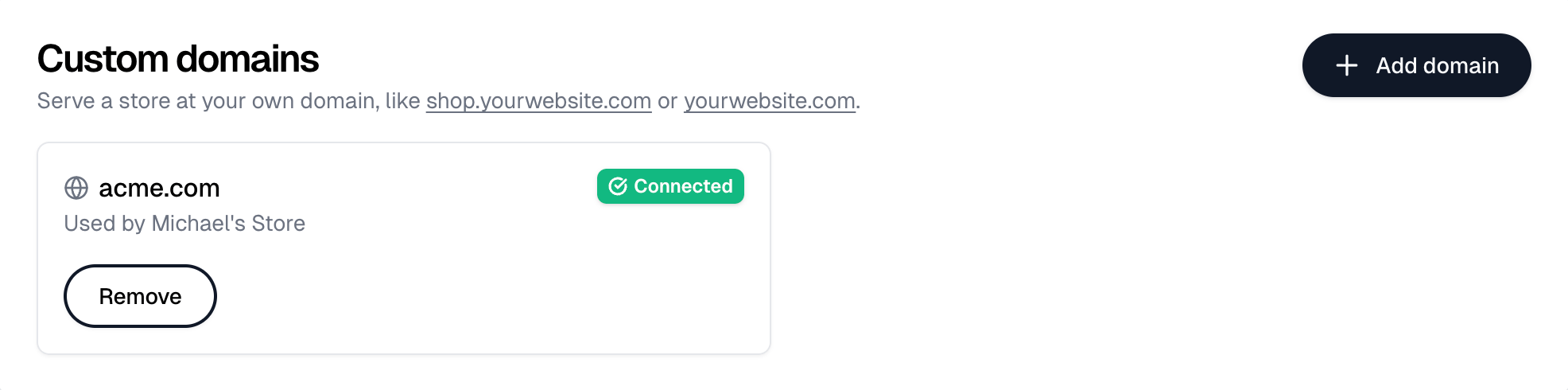
Serve a store at `shop.yourwebsite.com` or `yourwebsite.com` instead of its
`item.store` address.
 ## Adding a domain
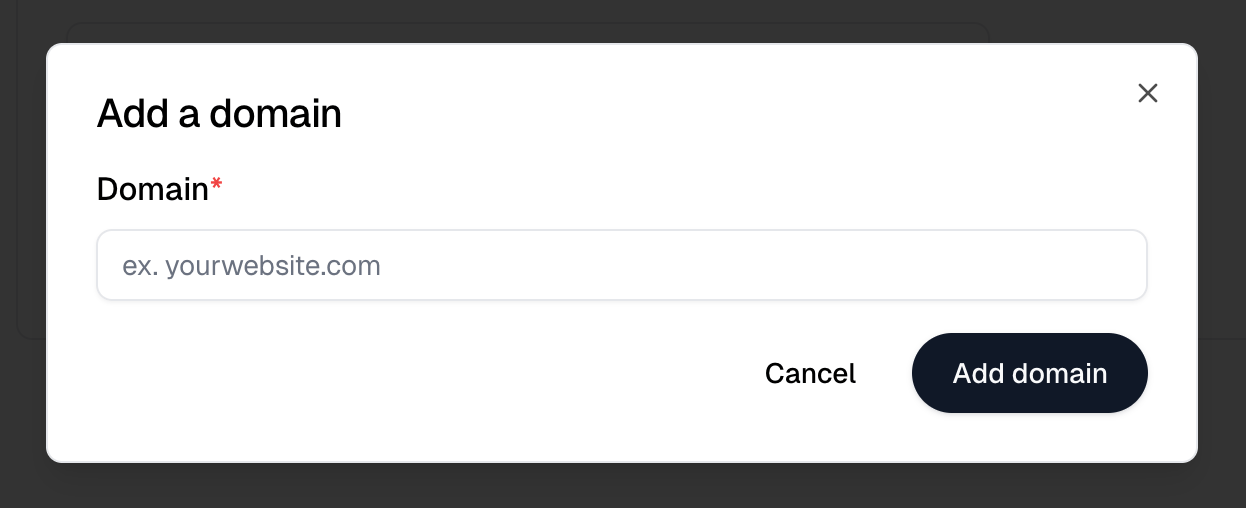
**Add domain** opens **Add a domain**. Enter the domain, for example
`yourwebsite.com`, and select **Add domain** to save it.
## Adding a domain
**Add domain** opens **Add a domain**. Enter the domain, for example
`yourwebsite.com`, and select **Add domain** to save it.
 A new domain starts as **Needs DNS records**, with the records to add listed
on its card: an apex domain like `yourwebsite.com` needs an A record plus a
CNAME for `www`, and a subdomain like `shop.yourwebsite.com` needs one CNAME.
Add them at your domain registrar, then select **Check status**.
| Status | What it means |
| - | - |
| Needs DNS records | Add the listed records at your registrar |
| Securing (SSL) | Records found. Itemstores is issuing a certificate, which usually takes a few minutes |
| Connected | The domain is live |
Itemstores checks a domain's status only when you open this page or select
**Check status**, so changes at your registrar can take a few minutes to show
and you may need to revisit this page.
## Picking which store uses it
A domain is assigned from the store itself, not from this page. Open the
store's settings and select **Configure custom domain** next to its
**Website** field. See [Stores](/help/knowledge-base/stores).
A domain can serve only one store at a time. You can pick a domain that
hasn't finished connecting; it goes live once it does. Existing
`item.store` links for the store keep working and redirect to the new
domain.
## Removing a domain
**Remove** asks you to confirm, then disconnects the domain immediately. If a
store was using it, the store goes back to its `item.store` address and links
using the domain stop opening it. You can add the domain again later.
This documentation is built and hosted on [Mintlify](https://mintlify.com), a developer documentation platform.
A new domain starts as **Needs DNS records**, with the records to add listed
on its card: an apex domain like `yourwebsite.com` needs an A record plus a
CNAME for `www`, and a subdomain like `shop.yourwebsite.com` needs one CNAME.
Add them at your domain registrar, then select **Check status**.
| Status | What it means |
| - | - |
| Needs DNS records | Add the listed records at your registrar |
| Securing (SSL) | Records found. Itemstores is issuing a certificate, which usually takes a few minutes |
| Connected | The domain is live |
Itemstores checks a domain's status only when you open this page or select
**Check status**, so changes at your registrar can take a few minutes to show
and you may need to revisit this page.
## Picking which store uses it
A domain is assigned from the store itself, not from this page. Open the
store's settings and select **Configure custom domain** next to its
**Website** field. See [Stores](/help/knowledge-base/stores).
A domain can serve only one store at a time. You can pick a domain that
hasn't finished connecting; it goes live once it does. Existing
`item.store` links for the store keep working and redirect to the new
domain.
## Removing a domain
**Remove** asks you to confirm, then disconnects the domain immediately. If a
store was using it, the store goes back to its `item.store` address and links
using the domain stop opening it. You can add the domain again later.
This documentation is built and hosted on [Mintlify](https://mintlify.com), a developer documentation platform.