> ## Documentation Index
> Fetch the complete documentation index at: https://itemstores.com/help/llms.txt
> Use this file to discover all available pages before exploring further.
# Account
> Your profile, sign-in and sessions
Your personal settings. Everything here is yours alone, not your business's.
 ## Profile
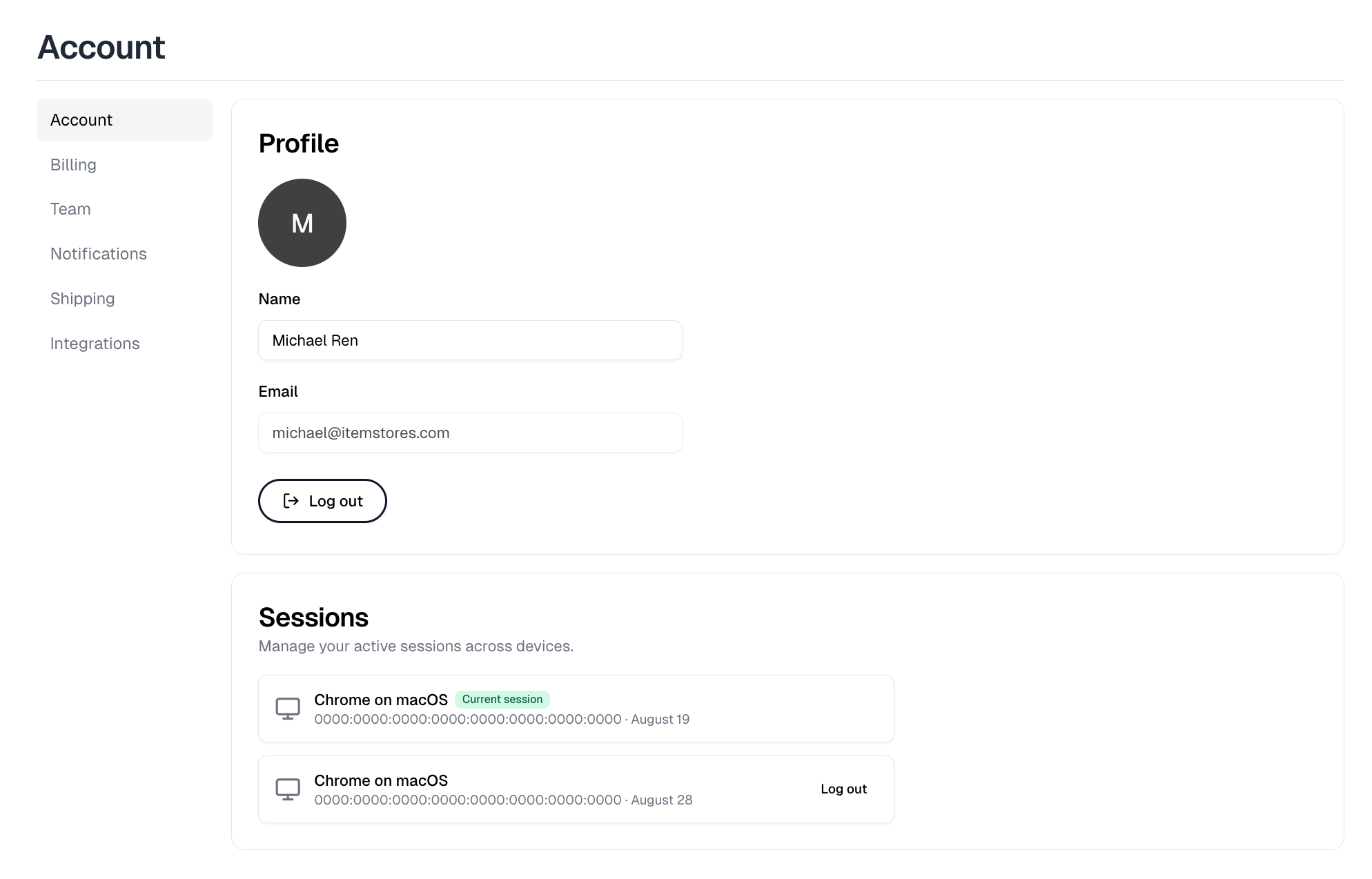
Your photo, name and email. Selecting the photo opens **Profile picture**, where
**Upload** sets one and **Remove** clears it. Edit your name and a **Save**
button appears beside it. Your email is fixed, so contact support to change it.
**Log out** ends your session here.
## Upgrade license
Businesses that are not yet on Full get an **Upgrade license** banner at the top
of this page. It buys the Full license in a single payment, which removes the
Starter limits, drops the Itemstores transaction fee from 5.9% to 2.9% and
unlocks team members and integrations. It appears only for the owner and admins,
and only once Stripe is connected.
## What you see depends on how you signed up
| Signed up with | Sections you get |
| ------------------ | --------------------------- |
| Email and password | Profile, Security, Sessions |
| Google | Profile and Sessions only |
The Security section holds two-factor authentication and your password. Google
accounts have neither, because Google handles both, so that section does not
appear at all.
## Two-factor authentication
Email and password accounts have two-factor on already. A verification code is
emailed at each login, so there is no authenticator app.
Turning it **off** sends a confirmation link to your email, and the change takes
effect when you click that link rather than when you flip the switch. Turning it
back **on** asks for your password.
## Password
**Change password** emails you a reset link. You cannot set a new password
directly on the page.
## Sessions
Every device signed into your account, with your current one marked. **Log out**
ends one, and **Revoke all other sessions** ends every one but this, which
appears once there is more than one other session.
Use it after signing in somewhere shared, or to force a sign-out everywhere
after changing your password.
## Profile
Your photo, name and email. Selecting the photo opens **Profile picture**, where
**Upload** sets one and **Remove** clears it. Edit your name and a **Save**
button appears beside it. Your email is fixed, so contact support to change it.
**Log out** ends your session here.
## Upgrade license
Businesses that are not yet on Full get an **Upgrade license** banner at the top
of this page. It buys the Full license in a single payment, which removes the
Starter limits, drops the Itemstores transaction fee from 5.9% to 2.9% and
unlocks team members and integrations. It appears only for the owner and admins,
and only once Stripe is connected.
## What you see depends on how you signed up
| Signed up with | Sections you get |
| ------------------ | --------------------------- |
| Email and password | Profile, Security, Sessions |
| Google | Profile and Sessions only |
The Security section holds two-factor authentication and your password. Google
accounts have neither, because Google handles both, so that section does not
appear at all.
## Two-factor authentication
Email and password accounts have two-factor on already. A verification code is
emailed at each login, so there is no authenticator app.
Turning it **off** sends a confirmation link to your email, and the change takes
effect when you click that link rather than when you flip the switch. Turning it
back **on** asks for your password.
## Password
**Change password** emails you a reset link. You cannot set a new password
directly on the page.
## Sessions
Every device signed into your account, with your current one marked. **Log out**
ends one, and **Revoke all other sessions** ends every one but this, which
appears once there is more than one other session.
Use it after signing in somewhere shared, or to force a sign-out everywhere
after changing your password.