> ## Documentation Index
> Fetch the complete documentation index at: https://itemstores.com/help/llms.txt
> Use this file to discover all available pages before exploring further.
# Reports
> Exportable breakdowns of payouts, tax, orders, stores and contacts
Reports sits beside Analytics. Five reports, each with its own filters and a
**Download CSV** button that says how many rows it will export.
Every report opens on the last 30 days. The CSV covers every row the filters
match, not just the page on screen.
 ## Payouts
Every payout with its arrival **Date**, **Status**, order count, **Net** and the
amount **Deposited**. **Charged back**, **Refunds**, **Tax** and
**Jurisdictions** appear only when a payout on the page has a figure for them.
Expand a row for its detail.
Filter by arrival date, amount deposited, and status.
This is where to find the tax collected across the orders in a single payout.
## Tax
Tax by **Jurisdiction**, with the tax name, the **Rate**, the number of orders,
and **Net tax collected**. **Period** is the date range you filtered on, so it
reads the same on every row and gives a printed report its own filing period.
Expand a row for the orders behind it.
Filter by date and by state.
This answers where your collected sales tax is shown.
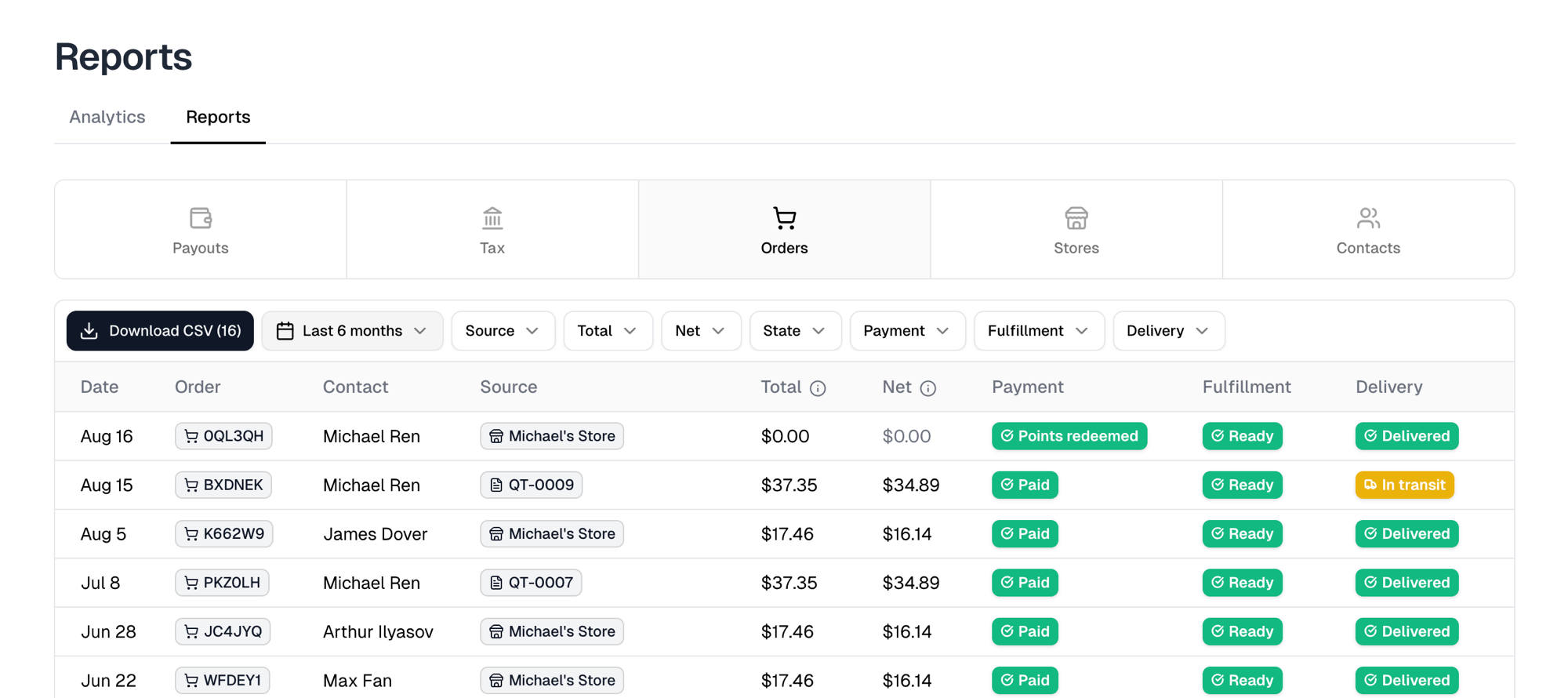
## Orders
Every order with its contact, **Total**, **Net**, and its **Payment**,
**Fulfillment** and **Delivery** status. **Source** is the store it came from,
or the quote if it started as one. Filter by date, source, total, net, tax
state, payment, fulfillment and delivery.
The CSV is one row per order and carries columns the table leaves out: the
proposal it began as, subtotal, discount, shipping, tax, revenue, fees,
chargebacks, refunds, the tax description, points redeemed and the shipping
method. It does not break an order into line items.
## Stores
Every store with its created date, start date, deadline, order count, revenue,
tax, product count and status. Filter by created date, start date, deadline,
revenue, tax state and status.
## Contacts
Every contact with the date they became one, their email, phone, organization,
order count, total spent, last order, and which stores they bought from. Filter
by any of those except email and phone.
## Post expenses
**Post expenses** sits above the tabs on the Payouts tab and posts each payout's
Stripe processing fees to QuickBooks as an expense. It only appears once
QuickBooks is connected, and is disabled when every payout's fees are already
posted. See
[QuickBooks Online](/help/knowledge-base/settings/integrations/quickbooks).
## Payouts
Every payout with its arrival **Date**, **Status**, order count, **Net** and the
amount **Deposited**. **Charged back**, **Refunds**, **Tax** and
**Jurisdictions** appear only when a payout on the page has a figure for them.
Expand a row for its detail.
Filter by arrival date, amount deposited, and status.
This is where to find the tax collected across the orders in a single payout.
## Tax
Tax by **Jurisdiction**, with the tax name, the **Rate**, the number of orders,
and **Net tax collected**. **Period** is the date range you filtered on, so it
reads the same on every row and gives a printed report its own filing period.
Expand a row for the orders behind it.
Filter by date and by state.
This answers where your collected sales tax is shown.
## Orders
Every order with its contact, **Total**, **Net**, and its **Payment**,
**Fulfillment** and **Delivery** status. **Source** is the store it came from,
or the quote if it started as one. Filter by date, source, total, net, tax
state, payment, fulfillment and delivery.
The CSV is one row per order and carries columns the table leaves out: the
proposal it began as, subtotal, discount, shipping, tax, revenue, fees,
chargebacks, refunds, the tax description, points redeemed and the shipping
method. It does not break an order into line items.
## Stores
Every store with its created date, start date, deadline, order count, revenue,
tax, product count and status. Filter by created date, start date, deadline,
revenue, tax state and status.
## Contacts
Every contact with the date they became one, their email, phone, organization,
order count, total spent, last order, and which stores they bought from. Filter
by any of those except email and phone.
## Post expenses
**Post expenses** sits above the tabs on the Payouts tab and posts each payout's
Stripe processing fees to QuickBooks as an expense. It only appears once
QuickBooks is connected, and is disabled when every payout's fees are already
posted. See
[QuickBooks Online](/help/knowledge-base/settings/integrations/quickbooks).