> ## Documentation Index
> Fetch the complete documentation index at: https://itemstores.com/help/llms.txt
> Use this file to discover all available pages before exploring further.
# Purchase orders
> Buying blanks and stock from suppliers
A purchase order records stock you have ordered from a supplier. Until it
arrives it counts as **Incoming** in [Inventory](/help/knowledge-base/inventory); once you
receive it, it becomes **On hand**.
Purchase orders sit on their own tab beside Inventory.
## Creating one
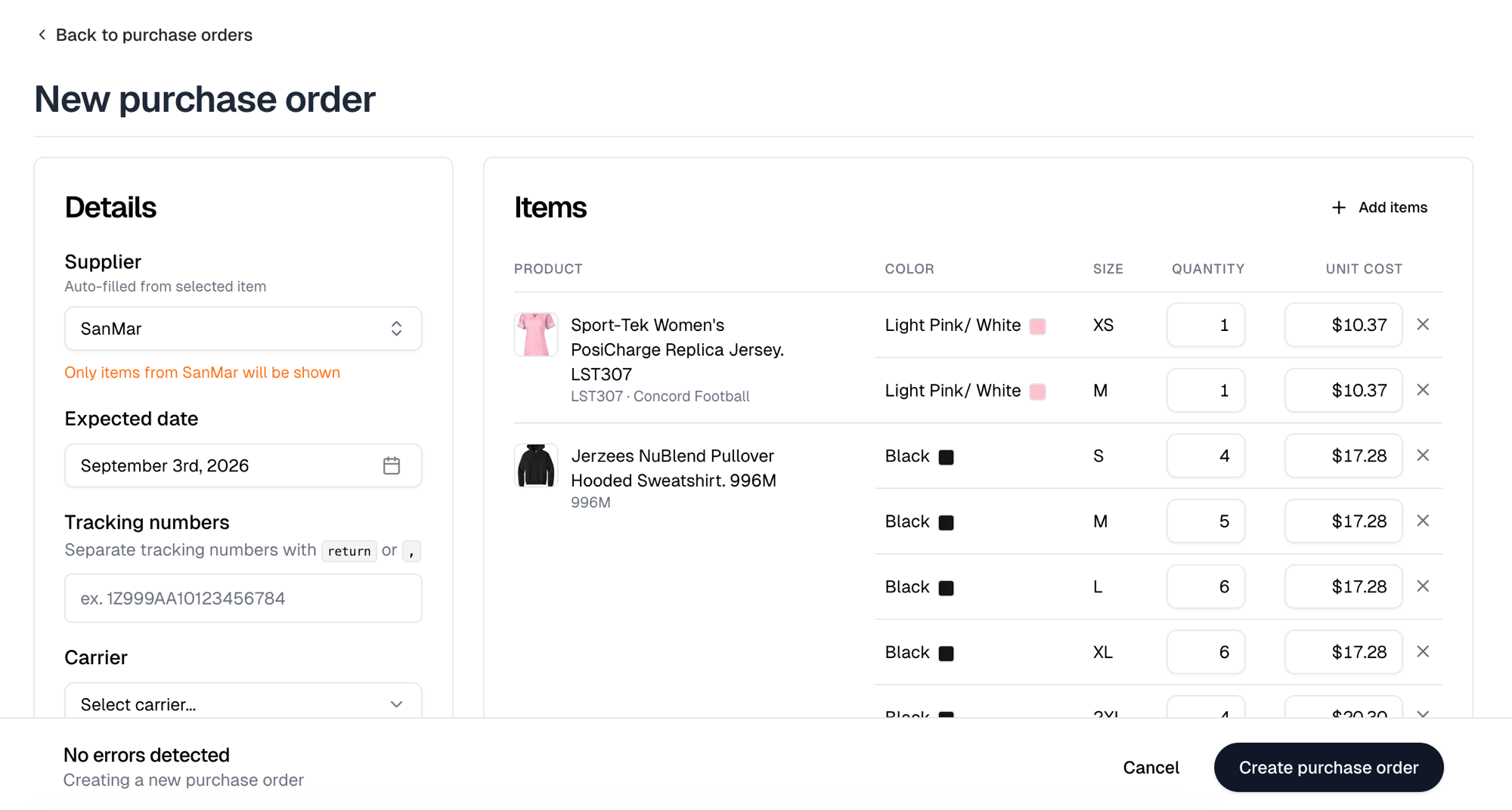
**New purchase order** appears on both the Inventory and Purchase orders tabs.
Fill in the details, then use **Add items**, then **Create purchase order**.
| Field | Notes |
| ---------------- | ------------------------------------------------------------------------ |
| Supplier | Who you are ordering from. Filled in for you from the first item you add |
| Expected date | When you expect it |
| Tracking numbers | Separate several with a return or a comma. Up to 50 |
| Carrier | Who is shipping it |
| Notes | Anything you want recorded against the order |
Every one of those is optional. What a purchase order cannot be created without
is at least one item, each with a quantity and a **Unit cost** above \$0.00.
Adding items from an order fills the unit cost in from the blank's piece price
where it can, and leaves it blank where it cannot.
 ### Adding items
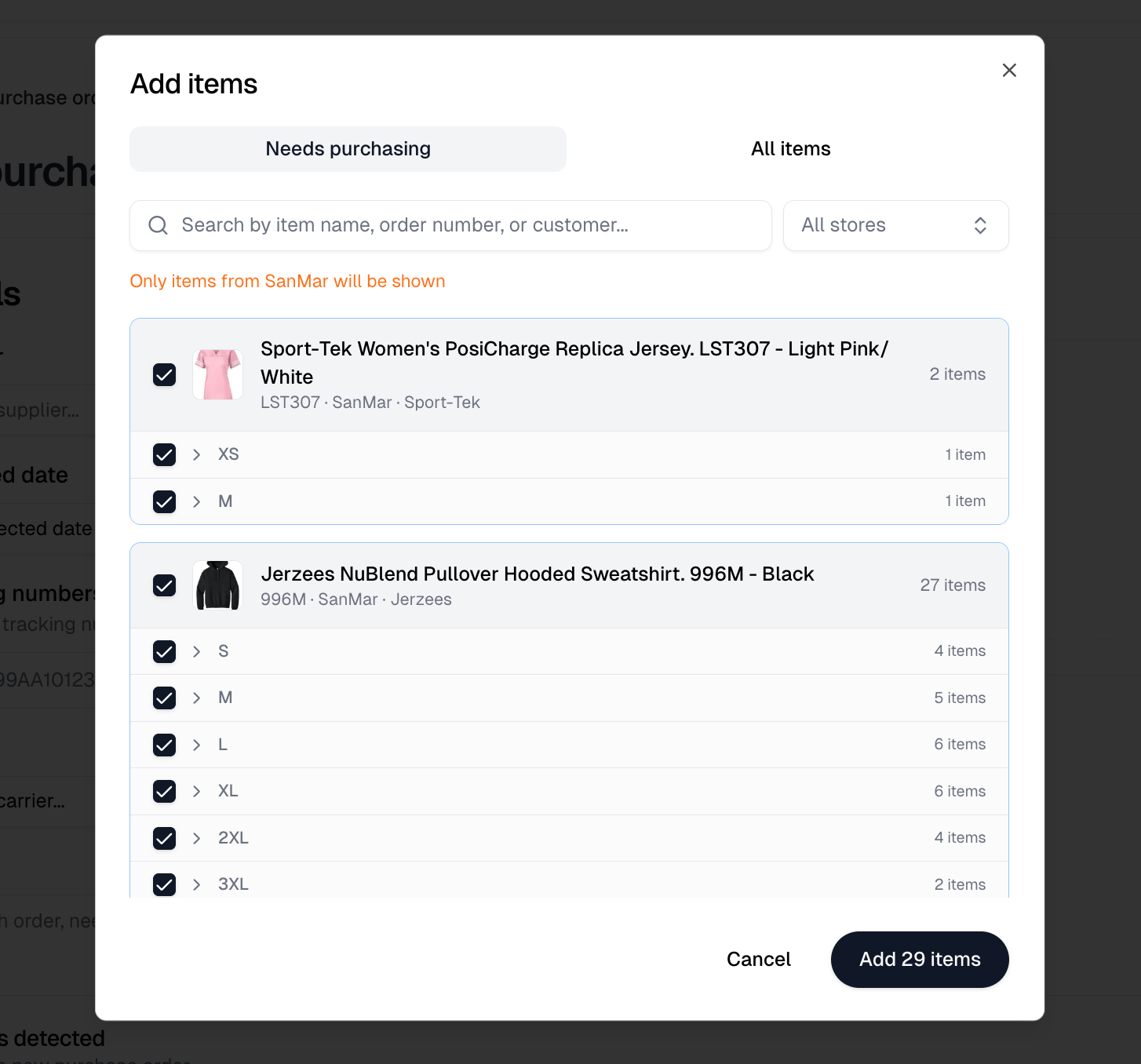
The **Add items** dialog has two tabs.
**Needs purchasing** lists exactly what your open orders are short of, and you
can search it by item name, order number or customer, or narrow it to one store.
This is the fast path: Itemstores has already worked out what you need to buy.
Items there are grouped by product with a row per size and its count. Expand a
size to see which orders are waiting on it, and tick a whole product to take
every size at once. The button names the total you are adding. Quantities are
already netted against what is on open purchase orders, so a shortfall another
purchase order covers is not offered again.
**All items** is your whole product list, for stock you want on the shelf
regardless of current orders. It works differently: select a product, pick its
variants, set the **Quantity**, then **Add to purchase order**. A product with
sizes takes a quantity per size.
The first item you add locks the dialog to that item's supplier. Everything
after it is filtered to the same one, and the Supplier field fills itself in to
match if it was empty.
### Adding items
The **Add items** dialog has two tabs.
**Needs purchasing** lists exactly what your open orders are short of, and you
can search it by item name, order number or customer, or narrow it to one store.
This is the fast path: Itemstores has already worked out what you need to buy.
Items there are grouped by product with a row per size and its count. Expand a
size to see which orders are waiting on it, and tick a whole product to take
every size at once. The button names the total you are adding. Quantities are
already netted against what is on open purchase orders, so a shortfall another
purchase order covers is not offered again.
**All items** is your whole product list, for stock you want on the shelf
regardless of current orders. It works differently: select a product, pick its
variants, set the **Quantity**, then **Add to purchase order**. A product with
sizes takes a quantity per size.
The first item you add locks the dialog to that item's supplier. Everything
after it is filtered to the same one, and the Supplier field fills itself in to
match if it was empty.
 ## Receiving stock
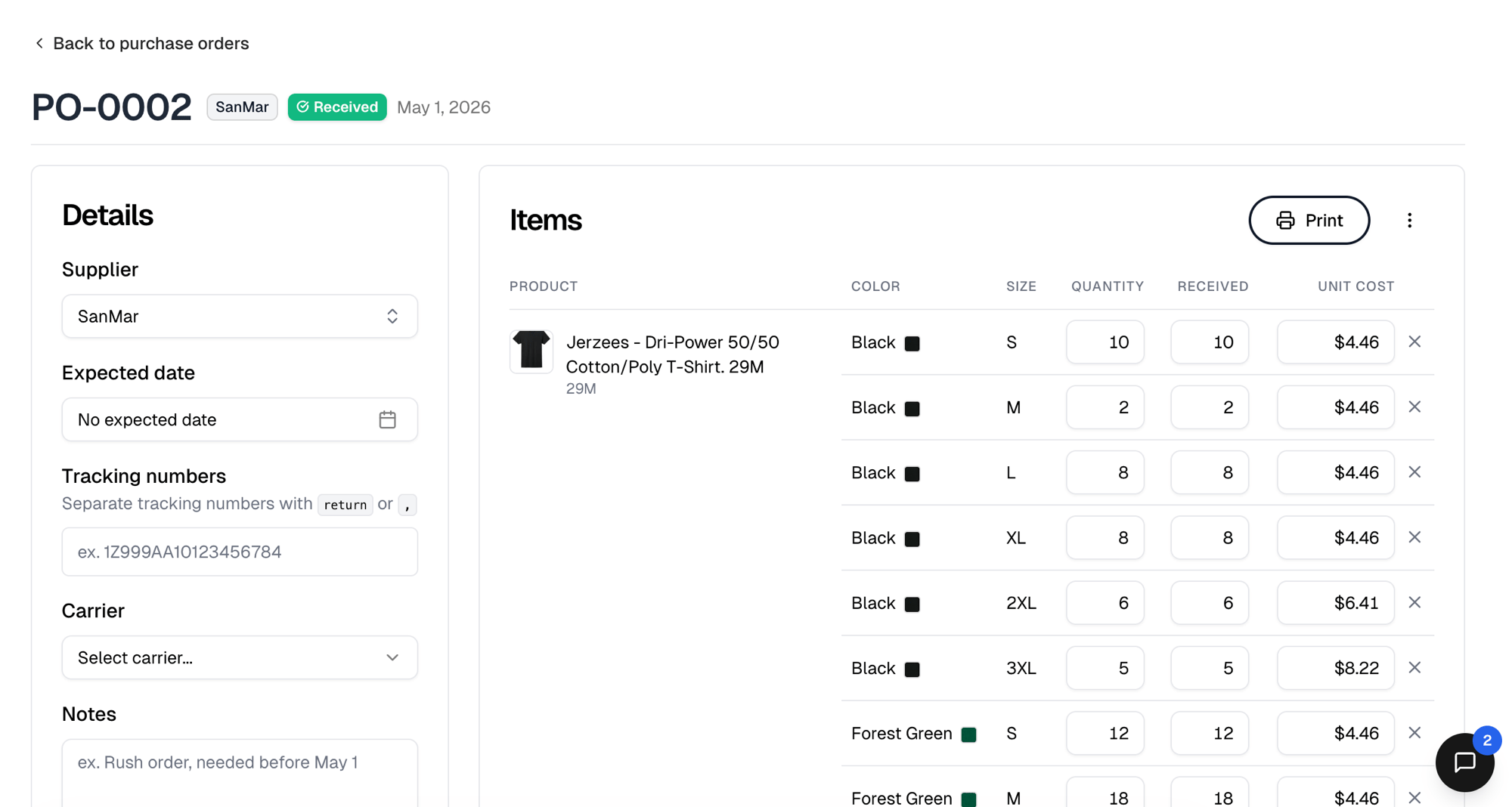
Open the purchase order and enter what actually arrived in the **Received**
column, per line. It saves as soon as you leave the field, on its own, without
the form's **Save changes**. A line's received quantity can be anything from zero
up to what you ordered, which is how a partly delivered order is recorded.
**Mark received** on the Items panel receives every remaining item in one go.
Received stock stops counting as **Incoming** in Inventory. It is allocated to
the oldest orders still waiting on it first, so it lands under **Committed**
before it shows as **Available**.
Receiving is reversible. Lower the **Received** number and the stock comes back
out, the incoming quantity reopens, and the purchase order's status steps back.
When some of what you are receiving belongs to orders that already shipped
without pulling stock, you are asked whether to **Receive as already-used** or
**Add to stock**. Already-used books the receipt and nets those units straight
back out, so they do not become inventory you do not have.
## Receiving stock
Open the purchase order and enter what actually arrived in the **Received**
column, per line. It saves as soon as you leave the field, on its own, without
the form's **Save changes**. A line's received quantity can be anything from zero
up to what you ordered, which is how a partly delivered order is recorded.
**Mark received** on the Items panel receives every remaining item in one go.
Received stock stops counting as **Incoming** in Inventory. It is allocated to
the oldest orders still waiting on it first, so it lands under **Committed**
before it shows as **Available**.
Receiving is reversible. Lower the **Received** number and the stock comes back
out, the incoming quantity reopens, and the purchase order's status steps back.
When some of what you are receiving belongs to orders that already shipped
without pulling stock, you are asked whether to **Receive as already-used** or
**Add to stock**. Already-used books the receipt and nets those units straight
back out, so they do not become inventory you do not have.
 On a saved purchase order the Items panel's `⋮` menu holds **Add items**, so you
can keep adding to one after it exists.
## Cancelling one
**Cancel** sits in that same `⋮` menu.
Cancelling is permanent. It removes anything already received from inventory,
including stock committed to orders, and the orders that were counting on this
purchase order go back to needing purchasing.
A cancelled purchase order can no longer be edited or received, and it drops out
of the All, Open and Late filters.
## Printing
**Print** on the Items panel downloads the purchase order as a PDF, for sending
to a supplier or filing.
## Acting on several at once
There is no standing bulk button. Select rows in the list and a toolbar appears
with **Mark received** and **Cancel**, which run across the whole selection.
**Cancel** there carries the same consequences as cancelling one.
## The list
Cards across the top show **Needs purchasing**, **Open POs**, **POs received**
and **Total cost** for the window set by **Show stats for**.
Filter with **All**, **Open**, **Late** or **Cancelled**. Each row shows its
date, PO number, supplier, item quantity, total cost, status, expected date and
tracking. An expected date that has passed on an open purchase order turns red,
and Late filters to those.
The status is **Pending**, **Partially received**, **Received** or **Cancelled**.
Open means Pending or Partially received.
On a saved purchase order the Items panel's `⋮` menu holds **Add items**, so you
can keep adding to one after it exists.
## Cancelling one
**Cancel** sits in that same `⋮` menu.
Cancelling is permanent. It removes anything already received from inventory,
including stock committed to orders, and the orders that were counting on this
purchase order go back to needing purchasing.
A cancelled purchase order can no longer be edited or received, and it drops out
of the All, Open and Late filters.
## Printing
**Print** on the Items panel downloads the purchase order as a PDF, for sending
to a supplier or filing.
## Acting on several at once
There is no standing bulk button. Select rows in the list and a toolbar appears
with **Mark received** and **Cancel**, which run across the whole selection.
**Cancel** there carries the same consequences as cancelling one.
## The list
Cards across the top show **Needs purchasing**, **Open POs**, **POs received**
and **Total cost** for the window set by **Show stats for**.
Filter with **All**, **Open**, **Late** or **Cancelled**. Each row shows its
date, PO number, supplier, item quantity, total cost, status, expected date and
tracking. An expected date that has passed on an open purchase order turns red,
and Late filters to those.
The status is **Pending**, **Partially received**, **Received** or **Cancelled**.
Open means Pending or Partially received.