> ## Documentation Index
> Fetch the complete documentation index at: https://itemstores.com/help/llms.txt
> Use this file to discover all available pages before exploring further.
# Proposals
> Design review before pricing
A proposal is for design review. Customers approve or reject items individually,
before any pricing is set. Later you carry the ones you want into a
[quote](/help/knowledge-base/quotes).
## Building one
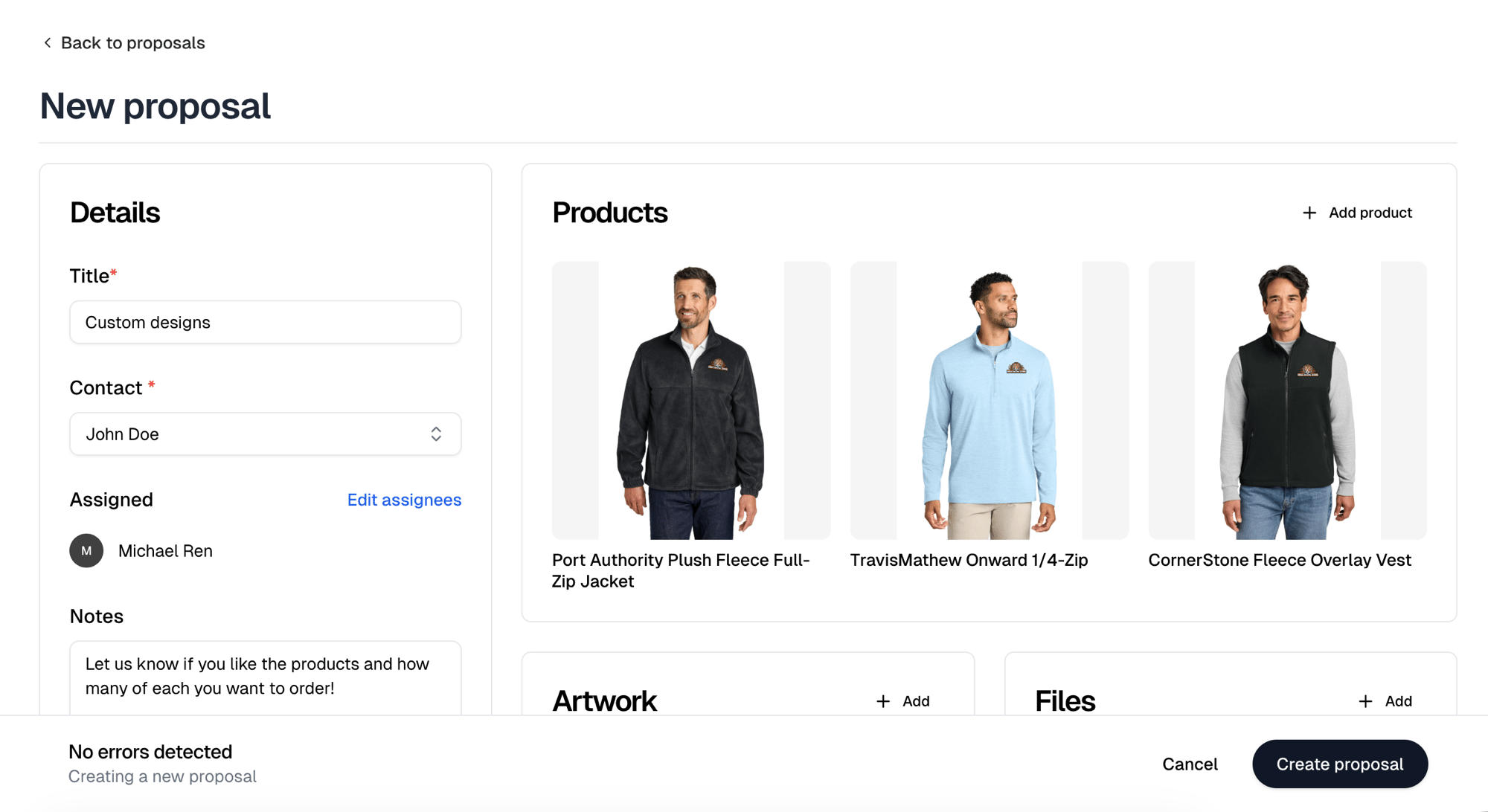
**New proposal** needs a **Title**, a **Contact** and at least one product.
Assignees start with you, and **Notes** arrives prefilled with "Let us know if
you like the products and how many of each you want to order!"
**Add product** offers **Blanks**, **Collections** and **Decorated products**.
On Blanks and Decorated products you tick several at once and add them together.
Selecting a collection adds every blank in it. A proposal carries no quantities
or prices, only what you are proposing.
**Artwork** and **Files** are two cards with an **Add** button each. Artwork
attaches designs. Files takes anything else you want them to have, such as a
spec sheet or a mockup PDF.
**Notes** is what the customer reads when deciding, so use it to ask for what
you need back.
 **Create proposal** sends it. There is no draft state and no separate send step.
The proposal goes out as Sent and the contact is emailed a link immediately.
You can keep editing a proposal after it goes out. Its page is the same form.
## What the customer sees
**View customer page** shows their view. They get the products, your artwork,
and your notes, with a **pending** count of what they have not answered yet.
They can:
* Open any product to see its colors, sizes and description, then **Approve** or
**Reject** it with a comment
* **Approve all** or **Reject all**, with one overall comment
## Their answers
Approved and rejected products are badged on your side, and each carries the
comment the customer left.
**Response history** lists every response in order, so you can see what changed
if they answered more than once. It appears once the first answer arrives.
## Converting to a quote
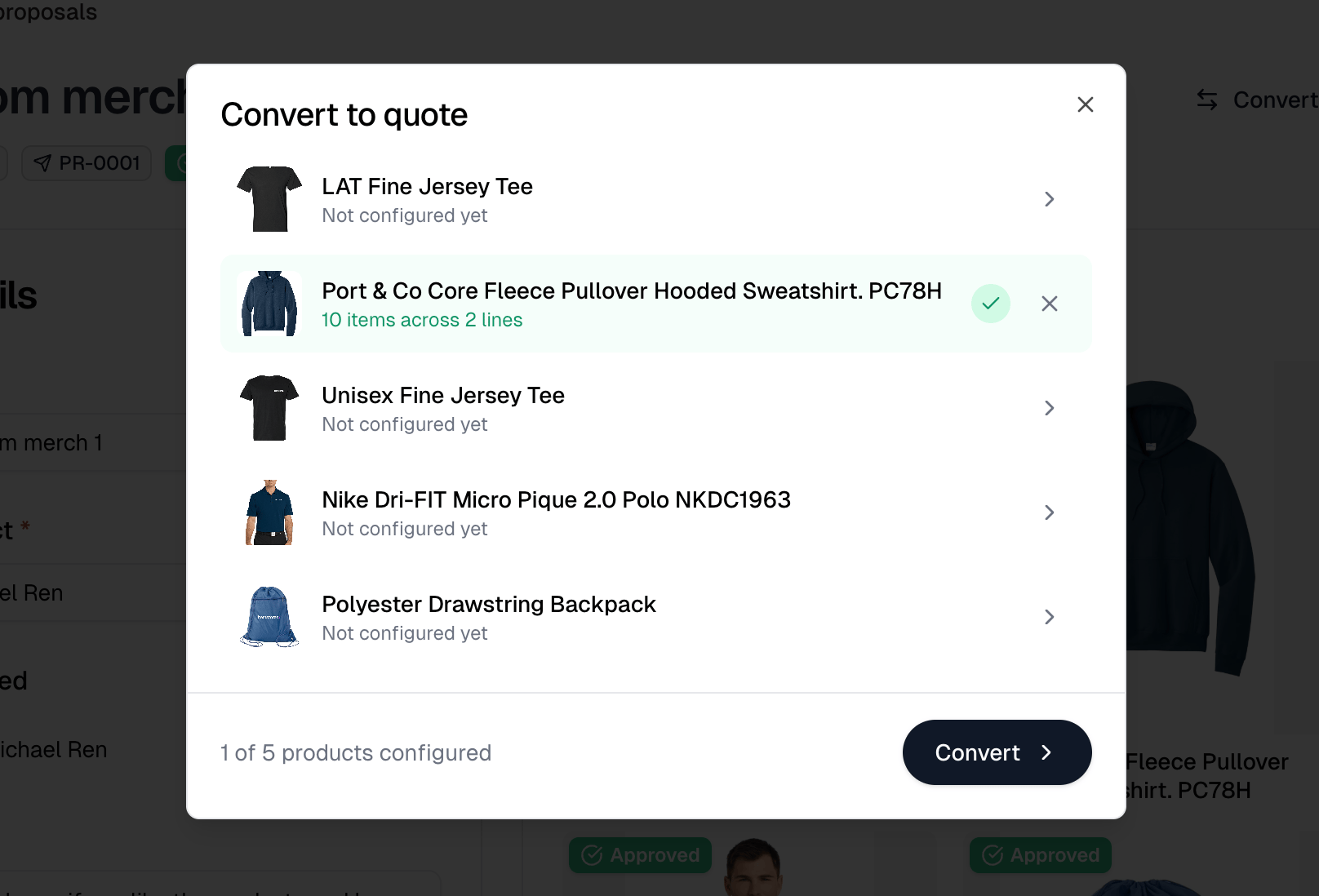
**Convert to quote** opens a dialog listing every product on the proposal, then
takes you to the **New quote** form with your choices prefilled. It appears as
soon as the proposal holds a product.
Approval does not gate this. Rejected and unanswered products are listed too,
tinted by their status, and you decide which to configure. Files and artwork
attached to rejected items are the one thing left behind.
Each product starts as **Not configured yet**, and you set its quantities and
sizes. A configured product shows how many items it covers and across how many
lines, and an X clears it again.
You do not have to configure them all. **Convert**, the dialog's own button,
enables as soon as one is done, and anything still unconfigured is left off. The
counter beside it reads how many of the proposal's products you have configured.
This is where a proposal gains quantities and prices. Nothing before this point
commits the customer to an amount.
**Create proposal** sends it. There is no draft state and no separate send step.
The proposal goes out as Sent and the contact is emailed a link immediately.
You can keep editing a proposal after it goes out. Its page is the same form.
## What the customer sees
**View customer page** shows their view. They get the products, your artwork,
and your notes, with a **pending** count of what they have not answered yet.
They can:
* Open any product to see its colors, sizes and description, then **Approve** or
**Reject** it with a comment
* **Approve all** or **Reject all**, with one overall comment
## Their answers
Approved and rejected products are badged on your side, and each carries the
comment the customer left.
**Response history** lists every response in order, so you can see what changed
if they answered more than once. It appears once the first answer arrives.
## Converting to a quote
**Convert to quote** opens a dialog listing every product on the proposal, then
takes you to the **New quote** form with your choices prefilled. It appears as
soon as the proposal holds a product.
Approval does not gate this. Rejected and unanswered products are listed too,
tinted by their status, and you decide which to configure. Files and artwork
attached to rejected items are the one thing left behind.
Each product starts as **Not configured yet**, and you set its quantities and
sizes. A configured product shows how many items it covers and across how many
lines, and an X clears it again.
You do not have to configure them all. **Convert**, the dialog's own button,
enables as soon as one is done, and anything still unconfigured is left off. The
counter beside it reads how many of the proposal's products you have configured.
This is where a proposal gains quantities and prices. Nothing before this point
commits the customer to an amount.
 ## The list
Filter by **All**, **Sent**, **Approved** or **Rejected**. **Assigned** joins
them once a proposal is assigned to you. **View archived proposals**, beneath
the table, swaps the list for the archived ones.
Selecting rows hides the filters and reveals a toolbar with **Archive** and
**Delete**, or **Restore** and **Delete** on the archived view. Both ask you to
confirm.
Each row links the proposal to the quote it became and the order after that.
## The list
Filter by **All**, **Sent**, **Approved** or **Rejected**. **Assigned** joins
them once a proposal is assigned to you. **View archived proposals**, beneath
the table, swaps the list for the archived ones.
Selecting rows hides the filters and reveals a toolbar with **Archive** and
**Delete**, or **Restore** and **Delete** on the archived view. Both ask you to
confirm.
Each row links the proposal to the quote it became and the order after that.