> ## Documentation Index
> Fetch the complete documentation index at: https://itemstores.com/help/llms.txt
> Use this file to discover all available pages before exploring further.
# Products
> What you sell, and how it is priced
A product is what a customer buys: a blank with your decoration on it, or an
item you define yourself.
## Editing a product
A product opens on **All**, which stacks every section on one page. Five more
tabs show one section each.
### Basic information
Name, description, **SKU / style**, and **Primary decoration method**, which is
the default for every artwork on the product. On a print-on-demand product the
decoration method is locked after import.
**Categories** is here too, and a product can sit in several. **Manage
categories** edits the category tree itself.
### Media
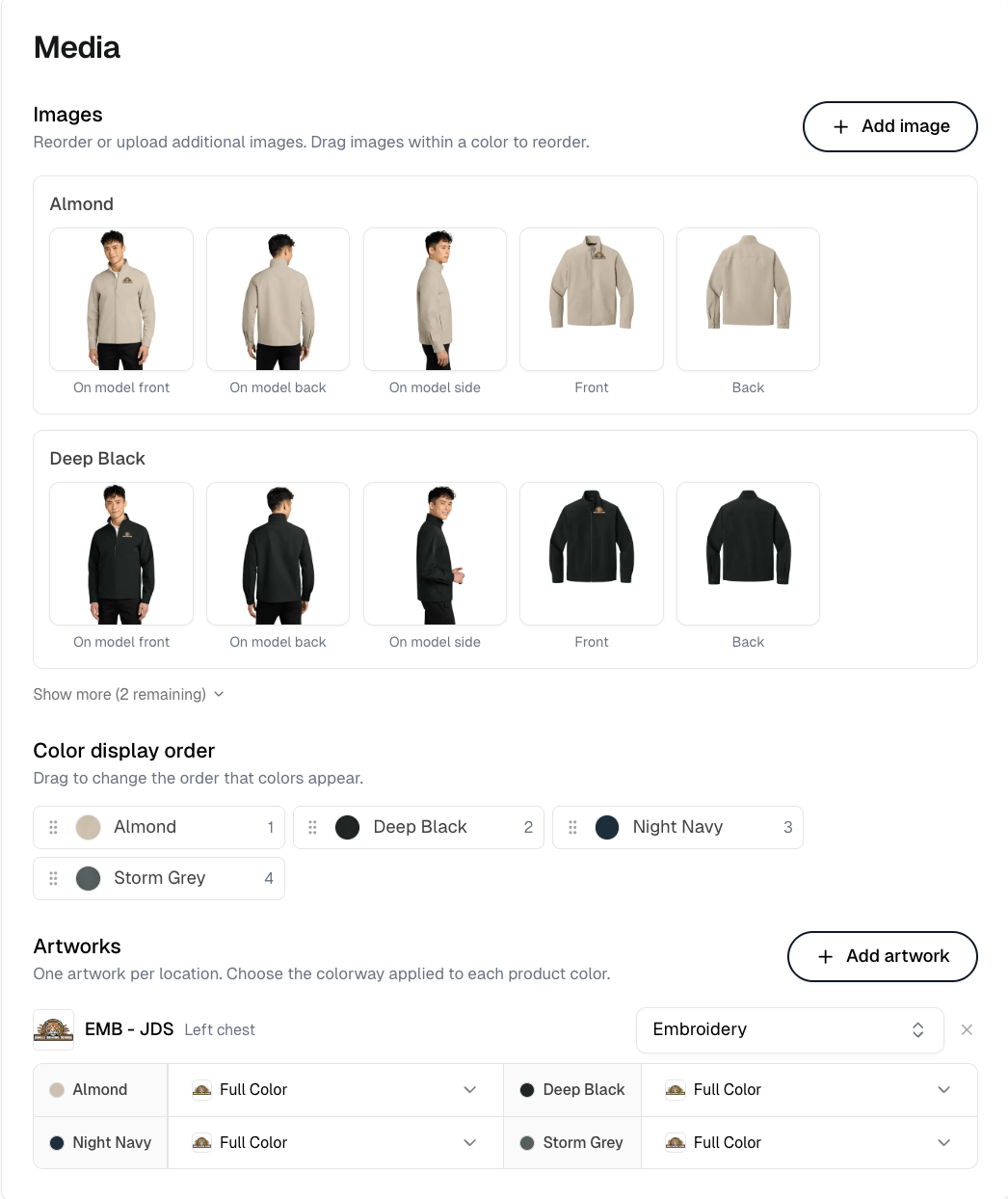
Images, grouped by color, with **Color display order** setting the order colors
appear to customers.
**Artworks** lists the designs already on the product, one per location, and
lets you choose the colorway applied to each product color. Each location can
also override the primary decoration method. **Add artwork** in that header
attaches another. The section appears only once a product has a design on it,
so a blank does not show it.
Drag images within a color to reorder them, and drag the colors themselves to
change the order customers see.
 ### Product variants
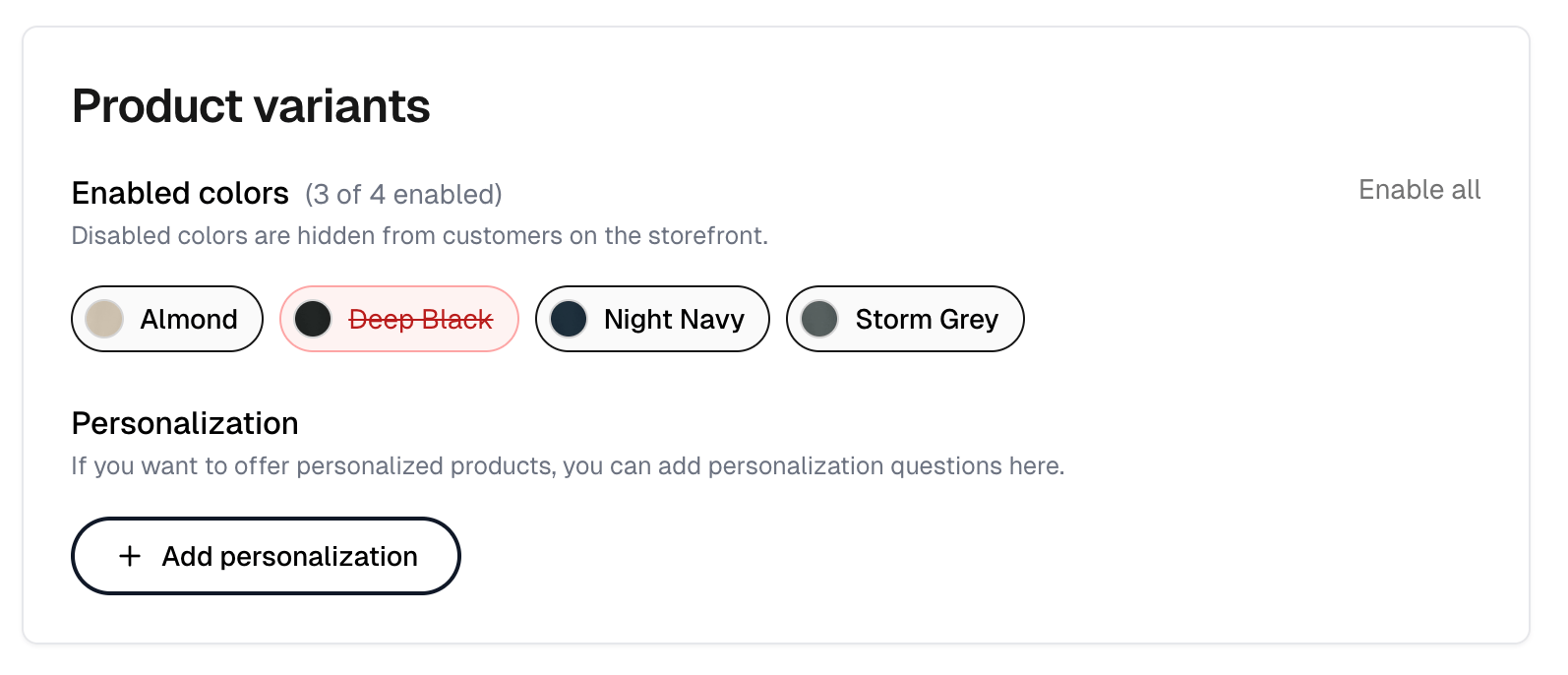
What this tab holds depends on the product. A decorated catalog product gets
**Enabled colors**, which controls what customers can pick. Disabled colors are
hidden from customers on the storefront, which is how you remove a color without
deleting anything. At least one color has to stay enabled. A blank imported from
a catalog gets its color and size selection instead, and a product you define
yourself gets **Add variants**.
### Product variants
What this tab holds depends on the product. A decorated catalog product gets
**Enabled colors**, which controls what customers can pick. Disabled colors are
hidden from customers on the storefront, which is how you remove a color without
deleting anything. At least one color has to stay enabled. A blank imported from
a catalog gets its color and size selection instead, and a product you define
yourself gets **Add variants**.
 ### Personalization
**Add personalization**, below the colors on the Product variants tab, adds
questions for products a customer personalizes. **Add question** adds each one,
up to 10, so you can ask for several things separately rather than in one box.
**Personalization markup** charges an extra fee when a customer personalizes the
product. Print-on-demand products do not offer personalization.
### Pricing
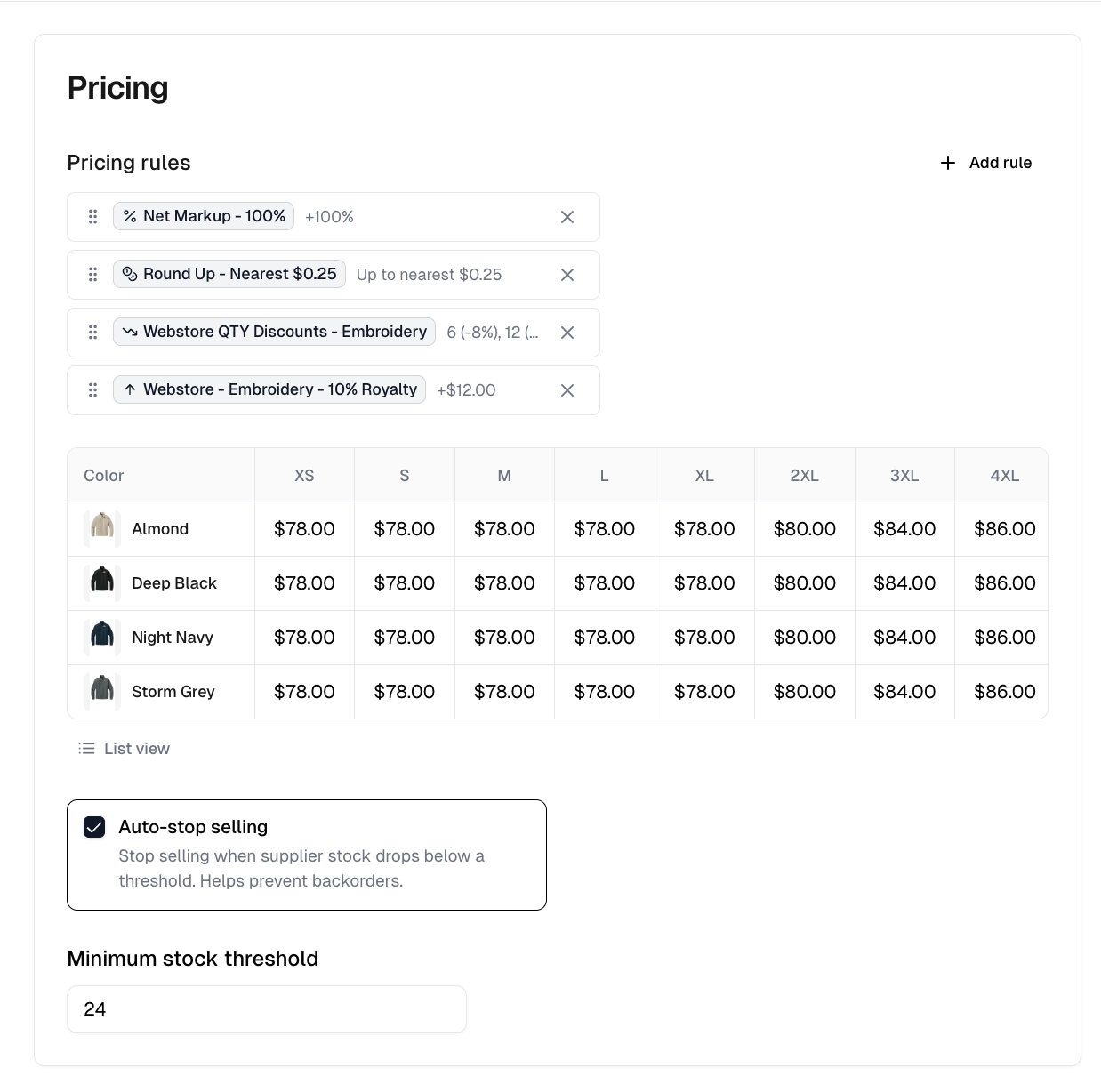
A catalog product prices in a grid of color against size, so a 2XL can cost
more than an M. A product with one price for every variant shows a single
**Price** field instead.
**Add rule** applies a [pricing rule](/help/knowledge-base/pricing-rules) to this product.
A product can carry several, and dragging them sets the order they are listed
in, not the order they are applied in, which is fixed.
Typing a price by hand on a product that has rules attached asks to remove them
first. Confirming with **Remove rules** strips every pricing rule from the
product and cannot be undone.
**Auto-stop selling** stops the product selling when supplier stock drops below
your **Minimum stock threshold**, which prevents backorders. It is offered on
products built from a supplier blank whose stock Itemstores reads, and the
threshold field appears once you turn it on.
**List view** swaps the grid for a flat list, with **Group variants by** to
collect the rows under one attribute. **Matrix view** switches back, and is
offered only when the product has exactly two attributes.
### Personalization
**Add personalization**, below the colors on the Product variants tab, adds
questions for products a customer personalizes. **Add question** adds each one,
up to 10, so you can ask for several things separately rather than in one box.
**Personalization markup** charges an extra fee when a customer personalizes the
product. Print-on-demand products do not offer personalization.
### Pricing
A catalog product prices in a grid of color against size, so a 2XL can cost
more than an M. A product with one price for every variant shows a single
**Price** field instead.
**Add rule** applies a [pricing rule](/help/knowledge-base/pricing-rules) to this product.
A product can carry several, and dragging them sets the order they are listed
in, not the order they are applied in, which is fixed.
Typing a price by hand on a product that has rules attached asks to remove them
first. Confirming with **Remove rules** strips every pricing rule from the
product and cannot be undone.
**Auto-stop selling** stops the product selling when supplier stock drops below
your **Minimum stock threshold**, which prevents backorders. It is offered on
products built from a supplier blank whose stock Itemstores reads, and the
threshold field appears once you turn it on.
**List view** swaps the grid for a flat list, with **Group variants by** to
collect the rows under one attribute. **Matrix view** switches back, and is
offered only when the product has exactly two attributes.
 ### Advanced
**Item weight** feeds shipping costs, and **Varied weights** lets each size
carry its own, since a 2XL weighs more than an M. Getting these wrong makes
calculated shipping quote the wrong price.
**Tax code** assigns a product tax code for automatic tax calculation.
### The right-hand panel
The panel beside the form stays on every tab, and it is desktop only.
A product built from a catalog blank gets a placement editor there, not a
preview. It shows where each design sits on the product and lets you drag,
resize and rotate that placement. **Editing for all colors** and **Editing this
color only** switch between one placement for the whole product and an override
for the color you are looking at, and **Reset** drops an override back to the
general placement. Changes here save with the rest of the form.
Above it, **Decoration tool** opens the design builder for a blank, and **Apply
artwork** puts an artwork onto a decorated product. Below it, **Notes** are
internal and never shown to customers, and **Performance** reports quantity
sold, revenue and orders containing the product.
## Custom products
A product you define yourself, rather than one built from a catalog blank, works
a little differently.
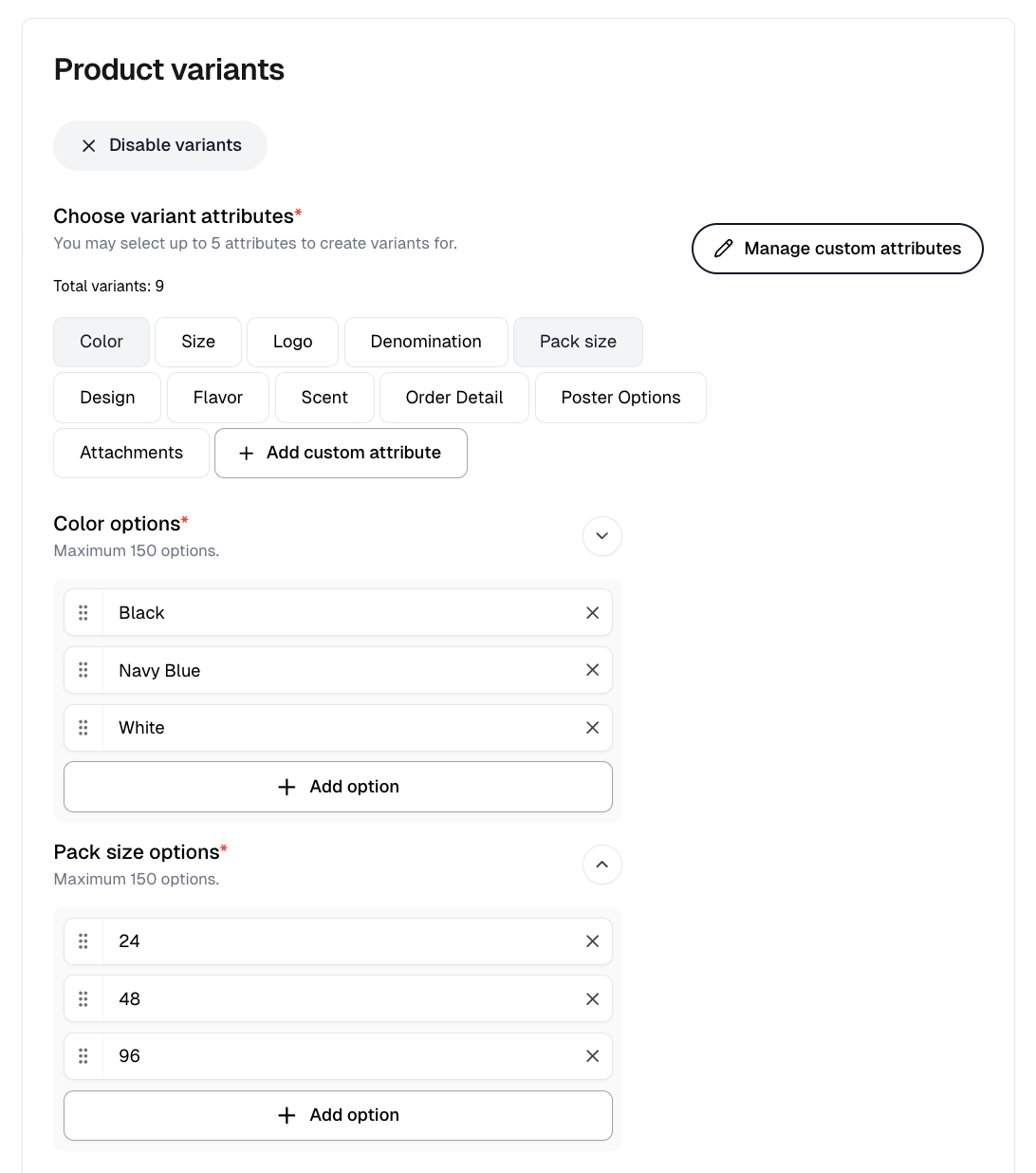
**Add variants** on the Product variants tab starts it, and selects Color and
Size for you.
**Choose variant attributes** picks up to five attributes to build variants
from. Color and Size are the only two offered out of the box. **Add custom
attribute** creates any other, such as Pack size or Flavor, and **Manage custom
attributes** edits the ones you made. A custom attribute belongs to your
business, so it is available to every product afterward.
Each attribute holds its own options, up to 150, such as pack sizes of 24, 48
and 96. The running **Total variants** count tells you how many combinations you
are about to create, which climbs fast across several attributes. A product
carries at most 1,500.
Pricing is then per variant rather than a color and size grid, with a
**Visibility** toggle on each, and **Varied prices** for when options cost
different amounts.
### Advanced
**Item weight** feeds shipping costs, and **Varied weights** lets each size
carry its own, since a 2XL weighs more than an M. Getting these wrong makes
calculated shipping quote the wrong price.
**Tax code** assigns a product tax code for automatic tax calculation.
### The right-hand panel
The panel beside the form stays on every tab, and it is desktop only.
A product built from a catalog blank gets a placement editor there, not a
preview. It shows where each design sits on the product and lets you drag,
resize and rotate that placement. **Editing for all colors** and **Editing this
color only** switch between one placement for the whole product and an override
for the color you are looking at, and **Reset** drops an override back to the
general placement. Changes here save with the rest of the form.
Above it, **Decoration tool** opens the design builder for a blank, and **Apply
artwork** puts an artwork onto a decorated product. Below it, **Notes** are
internal and never shown to customers, and **Performance** reports quantity
sold, revenue and orders containing the product.
## Custom products
A product you define yourself, rather than one built from a catalog blank, works
a little differently.
**Add variants** on the Product variants tab starts it, and selects Color and
Size for you.
**Choose variant attributes** picks up to five attributes to build variants
from. Color and Size are the only two offered out of the box. **Add custom
attribute** creates any other, such as Pack size or Flavor, and **Manage custom
attributes** edits the ones you made. A custom attribute belongs to your
business, so it is available to every product afterward.
Each attribute holds its own options, up to 150, such as pack sizes of 24, 48
and 96. The running **Total variants** count tells you how many combinations you
are about to create, which climbs fast across several attributes. A product
carries at most 1,500.
Pricing is then per variant rather than a color and size grid, with a
**Visibility** toggle on each, and **Varied prices** for when options cost
different amounts.
 ## Grouping products
A group combines similar products into one storefront card, with each product
listed as an option customers switch between. Use it when you sell the same
garment in several designs.
**Group products** at the top of the Products page opens an empty group.
Selecting products first and using **Group products** in the toolbar fills it
with them.
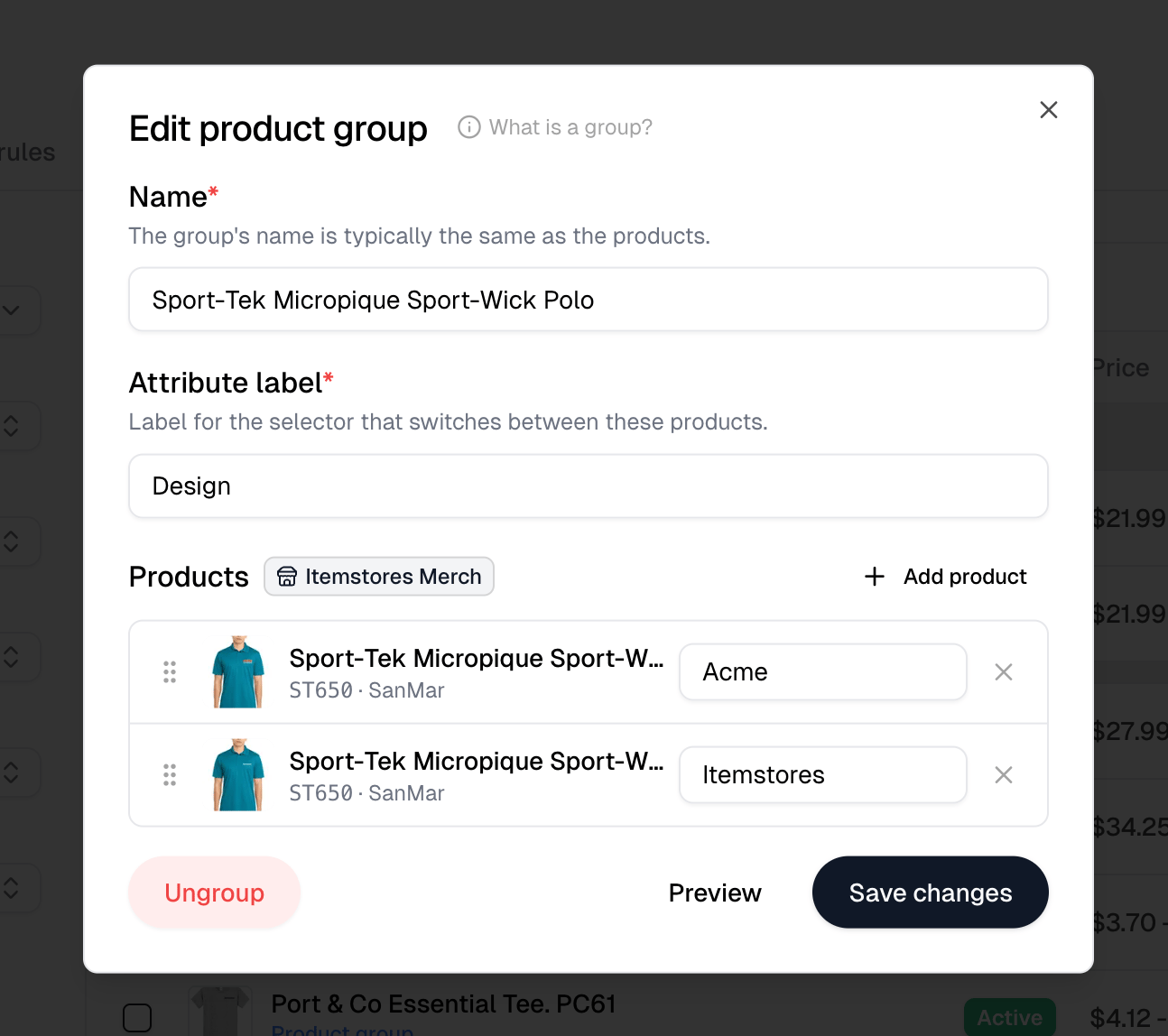
Give the group a name and an **Attribute label**, which is what the storefront
calls the selector, and defaults to Design. **Add product** adds each member. A
group holds between 2 and 20 products.
Each row also carries its own label, and that is what customers pick between. So
a Design selector might offer Acme and Itemstores. Every label in a group has to
be different, and the label defaults from the artwork applied to that product
rather than its name, since members usually share a name.
Drag the rows to set the order the options appear in. The top row is also the
product the storefront card shows, so reordering changes which one represents
the group. **Preview** shows the result and turns into **Edit** to go back.
**Create group** saves a new group, **Save changes** saves an existing one, and
**Ungroup** splits the members back into separate products without deleting any
of them.
Every product in a group must belong to the same store, and the store locks to
the first product you add. Blanks and products with no store cannot be grouped,
a product can belong to only one group, and the **Attribute label** cannot reuse
the name of an attribute the products already have, such as Color.
## Grouping products
A group combines similar products into one storefront card, with each product
listed as an option customers switch between. Use it when you sell the same
garment in several designs.
**Group products** at the top of the Products page opens an empty group.
Selecting products first and using **Group products** in the toolbar fills it
with them.
Give the group a name and an **Attribute label**, which is what the storefront
calls the selector, and defaults to Design. **Add product** adds each member. A
group holds between 2 and 20 products.
Each row also carries its own label, and that is what customers pick between. So
a Design selector might offer Acme and Itemstores. Every label in a group has to
be different, and the label defaults from the artwork applied to that product
rather than its name, since members usually share a name.
Drag the rows to set the order the options appear in. The top row is also the
product the storefront card shows, so reordering changes which one represents
the group. **Preview** shows the result and turns into **Edit** to go back.
**Create group** saves a new group, **Save changes** saves an existing one, and
**Ungroup** splits the members back into separate products without deleting any
of them.
Every product in a group must belong to the same store, and the store locks to
the first product you add. Blanks and products with no store cannot be grouped,
a product can belong to only one group, and the **Attribute label** cannot reuse
the name of an attribute the products already have, such as Color.
 ## Changing many products at once
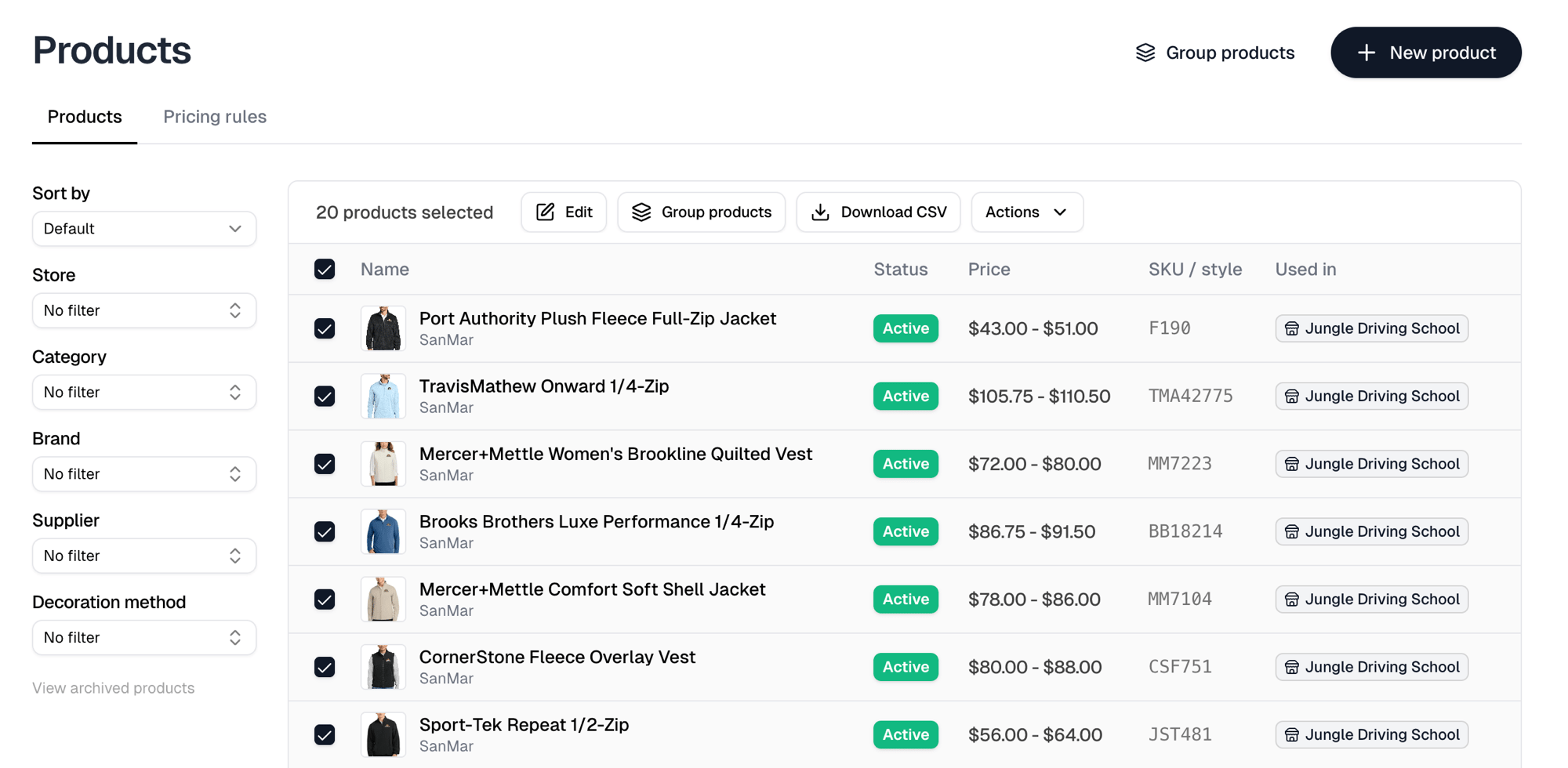
Select products to reveal a toolbar:
| Action | What it does |
| -------------- | ----------------------------------------------------------------------------------------------- |
| Edit | Opens **Bulk edit products** for one operation across the selection |
| Group products | Combines them into one storefront card |
| Download CSV | Exports the selection |
| Actions | Copy, Activate, Deactivate, Archive and Delete. On the archived list, Archive reads **Restore** |
**Edit** runs one **Operation** over every selected product: Edit price, Edit
variant prices by attribute, Add pricing rules, Remove pricing rules, Edit
category or Edit tax code. Editing prices directly removes any pricing rules
from the products it touches.
## Changing many products at once
Select products to reveal a toolbar:
| Action | What it does |
| -------------- | ----------------------------------------------------------------------------------------------- |
| Edit | Opens **Bulk edit products** for one operation across the selection |
| Group products | Combines them into one storefront card |
| Download CSV | Exports the selection |
| Actions | Copy, Activate, Deactivate, Archive and Delete. On the archived list, Archive reads **Restore** |
**Edit** runs one **Operation** over every selected product: Edit price, Edit
variant prices by attribute, Add pricing rules, Remove pricing rules, Edit
category or Edit tax code. Editing prices directly removes any pricing rules
from the products it touches.
 ## The list
Filter down the left by store, category, brand, supplier or decoration method,
reorder with **Sort by**, and narrow across the top by **All**, **Active**,
**Inactive** or **Grouped**. **View archived products** shows what you have
archived.
Each row shows its status, price range, SKU / style, and which stores it is
**Used in**.
## The list
Filter down the left by store, category, brand, supplier or decoration method,
reorder with **Sort by**, and narrow across the top by **All**, **Active**,
**Inactive** or **Grouped**. **View archived products** shows what you have
archived.
Each row shows its status, price range, SKU / style, and which stores it is
**Used in**.