> ## Documentation Index
> Fetch the complete documentation index at: https://itemstores.com/help/llms.txt
> Use this file to discover all available pages before exploring further.
# Orders
> Everything customers have bought
An order arrives when a customer checks out of a store or pays a quote. Orders
sits beside Production and Shipping.
## One order
An order opens on five tabs: **Order**, **Payment**, **Purchase orders**,
**Production** and **Shipping**, so everything that happened to it sits in one
place. An order that Fulfill Engine handles end to end shows only **Order** and
**Payment**.
Selecting a fulfillment tab that has nothing in it yet starts the work instead of
showing you an empty tab. **Production** with no work order opens a new work
order, **Shipping** with no shipment opens Buy shipping label, and **Purchase
orders** with no purchase order but items still short opens a new purchase order
with those items loaded.
The **Order** tab lists every item with its decoration, color, sizes and price,
and flags the lines that still need purchasing. Each fulfillment on it carries
its own actions, and which ones appear depends on where it has got to:
* **Split fulfillment** divides one fulfillment in two, so part can ship
separately. It shows while the fulfillment is Unfulfilled, Needs purchasing or
Awaiting PO, and only when it holds more than one item.
* **New purchase order** appears when items are short and no open purchase order
already covers them. **New work order** appears on an unfulfilled fulfillment
that has something to make.
* **Print packing slip** is always there. It reads **Print receipt** on a
Fulfill Engine fulfillment.
* **Buy shipping label** becomes **View shipment** once a label exists. Buying a
second label for the same fulfillment moves into the `⋮` menu, alongside
**Add tracking number**.
Two dropdowns on each fulfillment set its statuses. Fulfillment offers **Needs
purchasing**, **Awaiting PO**, **Unfulfilled**, **Pre-production**, **In
production**, **Ready** and **Cancelled**. Delivery offers only **Pending**,
**Picked up**, **Delivered** and **Returned**. A carrier-set value such as Label
purchased or In transit shows as the current value and cannot be chosen by hand.
Some status changes email the customer. In production, Cancelled, In transit,
Delivered and Picked up each send a notification.
**Details** on the right holds the customer, store, contact details, shipping
method, the shipping address, any answers to the store's checkout questions, and
who the order is assigned to.
## Payment
The **Payment** tab breaks the money down twice. What the customer paid is
subtotal, shipping and tax. What you keep is revenue, minus fees, giving net.
Where credits paid part of the fees, the Fees row says how much they covered.
**Refund payment** refunds up to what is still refundable, in full or in part,
and emails the customer to say so. On an order that came from a quote the button
is **Manage refunds** instead, and it takes you to the quote's Payments tab.
A refund cannot be undone, and the Itemstores transaction fee on the original
payment is not returned with it.
## With QuickBooks connected
Connecting [QuickBooks Online](/help/knowledge-base/settings/integrations/quickbooks) adds a
sync badge to each order, a **Needs QBO sync** filter, and a
**Bill point redemptions** action. None of that appears otherwise.
## Acting on several at once
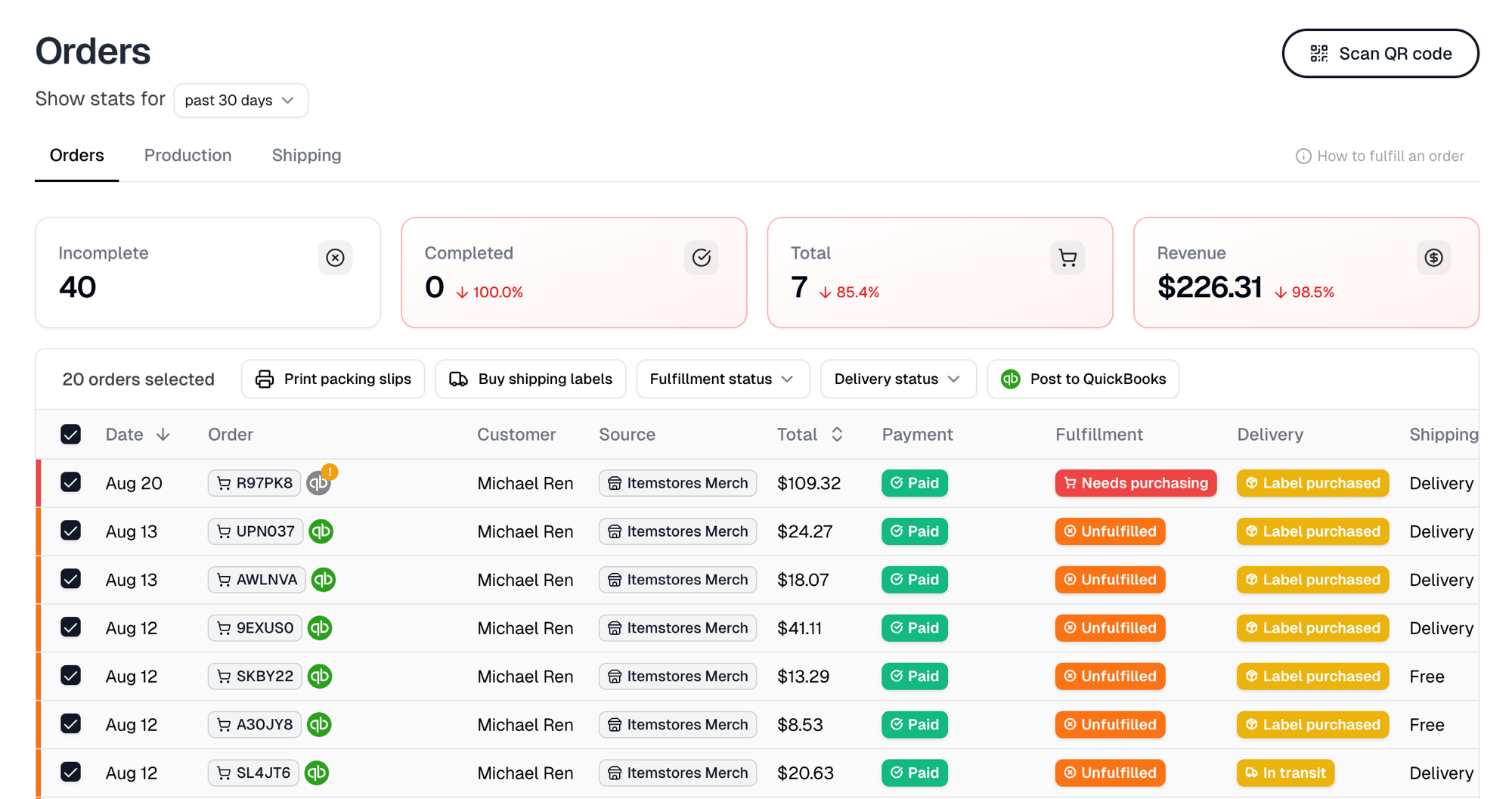
There is no standing bulk button. Select orders and the filter row is replaced by
a toolbar with **Print packing slips**, **Buy shipping labels**, and controls to
set **Fulfillment status** and **Delivery status** across the selection.
**Post to QuickBooks** joins them when QuickBooks is connected.
A bulk status change emails the customer on the same statuses a single change
does.
A selection carries across pages and clears when you change the filter or the
search. It holds at most 200 orders, which is the packing-slip limit. Buying
labels and changing status run on 100 at a time, and posting to QuickBooks on 50.
 ## Marking an order picked up
**Scan QR code** opens your camera. Point it at the QR code on the customer's
receipt or packing slip and the order is marked as picked up.
This is how a pickup-only store closes out an order without buying a label.
## The list
Cards show **Incomplete**, **Completed**, **Total** and **Revenue** for the
window set by **Show stats for**.
Filter with **All**, **Incomplete**, **Needs purchasing** or **Pending
delivery**. **Assigned** joins them once at least one order is assigned to you.
Each order carries three separate statuses, rolled up from its fulfillments:
| Status | How it moves |
| ----------- | ----------------------------------------------------------------------------------------------------------------------------------------------------------------------------------------- |
| Payment | **Paid** once the customer has paid, then **Partially refunded** or **Refunded** |
| Fulfillment | **Needs purchasing** while stock is short, **Awaiting PO** once an open purchase order covers it, **Unfulfilled** once the stock is allocated, then the production stages up to **Ready** |
| Delivery | **Pending**, **Label purchased** once a label exists, then the carrier's tracking stages through to **Delivered** |
## Marking an order picked up
**Scan QR code** opens your camera. Point it at the QR code on the customer's
receipt or packing slip and the order is marked as picked up.
This is how a pickup-only store closes out an order without buying a label.
## The list
Cards show **Incomplete**, **Completed**, **Total** and **Revenue** for the
window set by **Show stats for**.
Filter with **All**, **Incomplete**, **Needs purchasing** or **Pending
delivery**. **Assigned** joins them once at least one order is assigned to you.
Each order carries three separate statuses, rolled up from its fulfillments:
| Status | How it moves |
| ----------- | ----------------------------------------------------------------------------------------------------------------------------------------------------------------------------------------- |
| Payment | **Paid** once the customer has paid, then **Partially refunded** or **Refunded** |
| Fulfillment | **Needs purchasing** while stock is short, **Awaiting PO** once an open purchase order covers it, **Unfulfilled** once the stock is allocated, then the production stages up to **Ready** |
| Delivery | **Pending**, **Label purchased** once a label exists, then the carrier's tracking stages through to **Delivered** |