> ## Documentation Index
> Fetch the complete documentation index at: https://itemstores.com/help/llms.txt
> Use this file to discover all available pages before exploring further.
# Inventory
> On hand, available, committed and incoming stock
Inventory tracks the physical stock you hold, per SKU. Products that share a SKU
draw from the same stock. Inventory and
[Purchase orders](/help/knowledge-base/purchase-orders) are two tabs of the same screen.
To track inventory for pre-decorated products, you should update the SKU for
those products to be separate from the supplier SKU. For example,
`3001-STANFORD` instead of `3001` for a pre-decorated Stanford tee.
## The four numbers
| Number | What it means |
| --------- | --------------------------------------------------- |
| On hand | Your physical shelf count. Available plus committed |
| Available | Free stock that new orders draw from |
| Committed | Stock already allocated to incomplete orders |
| Incoming | Stock on open purchase orders |
An item needs purchasing when incomplete orders aren't covered by available or
incoming stock. Itemstores works that out across every open order, which is why
you create one purchase order instead of checking orders one at a time.
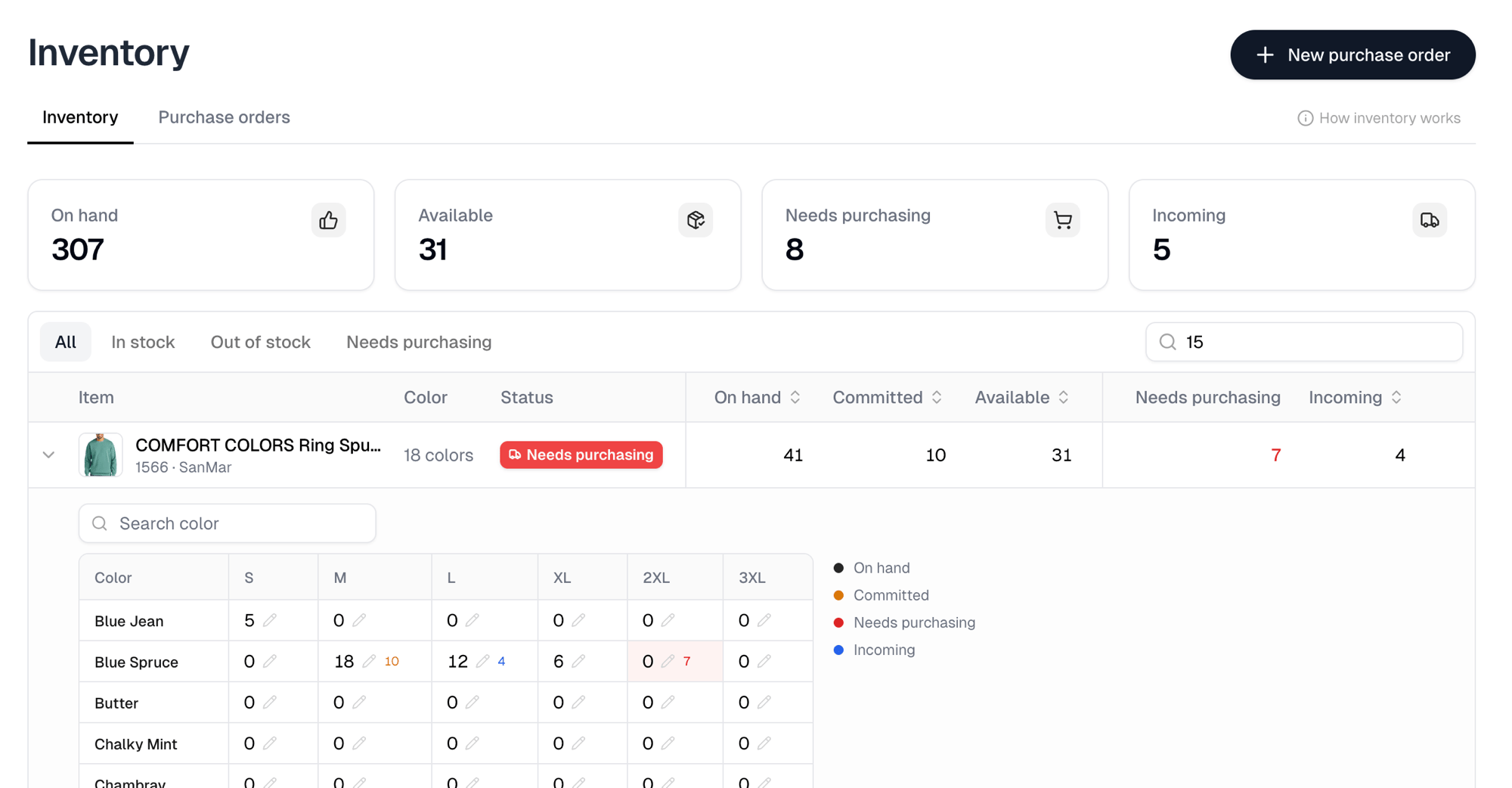
The cards across the top total **On hand**, **Available**, **Needs purchasing**
and **Incoming** for the whole business.
## Finding what to buy
Filter the table with **All**, **In stock**, **Out of stock** or
**Needs purchasing**. A row that needs buying carries a red
**Needs purchasing** badge in its **Status** column, and the count appears in a
column of its own. In stock means available stock, not on hand, so a SKU whose
whole shelf is committed reads as out of stock.
**New purchase order** is on this page, so you can go straight from the shortfall
to ordering it.
## Sizes and colors
Expand a row to see its variants. A product with exactly two attributes lays
them out as a grid, colors down and sizes across. Anything else lists the
variants instead. The large number in each cell is on hand. The small colored
numbers beside it follow the legend: amber for committed, red for needs
purchasing, blue for incoming, and each one appears only when there is something
to show.
 ## Changing a quantity
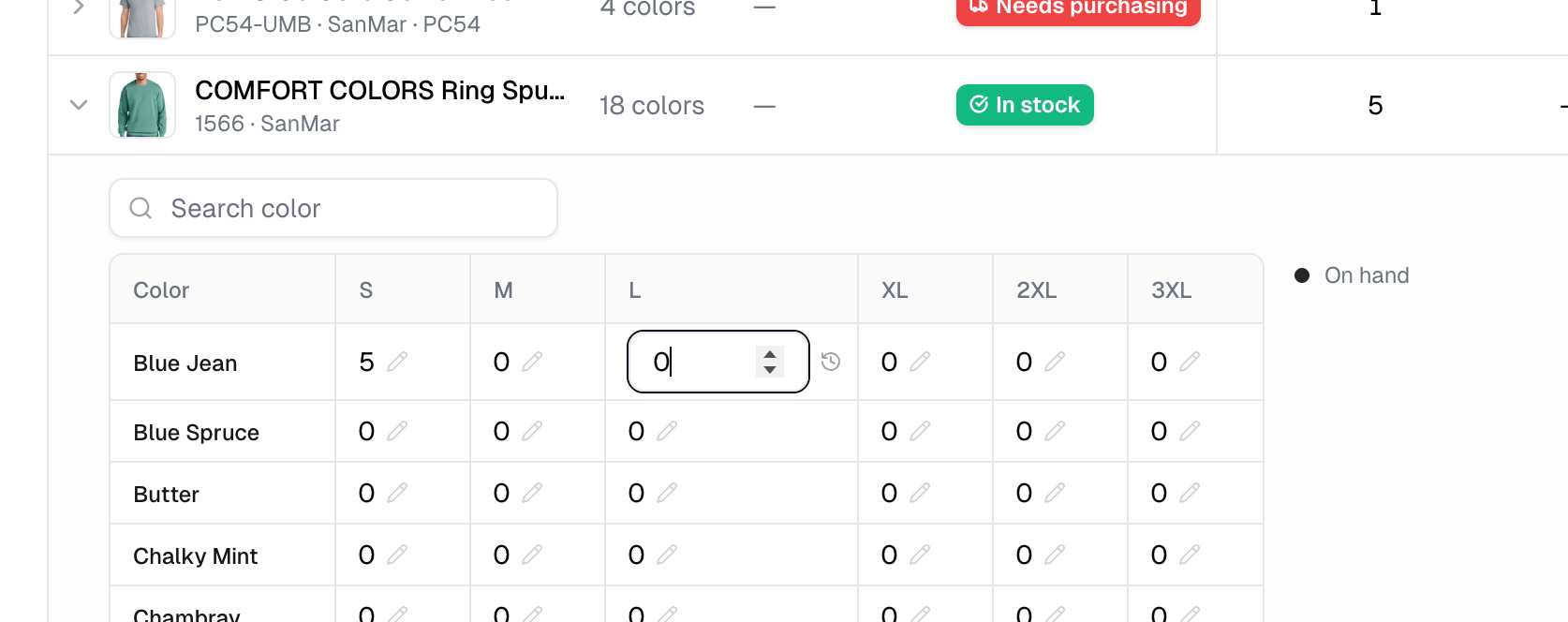
To correct stock you already hold, edit **On hand** directly. Select the pencil
beside a quantity and type the new number. A SKU with a single variant is edited
on its row; a SKU with several is edited per variant in the expanded grid.
Entering a number below the **Committed** count opens **Set on hand below
committed?**. Confirming with **Update on hand** takes the missing units back
from the most recent orders, which may move them back to needs purchasing if the
shortfall isn't covered by incoming purchase orders.
Raising the number allocates the new stock to your oldest open demand first, so
typing the old number back does not put the units back on the orders that lost
them.
Hover a cell and select the clock icon to open that item's **Stock history**, so
you can see what moved the number before you change it, and what your own
adjustment did after.
## Changing a quantity
To correct stock you already hold, edit **On hand** directly. Select the pencil
beside a quantity and type the new number. A SKU with a single variant is edited
on its row; a SKU with several is edited per variant in the expanded grid.
Entering a number below the **Committed** count opens **Set on hand below
committed?**. Confirming with **Update on hand** takes the missing units back
from the most recent orders, which may move them back to needs purchasing if the
shortfall isn't covered by incoming purchase orders.
Raising the number allocates the new stock to your oldest open demand first, so
typing the old number back does not put the units back on the orders that lost
them.
Hover a cell and select the clock icon to open that item's **Stock history**, so
you can see what moved the number before you change it, and what your own
adjustment did after.
 Editing **On hand** is for stock you already have. Stock arriving from a supplier
should come in through a [purchase order](/help/knowledge-base/purchase-orders) instead, so
it counts as incoming until it lands.
Editing **On hand** is for stock you already have. Stock arriving from a supplier
should come in through a [purchase order](/help/knowledge-base/purchase-orders) instead, so
it counts as incoming until it lands.