> ## Documentation Index
> Fetch the complete documentation index at: https://itemstores.com/help/llms.txt
> Use this file to discover all available pages before exploring further.
# Contacts
> The people and organizations you sell to
A contact is a person you sell to. They are who a
[quote](/help/knowledge-base/quotes) or [proposal](/help/knowledge-base/proposals) is addressed to, and
who an order belongs to.
## Adding a contact
**New contact** needs a first name, last name and email. Phone, organization and
internal notes are optional, and **Add address** attaches a shipping address.
Contacts are also created automatically when someone buys from one of your
stores, so most of this list fills itself in.
## A contact's page
Their details sit at the top and are editable in place. Change a field and
select **Save changes**. Notes save on their own as you type.
Every order they have placed sits below, filterable by **Incomplete**,
**Needs purchasing** or **Pending delivery**. This is the fastest way to answer
"what has this customer ordered from us", and it spans every store rather than
one.
**Delete contact**, in the menu beside **Save changes**, removes the contact and
everything attached to it. It cannot be undone.
## The list
Each contact shows their email, phone, order count, when they became a contact,
their last order, and **Purchased from**, which is the stores they have bought
from. The dropdown beside the search box narrows what the search looks at: all
columns, contact, email, phone, or purchased from.
Selecting rows hides the search and reveals **Download CSV** for the contacts you
picked.
## Organizations
The **Organizations** tab groups contacts under the company, school or team they
belong to.
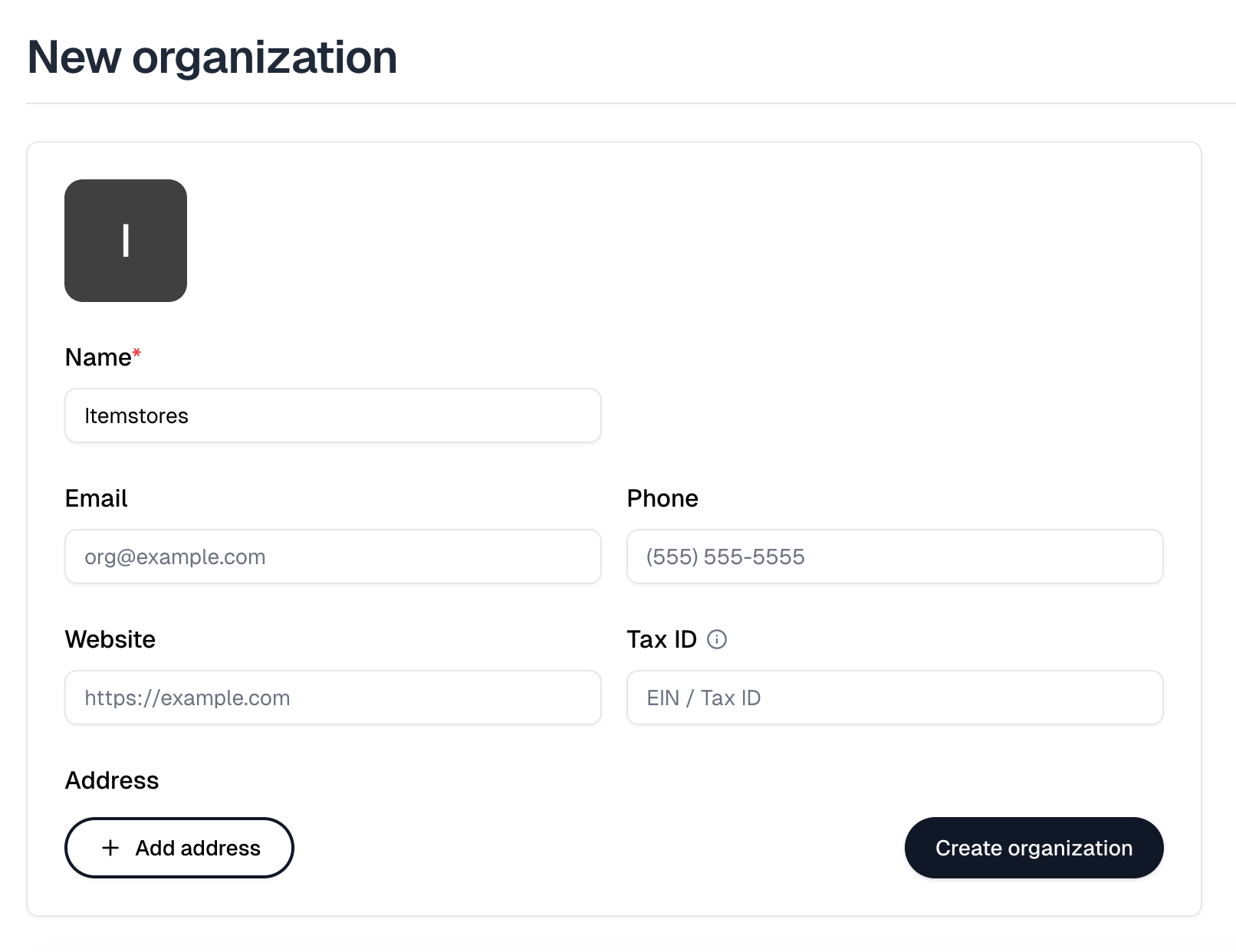
**New organization** needs only a name. Email, phone, website, address and
**Tax ID** are all optional, and an organization keeps its own notes.
Its **Members** list is every contact assigned to it, with their email and phone.
There is no way to add one from here. Set a contact's **Organization** on the
contact itself. Selecting members reveals **Download CSV**.