> ## Documentation Index
> Fetch the complete documentation index at: https://itemstores.com/help/llms.txt
> Use this file to discover all available pages before exploring further.
# Artwork
> Designs, colorways and approvals
Artwork is a design you put on products. Each one carries its colorways, an
approval status, and a count of how many times it has been used.
## Uploading
**New artwork** opens a menu of two kinds of file:
| Choice | File |
| --------------- | ------------------------------------- |
| Image | A PNG, JPG or other image file |
| Embroidery file | A DST file, which carries thread data |
An image uploads and takes you straight to the new artwork. A DST is read first,
so you name it and assign a thread color to every sequence before **Save
embroidery artwork** becomes available.
Upload the DST when a design will be embroidered. Without one, the embroidery
upcharge rule does not apply and the product is priced without it.
## Approval
Artwork is **Draft**, **Approved**, **Rejected** or **Archived**, set from the
badge beside its name. The list filters by the first three, and **View archived
artwork** reaches the fourth.
The **Send for approval** panel emails one or more contacts, with an optional
message, for a design a client needs to sign off before you print it. Pick the
contacts, then **Send message**, which stays disabled until at least one contact
is selected.
**Approval history** lists what you sent and what came back. A request that goes
unanswered past its expiry reads Expired, and a pending one can be revoked.
## Colorways
A colorway is one recoloring of the artwork, so the same design can print light
on dark garments and dark on light ones. One is marked **Default**.
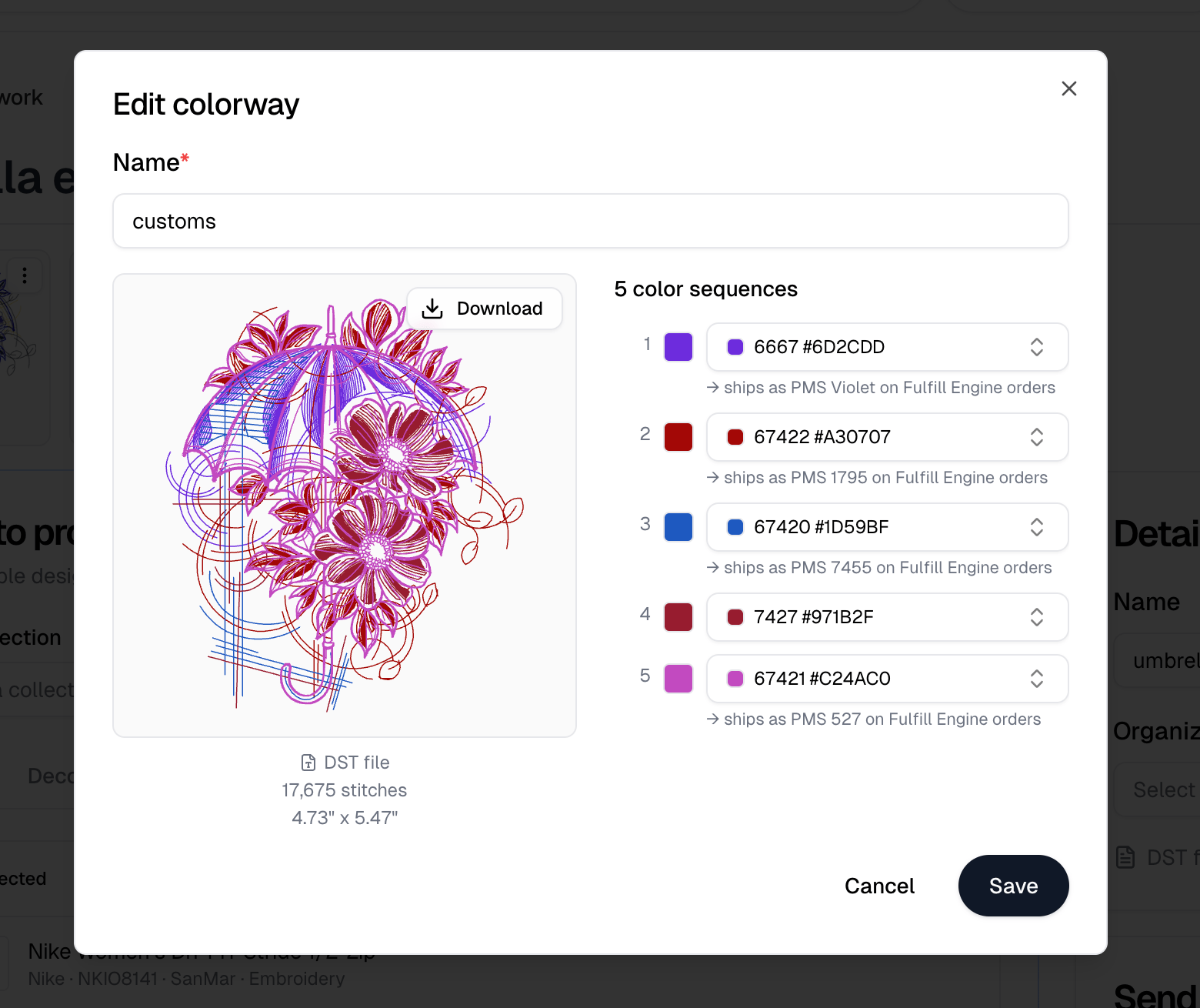
**Add colorway** creates another. Selecting one opens **Edit colorway**, and what
you can set depends on the file:
| File | You can set |
| ---------- | ----------------------------------------------------------------------------------------------------------------------------------------------- |
| Image | Its name and the colors it uses, with **Auto-detect colors** and **Posterize image** to simplify a complex file |
| Embroidery | Its name and each thread color in sequence, with the DST's stitch count and dimensions shown. Every sequence has to be assigned before it saves |
With [Fulfill Engine](/help/knowledge-base/settings/integrations/fulfill-engine)
connected, a thread you picked that is not itself a Fulfill Engine thread shows
the PMS color it ships as on Fulfill Engine orders, so you can see what the
decorator will actually be given.
Deleting a colorway is permanent, and deleting the only one deletes the whole
artwork. **Hide** keeps a colorway you may need later.
 ## Putting it on products
**Apply to products** puts the artwork on blanks or on products you have already
decorated. See [Apply to products](/help/knowledge-base/artwork/apply).
## Putting it on products
**Apply to products** puts the artwork on blanks or on products you have already
decorated. See [Apply to products](/help/knowledge-base/artwork/apply).